
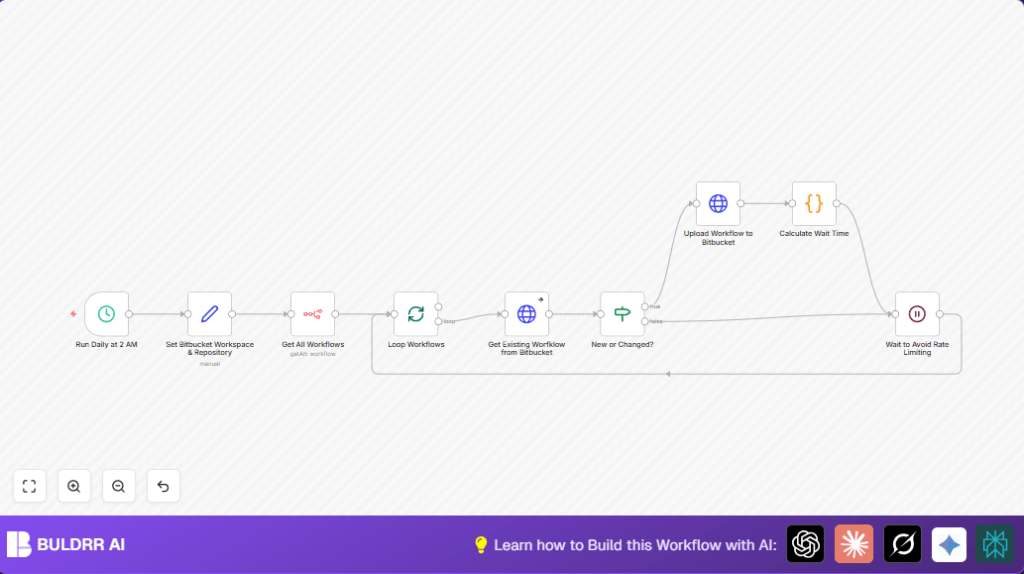

What This Workflow Does
This workflow automatically backs up all n8n workflows to a Bitbucket repository every day at 2 AM.
It solves the problem of manual exports and uploads, avoiding mistakes and saving time.
The result is a reliable daily backup of all workflows with smart handling of Bitbucket API rate limits.
Who Should Use This Workflow
This workflow is for anyone using n8n to create many workflows that need regular backups.
It is good if manual backup is slow, error-prone, or if Bitbucket API limits cause upload failures.
Tools and Services Used
- n8n: Automation platform with nodes for API calls and workflow control.
- Bitbucket API: Used to get and update workflow files in the repository.
- HTTP Basic Auth: Secure login method for Bitbucket API requests.
- n8n Nodes: Schedule Trigger, Set, n8n API, Split In Batches, HTTP Request, Code, Wait, and If nodes.
Inputs, Processing Steps, and Output
Inputs
- Daily trigger at 2 AM.
- Bitbucket workspace and repository info.
- All current workflows from n8n environment.
Processing Steps
- Fetch all workflows via n8n API.
- Split workflows to process one at a time.
- For each workflow, request existing file from Bitbucket.
- Compare local and Bitbucket workflows to detect new or changed files.
- If changed or new, upload the workflow JSON to Bitbucket with a commit message.
- Read Bitbucket API rate limit headers.
- Run code to calculate wait time based on remaining API calls and reset time to avoid limits.
- Wait before next API request.
- Repeat for all workflows.
Output
Bitbucket repository updated with new or changed workflow files.
Backup runs every day without manual intervention or hitting API limits.
Beginner Step-by-Step: How to Use This Workflow in n8n
1. Import the Workflow
- Download the workflow file using the Download button on this page.
- In the n8n editor, click the menu and choose “Import from File”.
- Select the downloaded file to add it to your workspace.
2. Configure the Workflow
- Go to the Set node and update
WorkspaceSlugandRepositorySlugto match your Bitbucket workspace and repository. - Make sure the HTTP Request nodes use correct authentication with your Bitbucket HTTP Basic Auth credentials.
3. Test the Workflow
- Run the workflow manually once to check it works and backups start.
- Look for errors and verify commits appear in Bitbucket.
4. Activate the Workflow
- Turn on the workflow to run every day at 2 AM automatically.
- Make sure your n8n instance runs continuously; consider self-host n8n options for uptime.
Handling Edge Cases and Failures
- If the workflow file is not found on Bitbucket, the workflow uploads it as new.
- If an API call returns 404, check if the workflow filename is sanitized correctly.
- If rate limit errors appear, increase wait time in the Code node that calculates wait.
- If authentication fails, update Bitbucket credentials stored in n8n.
Customization Ideas
- Change the daily schedule time in the Schedule Trigger node.
- Set branch or subfolder path in Bitbucket by modifying URLs in HTTP Request nodes.
- Limit backups to specific workflows by modifying the n8n API node filter.
- Adjust wait times and rate limit thresholds in the Code node to fit your Bitbucket limits.
Summary of Benefits and Results
✓ Saves about 30 minutes per day by automating backups.
✓ Prevents errors from manual backup or overwriting.
✓ Handles Bitbucket API limits dynamically to avoid failures.
✓ Provides versioned backups in Bitbucket with clear commit messages.
