

What This Workflow Does
This workflow reads a list of product page URLs from Google Sheets.
It uses ScrapingBee to take full-page screenshots of these webpages.
Then, it sends these screenshots to Google Gemini’s AI to find product details like titles, prices, brands, and promotions.
If the AI can’t find complete info visually, it automatically gets the page’s HTML and tries again.
All found data is changed into a neat JSON list and saved back to another Google Sheets tab.
This saves time by replacing slow, error-prone manual scraping with smart automation.
Who Should Use This Workflow
This fits anyone needing to gather competitor product info weekly.
It is made for users with basic Google Sheets and n8n experience.
Good for e-commerce analysts, market researchers, or online sellers who want faster and reliable web data.
Users without coding skills find it easy because no custom programming needed.
Tools and Services Used
- Google Sheets API: To read and save product URLs and scrape results.
- ScrapingBee API: To get full web page screenshots and HTML content.
- Google Gemini (PaLM) API: The vision-based AI model to extract product info from screenshots and HTML.
- n8n workflow automation platform: Runs and connects all these steps without coding.
Inputs, Processing Steps, and Output
Inputs
- Google Sheets with a list of product page URLs to scrape.
- API keys for ScrapingBee and Google Gemini services.
Processing Steps
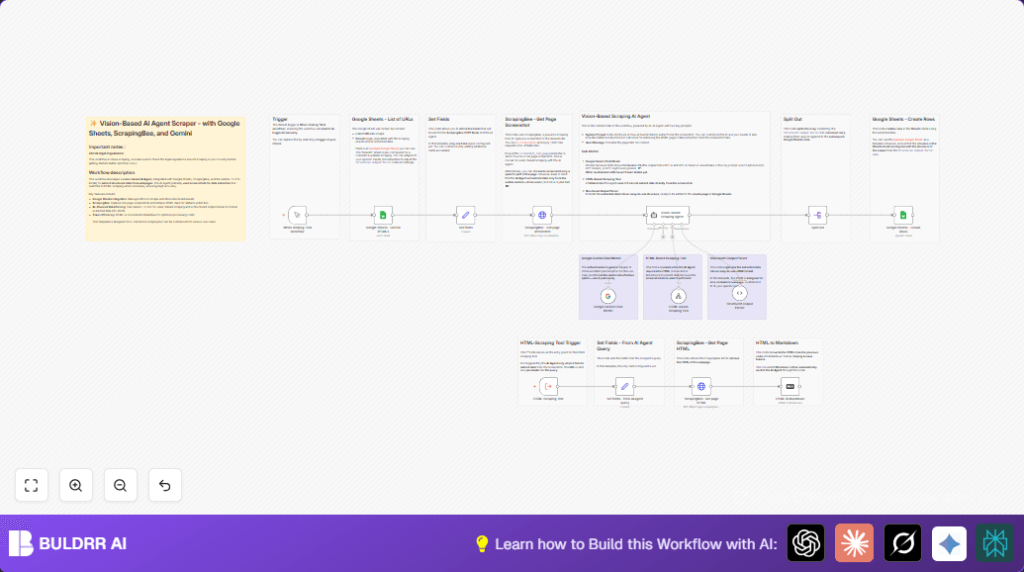
- Retrieve URLs from Google Sheets using the Google Sheets node.
- Set and pass each URL in the Set node for the next HTTP request.
- Request full-page screenshots from ScrapingBee HTTP Request node.
- Send screenshots to Google Gemini AI via the Vision-based AI Agent node, trying to extract product details visually.
- If the AI misses info, fallback runs a HTML scrape using the subworkflow with ScrapingBee and gives the HTML markdown to AI for parsing.
- Parse AI’s raw output into structured JSON with the Structured Output Parser node.
- Split JSON array into single rows using a Split Out node.
- Append all product data as rows in the Google Sheets “Results” sheet with the Google Sheets – Create Rows node.
Output
Clean, structured rows in the Google Sheets results tab containing product titles, prices, brands, and promotions for easy review.
Beginner Step-by-Step: How to Use This Workflow in n8n Production
Step 1: Import the Workflow
- Download the workflow file using the Download button on this page.
- Open your n8n editor where you want to run this automation.
- Click on Import from File in the n8n interface.
- Upload the downloaded workflow file.
Step 2: Configure Credentials and IDs
- Add your ScrapingBee API Key in the nodes that make HTTP requests to ScrapingBee.
- Set Google Gemini API credentials in the Vision-based AI Agent node.
- Check the Google Sheets node credentials and make sure your service account has access to the sheets.
- Update the Google Sheets document ID and sheet names if your sheets are differently named.
Step 3: Test the Workflow
- Run the workflow manually using the Manual Trigger node.
- Check the nodes’ output to verify URLs fetched and screenshot or HTML captured.
- Confirm that JSON data is parsed and appended to the Google Sheets results as expected.
Step 4: Activate for Production
- Replace the Manual Trigger node with a Cron node for scheduled scraping or a Webhook node for on-demand runs.
- Enable the workflow to run automatically in n8n.
- Monitor the workflow runs in n8n logs to check for any errors or changes needed.
For configuring authentication and API keys, copy-paste your credentials directly into node parameters for simple setup.
Using the import method is faster than building from zero, perfect for beginners.
If you are doing self-host n8n, just import and configure the same way inside your server instance.
Customization Ideas
- Change the Structured Output Parser schema to add fields like stock status or product rating.
- Use a Cron node trigger to run scraping on a schedule automatically.
- Modify ScrapingBee API parameters to capture only certain page parts if full page screenshots aren’t needed.
- Swap the Google Gemini AI model if cheaper or better vision models become available.
- Adjust Google Sheets output columns or add formula transformations after scraping for specific reporting formats.
Troubleshooting
- Problem: No data from AI Agent or empty response
Cause: Screenshot was partial or unclear.
Fix: Confirm ScrapingBee’s screenshot_full_page=true and User-Agent header is set properly. - Problem: Google Sheets fails to append rows
Cause: Wrong or missing columns in Google Sheets or no write access.
Fix: Ensure Google Sheets “Results” tab has all column headers exactly matching node mappings and that service account can write. - Problem: HTML fallback scraping is not called
Cause: AI agent’s fallback tool not properly set.
Fix: Check the Vision-based AI Agent node prompt and tool settings to enable fallback call.
Pre-Production Checklist
- Check Google Sheets contains correct URLs in the proper column.
- Confirm ScrapingBee API key is active and has quota for screenshots and HTML requests.
- Test the Vision-based AI Agent node alone with sample screenshots to see if data extracts correctly.
- Ensure Google Sheets service account has both read and write permission for the target sheets.
- Run the entire workflow manually from Manual Trigger node and watch outputs on each node for errors or missing data.
Deployment Notes
Switch the startup trigger from manual to scheduled or webhook for automatic runs.
Observe logs after each run to catch and fix formatting or permission issues early.
If websites update layout, AI prompts or scraping fallback may need prompt tuning or subworkflow adjustments.
Keep an eye on scraping success rate and manually audit rows occasionally.
Summary
→ Extract URLs from Google Sheets easily.
→ Capture full-page screenshots via ScrapingBee.
→ Use Google Gemini AI to pull product details from images.
→ Fallback to HTML parsing if visual extraction fails.
→ Parse and format data in structured JSON.
→ Save each product row neatly in Google Sheets.
→ Save hours of manual work and reduce errors.
