
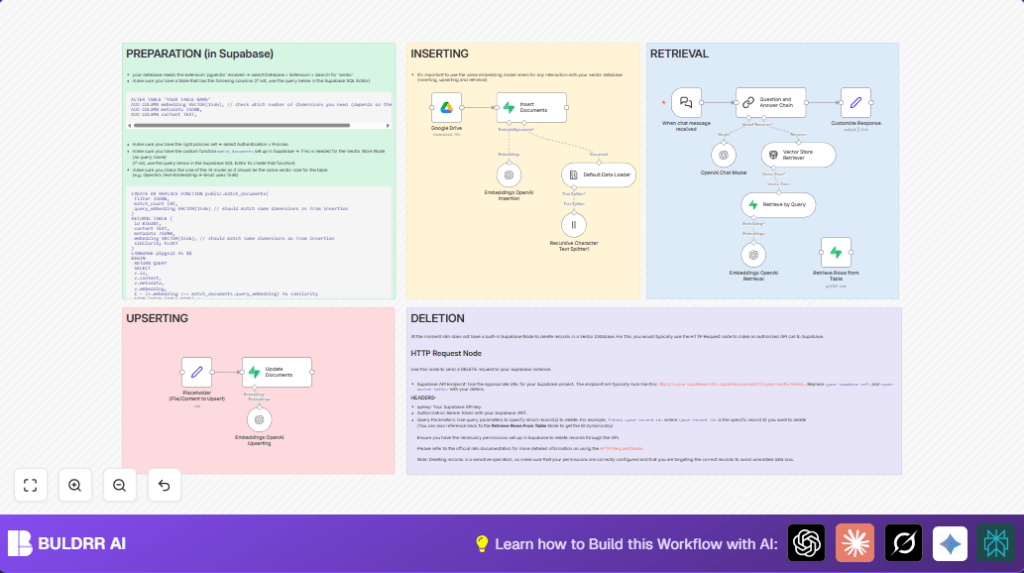

What this workflow does
This workflow helps you ask questions to a big book and get clear answers fast.
It stops you from wasting hours searching through the text manually.
You get useful, exact answers from the book’s words using AI and vector search.
The workflow downloads the book, breaks it into parts, makes those parts searchable by meaning, and answers your questions based on the best matching parts.
Tools and services used
- n8n: for building and running the automation workflow.
- Google Drive: stores the book file to download.
- Default Data Loader: reads the book file into text.
- Recursive Character Text Splitter: breaks the text into small pieces.
- OpenAI Embeddings API (
text-embedding-3-small): converts text pieces to vectors for similarity search. - Supabase with pgvector: stores and lets you search vectors quickly.
- OpenAI Chat Model: answers questions using selected book parts.
- Supabase SQL functions:
match_documentsto find best vector matches. - Webhook node: provides the chat endpoint for asking questions.
Inputs → Processing Steps → Output
Inputs
- Book file in Google Drive (epub format preferred).
- User’s question text entered via chat interface.
Processing Steps
- Download book file automatically using Google Drive node.
- Load book text with Default Data Loader using
epubLoader. - Split loaded text recursively with Recursive Character Text Splitter into manageable chunks.
- Create vector embeddings for chunks via Embeddings OpenAI Insertion node with model
text-embedding-3-small. - Insert or update embeddings and text into Supabase vector table using Insert Documents node.
- From chat input, embed question text with embedding model in Embeddings OpenAI Retrieval.
- Query Supabase vector table using
match_documentsto find most relevant chunks. - Pass retrieved chunks and the question to OpenAI chat model to answer.
- Format and return answer to user via Webhook node.
Output
- Clear, context-aware answer text from the book’s content matching the user’s question.
Who should use this workflow
This is for researchers, students, or anyone needing quick, reliable answers from big texts.
People frustrated by slow searches or scattered notes will find this useful.
You need basic skills to set up API keys and connections, but the workflow automates the hard parts.
Beginner step-by-step: How to use this workflow in n8n
Step 1: Get the workflow file
- Download the workflow file from this page using the “Download” button.
- Open your n8n editor where you want to add the workflow.
- Click “Import from File” and choose the downloaded workflow file.
Step 2: Configure the workflow
- Add your OpenAI API key in the credentials section.
- Enter your Google Drive API credentials so the workflow can download the book.
- Update the Google Drive
fileIdor URL if needed to point to your uploaded book file. - Check Supabase credentials and confirm connection to database with
pgvectorextension. - Adjust table names or SQL function names if you use a custom schema.
- Optional: edit the chat greeting message in the When chat message received node.
Step 3: Test and activate
- Run a test message through the chat webhook URL to see if it returns a meaningful answer.
- Fix any errors shown in n8n execution logs (check API keys, permissions, URLs).
- Once tested, toggle the workflow switch to activate it for real use.
- Start asking questions in your chat client connected to the webhook.
If interested in hosting the workflow yourself, consider using self-host n8n for stability and control.
Common issues and edge cases
No matching documents found error
This means the database doesn’t have data or vectors don’t match in size.
Check you inserted chunks and that your embedding model’s vector size (1536) matches the Supabase vector column.
Empty text after loading book
If the loader returns no text, your book file format may be unsupported or corrupt.
Try re-saving your book as EPUB and ensure the file permissions allow reading.
Permission denied errors with Supabase
Supabase security policies may block access.
Verify RLS policies for insert and select permission, and confirm API keys have needed roles.
Customization ideas
- Change the embedding model in Embeddings OpenAI nodes if you want newer or different embeddings.
- Modify Supabase table names in insertion or retrieval nodes to your own database tables.
- Add functionality to delete vectors using Supabase REST API and HTTP Request node.
- Edit the chat greeting message or instructions to match your style.
- Adjust chunk size in text splitter to find balance between accuracy and performance.
Summary of benefits and results
✓ Cuts down search time from hours to seconds.
✓ Gives direct, context-aware answers from large texts.
✓ Removes errors caused by keyword-only searching.
✓ Easy to operate once set up, no deep programming needed.
✓ Works with open n8n platform and widely used services.