
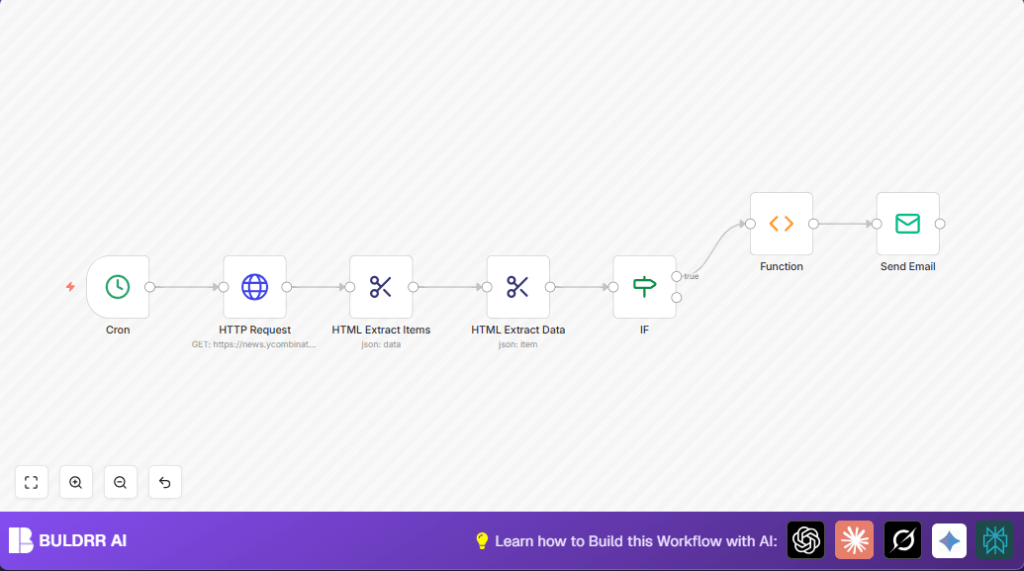

What This Automation Does ⚙️
This workflow runs each day at 1 PM.
It fetches the Hacker News homepage HTML.
It finds posts with titles that contain “Show HN:” and are trending.
The workflow lists these posts with their ranks and URLs.
Then it sends this list as a clean email to people you choose.
This helps avoid spending time looking through all posts by hand.
You get only the most interesting Show HN posts every day without errors.
Workflow Inputs, Processing, and Outputs
Inputs
- Cron trigger: Time set to 1 PM daily to start the workflow.
- Hacker News frontpage HTML: HTTP Request grabs current homepage code.
Processing Steps
- HTML Extract Items node: Selects each story row (using CSS selector
tr.athing). - HTML Extract Data node: Pulls out rank, title, and URL from each post.
- IF node: Filters posts so only titles with “Show HN:” proceed.
- Function node: Formats a text email body with rank, title, URL for each Show HN post.
Output
- Email Send node: Sends a ready email alert with daily trending Show HN posts.
Who Should Use This Workflow
This is for people who want to save time sending daily Show HN posts.
If you spend time copying titles and links from Hacker News manually, this fits.
Also, it helps if you want only relevant posts without email clutter.
Tools and Services Used
- n8n Automation Platform: Runs the workflow with nodes.
- Hacker News website: Public source for latest posts.
- SMTP Email Service: Sends the daily email alert.
Beginner Step-by-Step: How to Use This Workflow in n8n
Step 1: Import the Workflow
- Click the Download button on this page to save the workflow file locally.
- In the n8n editor, choose “Import from File.”
- Select the saved workflow file to load it inside n8n.
Step 2: Configure Credentials and Settings
- Add required email SMTP credentials in the Email Send node.
- Update email recipient addresses as needed inside the Email Send node.
- Check and confirm any URLs, IDs, or other parameters match your needs.
Step 3: Test the Workflow
- Manually trigger the workflow inside n8n to check it runs and emails data.
- Look at each node’s output for errors or missing data.
- Fix any configuration problems found in the test.
Step 4: Activate for Production
- Enable the Cron node to start daily scheduled runs.
- Monitor workflow runs by checking execution logs in n8n.
- Optionally, adjust schedule or email settings anytime.
- If using self-host n8n or running on a server, see self-host n8n for hosting help.
Common Customizations
- Change schedule time: Modify Cron node for different daily alert hours.
- Filter by other keywords: Add conditions in IF node for other titles besides “Show HN:”.
- Send alerts to many recipients: Add multiple emails comma-separated in Email Send node.
- HTML formatted emails: Edit the Function node to output HTML for rich email style.
- Save post history: Add Google Sheets or Airtable nodes to log data.
Possible Problems and Fixes
- No posts pass to IF node: Often wrong CSS selectors or missing HTML from HTTP Request; check selectors like
tr.athing. - Email not sent: SMTP credentials missing or invalid; test email setup separately.
- Email content wrong: Function node may have code errors or reference wrong fields; verify proper property names.
Pre-Production Checklist ✅
- Manually trigger Cron node to check timing.
- Confirm HTTP Request outputs full Hacker News page HTML.
- Verify HTML Extract nodes extract correct post data.
- Make sure IF node filters only “Show HN:” posts.
- Send test email to confirm format and delivery.
- Backup workflow and email settings.
Deployment Guide
Activate Cron node after testing.
Watch logs to catch errors at first runs.
Tweaks may be needed if Hacker News page layout changes.
This workflow works well on both n8n cloud and self-host n8n.
Summary
✓ Saves 20+ minutes daily by auto-finding Show HN posts.
✓ Avoids missing any trending Show HN stories on Hacker News.
✓ Sends clean, simple emails with title, rank, and link.
→ Workflow triggers each day at 1 PM automatically.
→ No manual copying or filtering needed once set up.
