
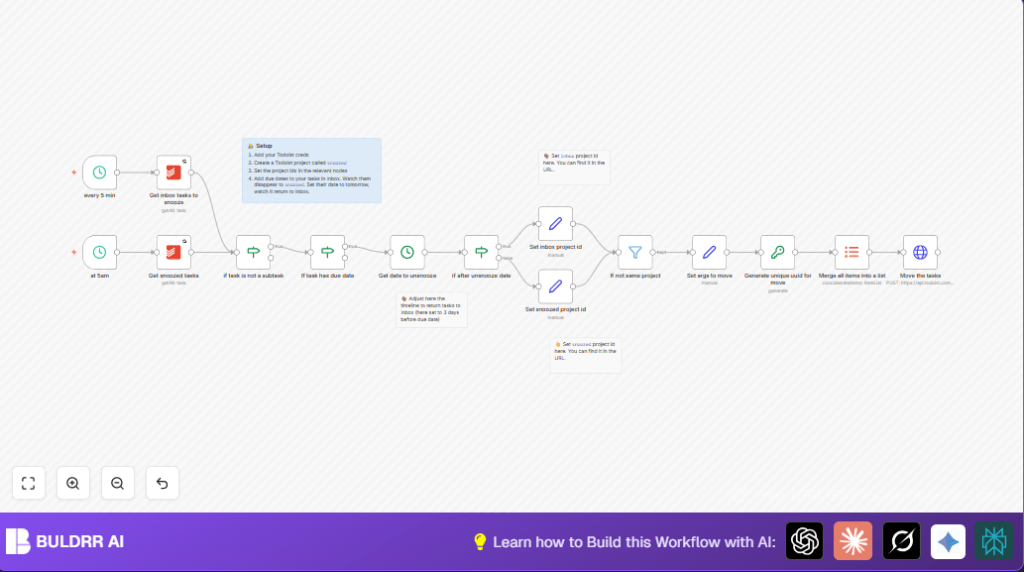

What this workflow does
This workflow moves tasks with due dates from Todoist Inbox to a Snoozed project automatically.
It brings tasks back to the Inbox only when they become actionable based on due dates.
It skips subtasks to keep task structures clean.
This helps keep the Inbox tidy and reduces time spent manually moving tasks.
Who should use this workflow
This workflow is good for people who get many tasks in Todoist Inbox with due dates.
It works well if manual snoozing and unsnoozing wastes time or causes missed deadlines.
Tools and services used
- n8n: for building and running the automation workflow.
- Todoist API: accessed for reading and updating tasks.
- Schedule Trigger nodes: to run the workflow every 5 minutes and once daily at 5 AM.
- HTTP Request node: to send batch commands to Todoist Sync API.
- Crypto node: to generate unique IDs for API commands.
- DateTime node: used to calculate unsnooze times before due dates.
Inputs, Processing, Outputs
Inputs
- All tasks currently in the Inbox project fetched using Todoist API.
- All tasks currently in the Snoozed project fetched similarly.
Processing Steps
- Exclude all subtasks by checking if
parent_idis empty. - Keep only tasks that have a due date.
- For Inbox tasks, move them to Snoozed if they have a due date (to reduce clutter).
- For Snoozed tasks, calculate a date to move back based on subtracting 3 days from due date.
- Check if current time is after that calculated unsnooze date.
- Move tasks back to Inbox if ready.
- Ensure tasks aren’t moved unnecessarily by comparing current and target project IDs.
- Create Todoist Sync API commands with unique UUIDs to batch move tasks.
Output
- Tasks moved between Inbox and Snoozed projects automatically.
- The Inbox only shows actionable tasks close to their due date.
- Snoozed project keeps early tasks out of the way.
Beginner step-by-step: How to use this workflow in n8n
Import the workflow
- Download the workflow file from this page.
- Open n8n editor where the workflow will be run.
- Use the “Import from File” option in n8n to add the workflow.
Configure the workflow
- Add Todoist API credentials in the credential manager.
- Update the Inbox and Snoozed project IDs in the designated Todoist nodes.
- Check and adjust times or other variables if you want to customize behavior.
Test and activate
- Run the workflow manually once to verify it works and check logs.
- When confirmed, activate the workflow to run automatically as scheduled.
What to watch for
If tasks do not move, check project IDs and API permission scopes.
If dates seem wrong or tasks stay snoozed, verify the date subtraction settings and date field mappings.
Make sure both schedule triggers are enabled and firing.
Always back up important data before activating this workflow.
Customization ideas
- Change how many days before due date a task unsnoozes by editing the DateTime node duration.
- Allow subtasks to be moved by changing the condition in the subtask filter node.
- Adjust the schedule trigger frequency, for example run every 10 minutes instead of 5.
- Duplicate and expand the workflow to support multiple Inbox or Snoozed projects.
Summary
✓ Saves time by automating task moving in Todoist.
✓ Keeps Inbox clean until tasks are ready.
✓ Reduces missed deadlines and manual errors.
→ Runs every 5 minutes and daily to maintain task order.
→ Uses robust Todoist API commands with unique IDs.
