

What This Workflow Does
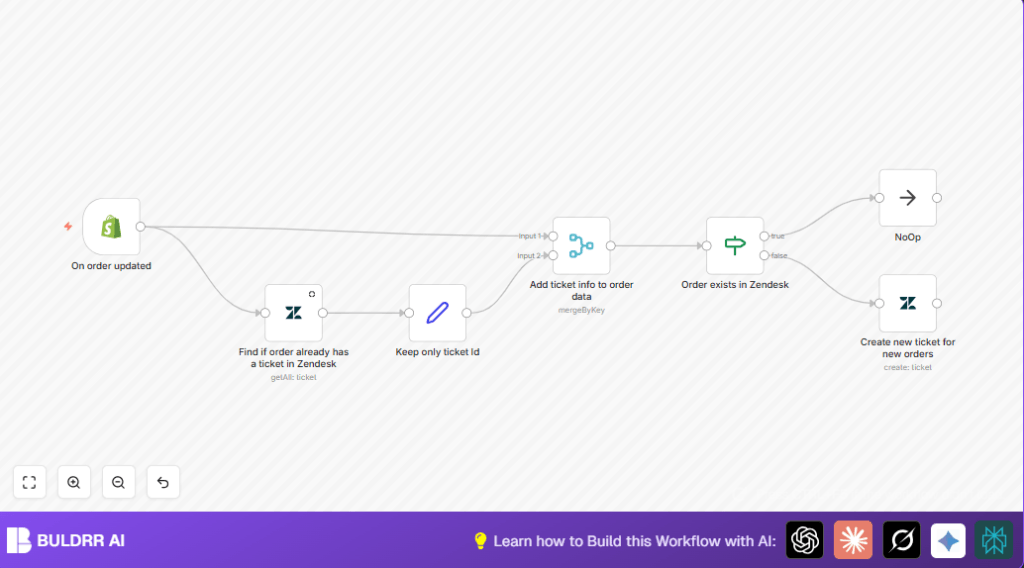
This workflow watches for updates on Shopify orders. It checks if an open ticket for that order already exists in Zendesk. If not, it makes a new ticket automatically. This helps teams never miss support needs when orders change.
The workflow saves time and stops duplicate tickets. It keeps order info and support tickets linked.
Tools and Services Used
- Shopify Trigger node: Listens for order status or note updates.
- Zendesk node: Queries and creates support tickets.
- Set node: Picks only important ticket data.
- Merge node: Joins order and ticket info by matching order numbers.
- If node: Checks if a Zendesk ticket exists to control flow.
Input → Process → Output
Inputs
- Shopify order update webhook data with order details.
Processing Steps
- Shopify Trigger node captures order updates.
- Zendesk node searches open tickets filtering by order number as external ID.
- Set node extracts ticket ID and external ID for easier matching.
- Merge node combines order data with any found ticket info.
- If node checks if the ticket ID exists to decide next steps.
- If no ticket found, Zendesk node creates a new ticket with order and customer details.
Output
- New Zendesk support ticket for orders missing tickets.
- No action if ticket already exists, avoiding duplicates.
Beginner Step-by-Step: How To Use This Workflow in n8n
Step 1: Import the Workflow
- Download the workflow using the Download button on this page.
- Inside the n8n editor, choose “Import from File” to add the workflow.
Step 2: Configure Credentials
- Add Shopify API Key in the Shopify Trigger node credentials.
- Add Zendesk API Key and URL in the Zendesk nodes credentials.
- Make sure the external IDs match the order numbers used in Shopify and Zendesk.
- If any IDs, emails, or fields differ in your setup, update them now.
Step 3: Test the Workflow
- Trigger a test update on a Shopify order.
- Check if the workflow detects it and creates or skips Zendesk ticket properly.
Step 4: Activate the Workflow
- Toggle the workflow to active in n8n.
- From now on, Shopify order updates will sync with Zendesk tickets automatically.
For running self-host n8n, see this helpful resource if hosting on your own server.
Customization Ideas
- Change ticket status in the Zendesk create ticket node (open, pending, solved).
- Add extra order info in ticket descriptions like payment or shipping details.
- Adjust Zendesk query to include closed tickets if needed.
- Add Slack node to notify support teams about new tickets.
- Filter Shopify Trigger data to handle only specific events like cancellations.
Troubleshooting
Missing Shopify Webhook Calls
Check if the webhook URL from the Shopify Trigger node is registered in Shopify admin under Webhooks for topic “orders/updated”.
Zendesk Query Returns No Results
Make sure the external_id used matches Shopify order number exactly and the filter targets open tickets.
Duplicate Tickets Created
Verify the If node condition checks ZendeskTicketId is not empty and Zendesk query filters only open tickets.
Pre-Production Checklist
- Confirm Shopify API access and that webhook fires properly on order updates.
- Ensure Zendesk API credentials can list and create tickets.
- Test Zendesk query node with sample order number separately.
- Run a test order update to verify ticket creation or skip logic.
- Backup Zendesk tickets and Shopify order data before activating workflow.
Deployment Guide
Turn on the workflow in n8n after testing. Monitor runs in the n8n dashboard to confirm no errors.
If errors happen, check node logs to find the issue. Setup alerts for failures if desired.
Summary
✓ Saves about 10+ hours per week by automating order and support ticket sync.
✓ Avoids duplicate Zendesk tickets by checking existing open tickets.
✓ Keeps customer support informed about every Shopify order update.
→ Ensures no order changes are missed in customer service.
→ Allows easy customization and integration with notifications or filters.