

1. What this workflow does
This workflow reads natural language commands from different chat or message sources.
It turns those commands into exact Proxmox API actions to manage virtual machines (VMs).
This solves the hard and error-prone task of manual Proxmox VM management by automating API calls.
Users get fast, reliable VM creation, updates, and status changes without writing code.
2. Who should use this workflow
Anyone running virtual machines on Proxmox who wants to speed up daily tasks.
This is good for system administrators without deep scripting skills.
The workflow works with various input methods like Telegram, Gmail, webhooks, or chat systems.
3. Tools and services used
- Proxmox VE API: Controls virtual machines on nodes psb1, psb2, psb3.
- Google Gemini AI: Converts natural language commands into API calls.
- n8n automation platform: Orchestrates triggers, AI processing, and HTTP requests.
- Telegram Bot API: Receives user messages.
- Gmail API: Retrieves emails as command input.
- HTTP Header Auth in n8n: Manages Proxmox API authentication.
4. Inputs, processing steps, and outputs
Inputs
- Chat messages from Telegram or direct chat.
- Emails from Gmail.
- Webhook HTTP requests.
Processing Steps
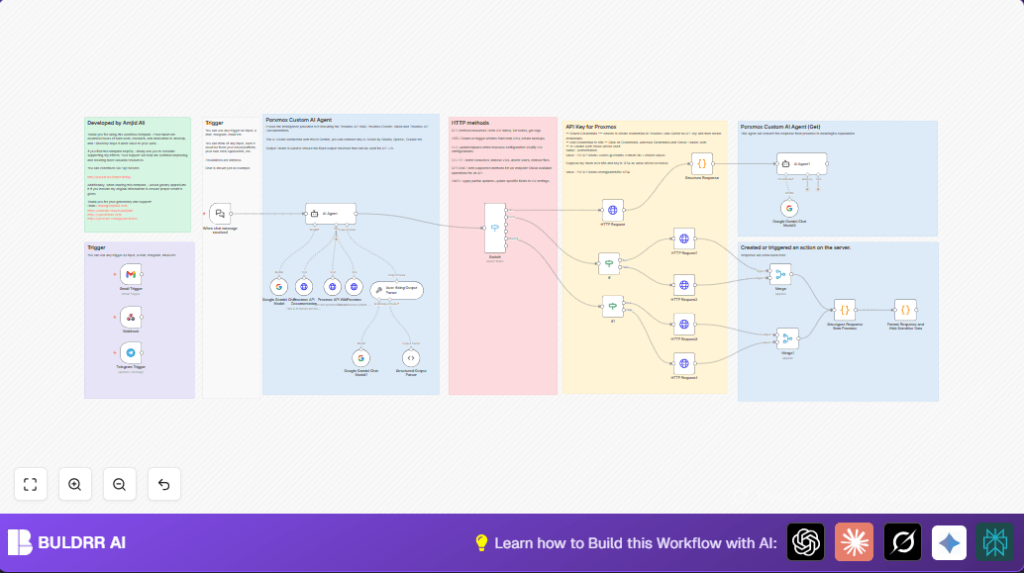
- AI Agent node converts text commands into structured API method, URL, and payload.
- Switch node selects HTTP method and routes request to correct HTTP Request node.
- HTTP Request nodes call Proxmox API with token authentication and allow self-signed certificates.
- Response parsers format the JSON API result into readable summaries.
- Another AI Agent summarizes the VM status or operation in simple language.
- Code nodes clean up logs, hide secrets, and format dates.
Outputs
- Readable status messages returned to the user.
- Execution logs sanitized for security.
- Automation results like VM creation, start, stop confirmed.
5. Beginner step-by-step: How to build this in n8n
Download and Import
- Download the full workflow JSON file using the Download button on this page.
- Open the n8n editor and use the “Import from File” option to load the workflow.
Configure Credentials
- Add required API Keys and credentials for Google Gemini AI and Proxmox API in n8n credential manager.
- For Telegram trigger, enter bot token and authorize.
- For Gmail trigger, connect using OAuth2 credentials.
- Set up HTTP Header Auth with Proxmox API token format
PVEAPIToken=user@realm!tokenid=tokenvalue.
Update Variables
- Change any IDs, emails, channel names, or folder names in node parameters to fit your environment.
- In the AI Agent node, check the prompt if specific node defaults or VM ID patterns need tweaks.
Test the Workflow
- Trigger a test message or HTTP call with a simple VM command like “Create VM with ID 201 on psb1 with 4 cores.”
- Confirm the AI agent returns a structured API JSON.
- Verify HTTP Request node executes without errors and returns success.
- Check output format nodes show clean readable summaries.
Activate for Production
- Turn on the workflow toggle to activate it.
- Monitor runs in the n8n UI for errors or problems.
- Set up alerting if desired for failed VM operations.
- For self hosting n8n, consider secure deployment with SSL and firewall by using self-host n8n.
6. Customization ideas
- Change default Proxmox node name in the AI Agent prompt to change where VMs are created.
- Switch Google Gemini AI node to OpenAI or Claude for different AI engines.
- Add more triggers like Slack, Email Parser, or custom webhooks to expand input options.
- Modify the response formatting code node to change how logs or VM summaries display.
- Include more VM config options (CPU type, hotplug, migration) by updating AI Agent prompt content.
7. Common problems and fixes
401 Unauthorized from Proxmox API
Cause: API Key is wrong or expired.
Fix: Create new Proxmox API Key and update HTTP Header Auth credentials with correct format.
AI Agent returns bad or incomplete JSON
Cause: AI output does not match expected JSON format.
Fix: Use the auto-fixing parser node to retry and clean output. Improve AI prompt JSON rules.
HTTPS Request fails with certificate error
Cause: Proxmox uses self-signed SSL certificates.
Fix: Enable “Allow Unauthorized Certs” in HTTP Request nodes to bypass SSL errors.
8. Final summary
✓ This workflow makes managing Proxmox VMs easier by using natural language commands.
✓ It turns your words into exact API calls, no scripting needed.
✓ Saves you time and reduces errors in VM management.
→ You get fast, clear VM status updates and operation results.
→ Integration with multiple chat or webhook inputs gives flexibility.
→ It is easy to customize and extend when needed.
→ Runs inside n8n and can be production ready quickly.
