
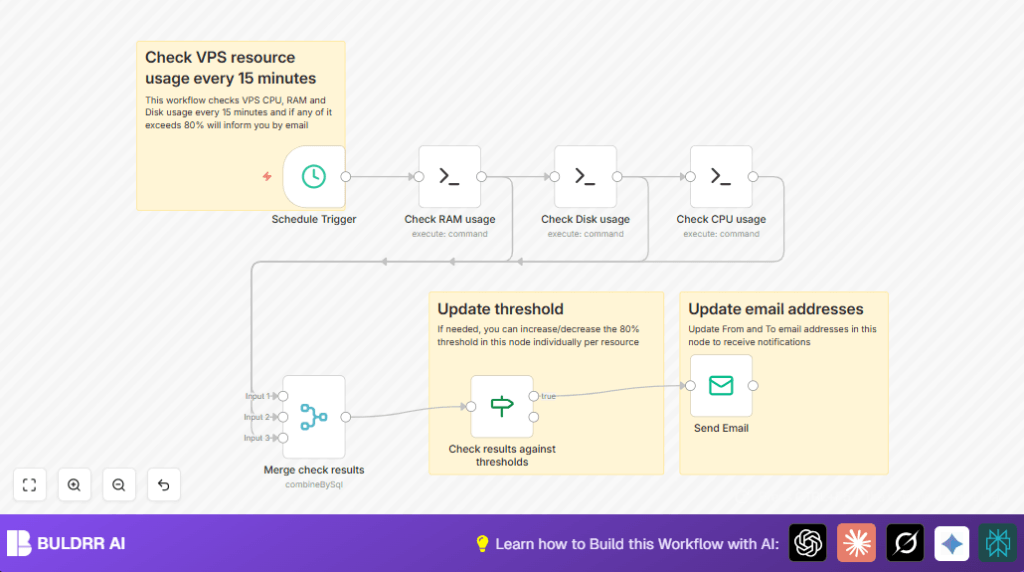

What This Automation Does ⚙️
This n8n workflow checks your VPS CPU, RAM, and Disk usage every 15 minutes automatically.
If any usage goes above 80%, it sends an email alert right away.
This stops surprise slowdowns or crashes by giving quick warnings.
The workflow connects to your server using SSH and runs commands to get real usage numbers.
Then it combines the info and tests if any number is too high.
If yes, email alerts are sent without you opening tools or watching screens.
This helps save time and keeps server problems from hurting your website.
Tools and Services Used
- n8n: Automation platform to run the workflow.
- SSH access: Connects to VPS to run Linux commands.
- SMTP Email server: Sends alert emails.
Inputs, Processing, and Output
Inputs
- Server IP and SSH username/password or key.
- SMTP email settings and alert recipient address.
- Schedule trigger running every 15 minutes.
Processing Steps
- SSH nodes run shell commands to get CPU, RAM, and Disk usage percentages.
- A merge node combines these three values into one record.
- An if node checks if any of the usage numbers are above 80%.
- If yes, the email send node triggers an alert message.
Output
- Email message sent with usage percentages when any resource is high.
- Workflow runs automatically every 15 minutes without user action.
Who Should Use This Workflow?
This is good for anyone running a VPS hosting a website or application.
If the user does not want to watch server stats all day, this gives fast alerts.
It works for beginners who set up credentials once, then let it run by itself.
Small business owners, freelancers, or IT admins can benefit from saving time and avoiding downtime.
Beginner Step-by-Step: How to Use This Workflow in n8n
Importing the Workflow
- Click the Download button on this page to get the workflow file.
- Open n8n editor and click “Import from File”.
- Select the downloaded file to load the workflow inside n8n.
Configuring Credentials and Settings
- Add or select your SSH credentials for the VPS: IP address, username, and password or use an SSH key.
- Add or select SMTP email credentials for sending alert emails.
- Edit the Email Send node to update the “To Email” and “From Email” fields with correct addresses.
- If needed, adjust thresholds in the If node from 80 to any preferred number.
Testing and Activating
- Run each SSH node manually to check they return CPU, RAM, and Disk percentages correctly.
- Run the entire workflow in the editor for a full test.
- Fix any errors shown in logs before activating.
- Turn the workflow toggle ON to let it run every 15 minutes automatically.
- Monitor workflow executions and adjust settings as needed.
For more help with self-host n8n, visit external resources.
Customization Ideas ✏️
- Change alert thresholds per resource inside the If node for earlier or later warnings.
- Send alerts to different emails by updating the Email Send node recipient.
- Alter the trigger interval from 15 minutes to another period for faster or slower checks.
- Add more SSH nodes to check other metrics like network or processes.
- Use SSH key based authentication for safer server access instead of passwords.
Troubleshooting ????
- SSH connection issues: Check login details and test SSH separately. Make sure firewall allows port 22.
- Email send failures: Test SMTP settings. Try another email provider or check for blocked email ports.
- Wrong or empty metrics: Run shell commands manually on your server to verify correctness and tool availability.
Pre-Production Checklist ✅
- Test each SSH node returns a valid number.
- Verify the Merge node combines data correctly.
- Check the If node triggers on values above 80%.
- Send a test email with the Email Send node.
- Confirm the Schedule Trigger runs every 15 minutes.
- Backup the workflow before saying it is ready.
Deployment Guide
After you finish testing, activate the workflow in your n8n dashboard.
It will check VPS resources every 15 minutes and send alerts when usage is high.
Keep an eye on execution logs for errors and alerts.
Adjust settings or email addresses anytime without downtime.
Summary
✓ Automatically monitor VPS CPU, RAM, and Disk usage.
✓ Get instant email alerts if usage is above 80%.
✓ Save time by avoiding manual server checks.
✓ Prevent downtime and slowdowns for better service.
✓ Easy setup and customization inside n8n.
