
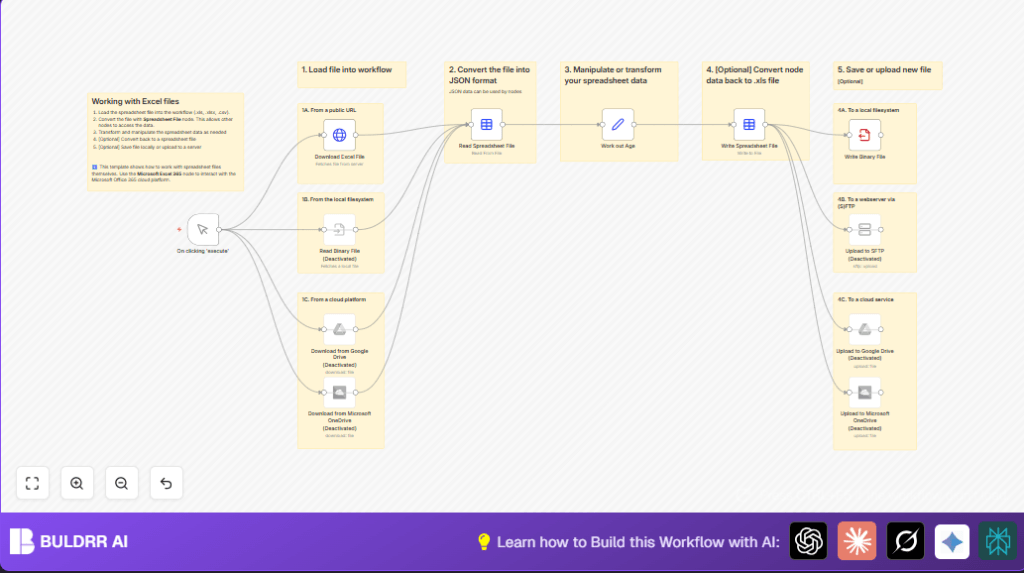

What this workflow does
This workflow downloads Excel files from many sources like HTTP URLs, Google Drive, OneDrive, or local files.
The workflow reads the spreadsheet data, calculates customer ages from birthdates, and updates the file.
Finally, it saves or uploads the new Excel file back to a chosen location.
This automation saves many hours, avoids manual mistakes, and manages customer data in one place.
Who should use this workflow
This workflow is for anyone who needs to handle Excel sheets often from different places.
It helps data analysts or teams getting weekly reports to automate repetitive downloads and uploads.
People with access to cloud services like Google Drive or OneDrive will benefit most.
Local file and SFTP users also can use it.
If manual Excel editing wastes time or causes errors, this workflow is useful.
Tools and services used
- HTTP Request node: Downloads Excel files from web URLs.
- Google Drive node: Gets files from Google Drive (needs API credentials).
- Microsoft OneDrive node: Downloads files from OneDrive (needs OAuth credentials).
- Spreadsheet File node: Converts Excel files to JSON and back.
- Set node: Calculates customer age using date functions.
- Write Binary File node: Saves files locally.
- SFTP node: Uploads files to remote servers.
Using these nodes requires connected accounts or access permissions.
Inputs, Processing Steps, and Outputs
Inputs
- Excel spreadsheets from HTTP URLs, Google Drive, OneDrive, or local storage.
- Customer data with birthdate fields.
Processing Steps
- Download or read the Excel file into n8n.
- Convert spreadsheet to JSON data.
- Calculate age from each birthdate using a date difference expression.
- Update the data with new age information.
- Convert the JSON data back to an Excel file with a timestamped name.
Outputs
- A new Excel file with calculated ages saved locally or uploaded to cloud/SFTP.
- The file includes a date in the name to identify the update time.
Beginner step-by-step: How to use this workflow in n8n
Importing and configuring
- Download the workflow file using the Download button on this page.
- Open your n8n editor and click Import from File.
- Select the downloaded workflow to add it to your n8n environment.
- Go through each node and add required credentials like Google Drive or OneDrive API Keys.
- Update any file URLs, File IDs, or paths in the HTTP Request or cloud nodes to match your data.
- Check the Set node’s date expression matches your Excel birthdate field name exactly.
- For saving, enter correct local paths or remote SFTP details.
Testing and activating
- Run the workflow once manually using the Manual Trigger node to test.
- Verify the output file is generated with correct ages and no errors.
- If all works, activate the workflow for production by clicking Activate.
- Optionally, replace the manual trigger with a Cron node for scheduled runs.
If self hosting n8n for this, visit self-host n8n for helpful information.
Common problems and edge cases
- File download fails: Check URLs and if cloud credentials expired. Wrong File ID causes errors.
- Age calculation error: Confirm birthdate field names and formats match the expression used.
- File upload or save fails: Make sure file paths are correct and SFTP or cloud credentials valid.
- Empty or corrupted Excel files: Confirm source files contain valid data before running workflow.
Customization ideas
- Change the HTTP, Google Drive, or OneDrive file source by updating the URLs or File IDs.
- Edit the Set node’s expression to calculate other fields like tenure or expiry days instead of age.
- Add a Code or Function node after reading the spreadsheet to filter or validate rows.
- Switch upload nodes on or off depending where the output file should go.
- Add a Cron trigger node to automate running on schedules without manual start.
Summary of outcomes
✓ Imported Excel files from different sources without needing manual download.
✓ Converted and read spreadsheet data as JSON for easy changes.
✓ Calculated customer ages accurately using date expressions.
✓ Generated updated Excel files with timestamped names.
✓ Uploaded or saved updated files in cloud storage, local disk, or SFTP.
✓ Reduced manual work and lowered chances of errors.
