

What This Automation Does
This workflow listens for text messages sent to a LINE chatbot.
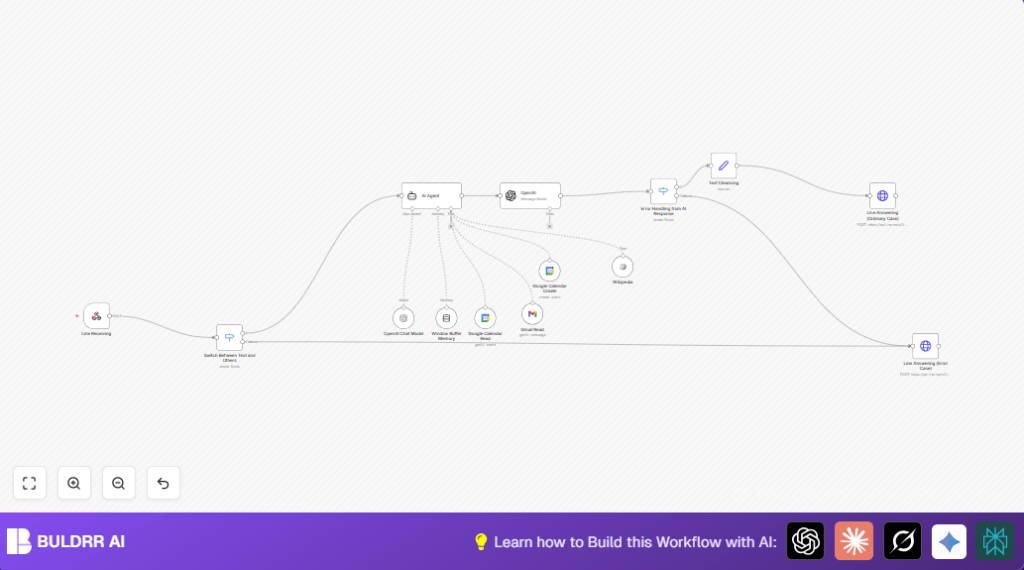
It uses an AI agent with OpenAI and LangChain to understand user requests.
It reads and makes events on Google Calendar based on user words.
It fetches emails from Gmail by date if asked.
After processing, it sends back easy-to-read answers on LINE.
If message type is not text or AI fails, it replies with an error message.
This saves time on checking calendar and emails by doing it inside LINE chat.
Tools and Services Used
- LINE Messaging API: Receives user messages and sends replies.
- n8n Workflow Automation: Manages the API calls and data flow.
- OpenAI Chat Model: Powers the natural language understanding.
- LangChain AI Agent: Handles conversation memory and tool integration.
- Google Calendar API: Reads and creates calendar events.
- Gmail API: Reads emails filtered by specified criteria.
- Wikipedia Tool: Provides background information if requested.
Inputs, Processing Steps, and Outputs
Inputs
- Incoming LINE webhook POST requests.
- User message text from LINE.
- Google Calendar and Gmail OAuth2 authenticated access.
- OpenAI API Key to run AI agent.
Processing Steps
- Webhook node receives LINE messages.
- Switch node checks if message type is text.
- AI Agent (LangChain agent) processes text input, using current date context.
- OpenAI Chat Model provides AI understanding for the agent.
- Window Buffer Memory stores conversation context by user ID.
- Wikipedia tool, Google Calendar read/create, and Gmail read work as AI tools.
- Switch node filters valid AI responses.
- Set node cleans text (removes markdown, line breaks, HTML tags).
- HTTP Request nodes reply to LINE with success or error messages.
Outputs
- User receives clear and clean text answer inside LINE chat.
- Errors or non-text messages get polite fallback replies.
Who Should Use This Workflow
If managing calendar and emails through LINE is needed, this suits well.
People who dislike switching apps or want quick answers inside LINE chat will gain time.
Users with busy schedules and many event requests get fewer errors like double bookings.
Anyone with basic n8n and API setup knowledge can use it effectively.
Beginner Step-by-Step: How to Use This Workflow in n8n
Step 1: Download and Import
- Download the workflow file using the Download button on this page.
- Open n8n editor where you want to add the workflow.
- Click “Import from File” and select the downloaded workflow JSON.
Step 2: Configure Credentials and Settings
- Go to each credential node: Add LINE Messaging API key, Google Calendar OAuth2, Gmail OAuth2, and OpenAI API Key.
- Update IDs, like calendar ID or Gmail folder ID if needed.
- Check any hardcoded emails or tokens and replace with your own.
- Confirm the webhook URL matches the URL set in LINE Messaging API console.
Step 3: Test the Workflow
- Send a test text message to the LINE chatbot.
- Watch n8n executions to see if AI processes and replies correctly.
- Check Google Calendar and Gmail nodes return expected data.
Step 4: Activate for Production
- Toggle the workflow active switch in n8n dashboard.
- Confirm webhook stays connected and responds live.
- Monitor workflow for errors and logs regularly.
Consider using self-host n8n for full control of your data and uptime.
Common Edge Cases and Error Handling
- Non-text messages like images or stickers receive a polite error reply.
- If AI returns empty or unclear replies, sends a fallback message like “กรุณาส่งอย่างอื่นเถอะนะเตงอัว”.
- Invalid or wrong OAuth2 credentials cause failure in Google or Gmail nodes which should be checked.
- Wrong date or format from AI to calendar creates event errors, so confirm date strings.
- LINE reply API 401 errors usually mean incorrect channel access token.
Customization Ideas
- Change AI model in OpenAI Chat Model node to cheaper or stronger versions.
- Tweak system message prompt in AI Agent to adjust language style or formality.
- Add new tools like Todoist or weather API nodes to expand assistant tasks.
- Edit error reply text in second HTTP Request node for personalized fallback.
Summary of What You Get
→ Handling LINE messages as inputs
→ AI understands requests with memory and tools
→ Access to Google Calendar events and create new ones
→ Read Gmail emails filtered by date
→ Clear, friendly messages replying to users in LINE
→ Error and non-text message handling for smooth user experience
→ Saves time by managing daily events and emails inside LINE chat
