

What this workflow does ⚙️
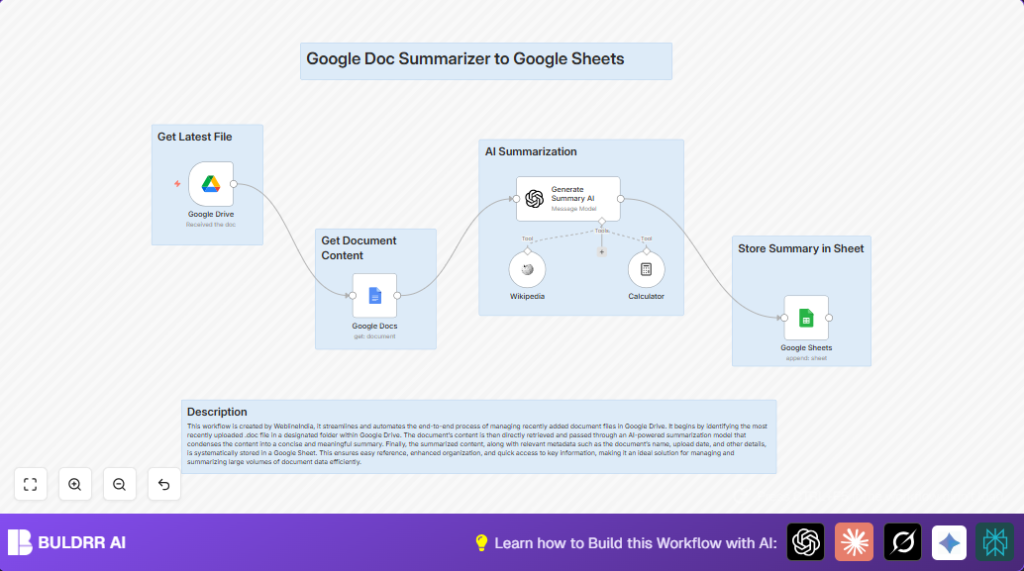
This workflow watches a Google Drive folder for new Google Docs files.
When a new file appears, it reads the file content, sends it to OpenAI GPT-4o-Mini for summarizing, then puts the summary and uploader info into a Google Sheet.
This automation saves you hours of manual reading and writing. It gives back clear summaries fast.
Who should use this workflow
This is a good fit for anyone who receives many Google Docs documents inside a shared folder.
If you spend a lot of time manually reading, copying, or writing summaries, this workflow helps.
Teams in marketing, project management, research, or administration will find this useful.
Also helpful for those who want consistent and quick summaries without errors.
Tools and services used
- Google Drive: Monitors the folder for new documents.
- Google Docs API: Gets the full text content of the document.
- OpenAI GPT-4o-Mini model: Generates a short, clear summary.
- Google Sheets: Stores the summary and document metadata like uploader name and email.
- n8n platform: Automates the entire process with nodes and triggers.
Input → Processing → Output
Inputs
- New Google Doc files uploaded to a specific Google Drive folder.
- Document metadata from Google Drive, including uploader’s name and email.
Processing Steps
- Google Drive Trigger detects new file creation.
- Google Docs node fetches the document’s full text content using the file ID.
- OpenAI node sends the text to GPT-4o-Mini model with a prompt to summarize the content.
- Google Sheets node appends a new row with summary and metadata.
- The workflow runs every minute to catch new files quickly.
Output
- A new row in Google Sheets with:
- The uploader’s display name
- The uploader’s email address
- The AI-generated summary of the document
Beginner step-by-step: How to use this workflow in n8n
Importing the workflow
- Click the Download button on this page to get the workflow file.
- Open your n8n editor.
- Go to the main menu and select “Import from File”.
- Choose the downloaded workflow file to import.
Configuration after import
- Add your Google Drive service account credentials.
- Add your Google Docs service account credentials (usually same as Drive).
- Add your Google Sheets OAuth2 credentials.
- Insert your OpenAI API Key using the GPT-4o-Mini model.
- Update settings:
- Google Drive Trigger node: set the folder ID to your target folder.
- Google Sheets node: set the spreadsheet ID or URL and sheet name.
- Make sure your metadata fields match Google Sheet column names.
Testing and activation
- Test the workflow once by uploading a new Google Doc into the watched folder.
- Check that the summary and uploader info appear correctly in Google Sheets.
- When working properly, activate the workflow to run continuously.
Now the system will monitor new files and summarize them automatically for you.
Common errors and how to fix
Google Docs node fails to get content
Cause: The system might have wrong file ID or missing permission.
Fix: Check the file ID expression {{ $json.id }} in the node.
Make sure your service account can view the file.
OpenAI returns no summary or error
Cause: Input prompt is wrong or API usage exceeded.
Fix: Validate the prompt uses {{ $json.content }} correctly.
Check your OpenAI API key and limit usage.
Data missing in Google Sheets
Cause: Column names don’t match or permissions issue.
Fix: Confirm Google Sheet columns are exactly as mapped.
Make sure your OAuth2 credentials have editor rights.
Customization ideas ✏️
- Change the folder ID in the Google Drive Trigger to watch different folders.
- Use a different OpenAI model like
gpt-3.5-turboin the OpenAI node for different summary styles or costs. - Add creation date or file size as extra columns in Google Sheets by mapping metadata.
- Insert the summary back into a new Google Doc instead of Google Sheets by using Google Docs append operation.
- Switch trigger to time-based run for batch processing every hour instead of instant every minute.
Working in production
After testing, activate the workflow. The Google Drive trigger checks the folder every minute.
You see logs in n8n after runs for confirmation.
If volume grows large or to control cost, consider running n8n on your own server.
Explore self-host n8n options for better scaling.
Summary
✓ Automatically watches for new Google Docs in a folder
✓ Gets contents, sends to AI, and summarizes text
✓ Saves summaries and uploader info in Google Sheets
✓ Saves hours of manual reading and typing
✓ Easy to set up in n8n with minimal changes
