
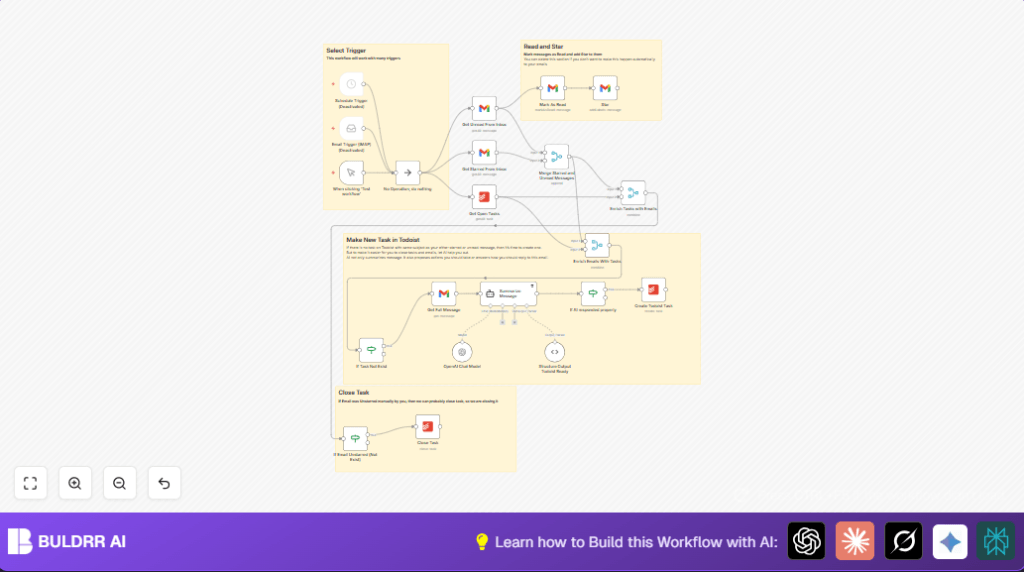

What This Automation Does
This workflow checks Gmail for starred and unread emails at the same time.
It marks unread emails as read and stars them.
After that, it uses AI to read the whole email and make a task summary with actions and reply ideas.
Then, it sees if a matching Todoist task already exists to avoid repeating tasks.
If no task matches, it creates a new task with the AI summary in Todoist.
If an email is unstarred later, the workflow closes the matching Todoist task.
The result is an organized task list from important emails, saved time, and less chance to forget or duplicate work.
Tools and Services Used
- Gmail API with OAuth2: Accesses starred and unread emails.
- OpenAI GPT-4o-mini model: Summarizes emails and suggests tasks and replies.
- Todoist API: Checks for tasks, creates new ones, and closes completed tasks.
- n8n Automation Platform: Runs the entire workflow sequence combining the above APIs.
Inputs, Processing, and Outputs
Inputs
- Starred emails and unread emails in Gmail Inbox.
- Existing open tasks from Todoist project.
Processing Steps
- The workflow marks unread emails as read and stars them.
- Merges starred and unread email lists without duplicates.
- Matches email subjects with existing Todoist tasks to skip duplicates.
- Fetches full email content for AI summarization.
- Processes email text with AI to produce task content, description, actions, and draft answer.
- Validates AI output before creating new tasks in Todoist with detailed description.
- Monitors email stars; unstarred emails prompt closing of corresponding Todoist tasks.
Output
- Fresh Todoist tasks based on important emails, with clear AI-generated summaries and recommendations.
- Closed Todoist tasks when related emails lose star status, keeping task list clean.
Who Should Use This Workflow
This helps people who get many important emails that require follow-up.
Users who want to stop missing emails or making repeated tasks will find it useful.
No need to be technical; basic setup of Gmail, Todoist, and OpenAI keys is needed.
Beginner Step-by-Step: How to Use This Workflow in n8n
Import the Workflow
- Download the workflow file using the Download button on this page.
- Open n8n editor.
- Click “Import from File” and select the downloaded file.
Add Your Credentials
- Add Gmail OAuth2 credentials in the Gmail nodes.
- Add Todoist API Key in the Todoist nodes.
- Add OpenAI API Key in the AI nodes.
Update Workflow Settings
- Change project ID in Todoist nodes to your task project.
- Change Gmail label filters if needed.
- Copy and paste the AI prompt below to the AI summarization node exactly as shown:
You are a professional email assistant. Your task is to analyze provided email content and transform email into task. Your output will be JSON and will have:

- "content", which is exactly "{{ $json.subject }}"
- "description", which is a short summary of what this email is about and what is the whole thread point
- "actions", which is your proposition on what actions should be done before responding or closing this email thread
- "answer", which is your proposition on how to respond to this email, when all actions are done
Test and Activate
- Run the workflow once manually using the Manual Trigger node.
- Check that tasks appear in Todoist correctly with summaries and actions.
- Activate the workflow in n8n to run regularly or on schedule.
- If using self hosting, check self-host n8n for setup options.
Customizations
- Change the AI model or edit the prompt in the AI node to fit your own email style.
- Modify the Todoist project ID to create tasks in a different project.
- Adjust Gmail label filters to control which emails enter the workflow.
- Remove or disable the “Mark As Read” step if you want to keep emails unread but still generate tasks.
Troubleshooting
Gmail API Quota Limit Errors
This happens if marking many emails read and starring too often.
Try running the workflow less frequently or process emails in smaller batches.
AI Node Fails or Times Out
Check OpenAI API key is valid and internet connection is stable.
Limit how often AI is called to avoid hitting usage caps.
Todoist Tasks Not Created
Verify correct API key and project ID are set in the Todoist nodes.
Make sure data from the AI node has valid “content” and “description” fields for tasks.
Pre-Production Checklist
- Check Gmail OAuth2 credentials work and have rights to read Inbox and labels.
- Test AI node with example email text and see if it replies with correct JSON.
- Confirm Todoist API key and project ID match your Todoist account.
- Run the workflow manually to see a task created in Todoist properly.
- Backup important Todoist data before going live, just in case.
Deployment Guide
After testing, turn on the workflow in n8n to run automatically by schedule or webhook trigger.
Check logs for any errors like API call limits or invalid data.
Adjust how often it runs based on inbox size and API quota limits.
If needed, consider self-host n8n to have more control over deployment.
Summary of Results
→ Gmail emails marked read and starred to avoid repeats.
→ AI reads full emails and makes clear task summaries with suggested next steps.
→ Todoist tasks created only if no duplicates exist, keeping task list clean.
→ Todoist tasks close automatically if email stars removed, reflecting priority changes.
→ Saves time typing and checking emails, helps organized task management.
