
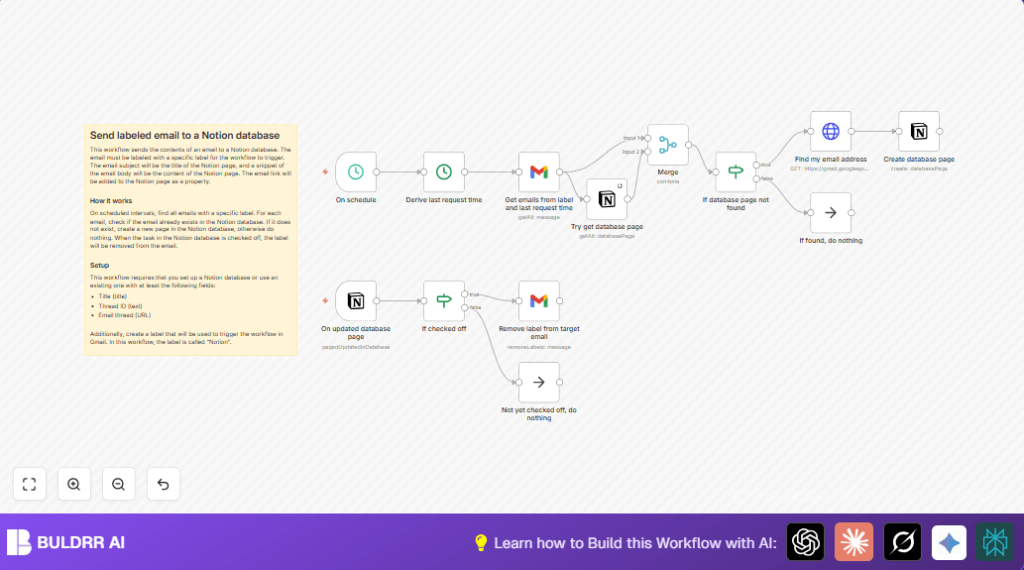

What this workflow does
This workflow finds Gmail emails labeled with a specific tag and adds them to a Notion database if they are not already there.
It links the email’s subject and a short preview into Notion.
When a user marks the task as complete in Notion, the label is removed from the original Gmail email.
This stops duplicate tasks and helps track important emails automatically.
Who should use this workflow
This workflow fits people who use Gmail and Notion to manage email follow-ups.
Anyone tired of copying emails to Notion tasks manually will save hours.
Users with medium email volume needing better email-task sync will find it useful.
No advanced programming skill is needed, only basic n8n usage.
Tools and services used
- Gmail API: Fetches emails with a chosen label.
- Notion API: Reads and writes database pages.
- n8n automation platform: Runs scheduled checks and connects Gmail with Notion.
- OAuth2 Authentication: Secure login for Gmail and Notion.
Inputs, processing steps, and outputs
Inputs
- Labeled Gmail emails received in the last minute.
- User’s Gmail email address (fetched via API).
- Notion database with pages holding email thread IDs.
Processing steps
- Check Gmail every 1 minute for emails with the configured label.
- Calculate time filter to only look at new emails since last run.
- Compare each email ID with Notion database to see if it already exists.
- Create new Notion page for emails not yet recorded, including subject, snippet, and email link.
- Listen for changes in Notion tasks, especially if marked complete.
- If task is completed, remove the label from the Gmail email.
Outputs
- New pages in Notion showing email subjects and previews.
- Updated Gmail labels reflecting task completion.
Beginner step-by-step: How to build this in n8n
Import the workflow
- Use the Download button on this page to get the workflow file.
- Open the n8n editor and choose “Import from File” to add the workflow.
Configure credentials and settings
- Add Gmail OAuth2 credentials in the Gmail nodes.
- Add Notion API credentials and connect the database in corresponding Notion nodes.
- Fill in any label IDs or emails specific to your Gmail account.
- Check and update the Notion database ID and property names if changed.
Test and activate
- Run the workflow manually once to verify emails are fetched and pages are created.
- Look at the execution data to confirm mappings are correct.
- When verified, switch the workflow on to enable scheduled runs every minute.
- Optionally, consider self-host n8n for production control.
Customization ideas
- Change the Gmail label in the Gmail node to track different email sets.
- Add more Notion page fields like sender or date to capture extra info.
- Adjust the scheduled trigger interval for faster or slower checks as needed.
- Modify the completion field name in Notion if your property is named differently.
- Attach notifications or email archiving actions after label removal.
Edge cases and common errors
- No emails found: Check Gmail label ID and OAuth2 credentials.
- No Notion page created: Verify Notion database ID and required page properties.
- Labels not removed after completion: Confirm boolean condition and message IDs are correct.
Summary and results
✓ Automates adding important labeled emails to Notion.
✓ Saves hours by removing manual email copying.
✓ Stops duplicate Notion tasks by checking existing records.
✓ Keeps Gmail label in sync with Notion task status.
✓ Simple to import and configure with basic n8n setup.
