
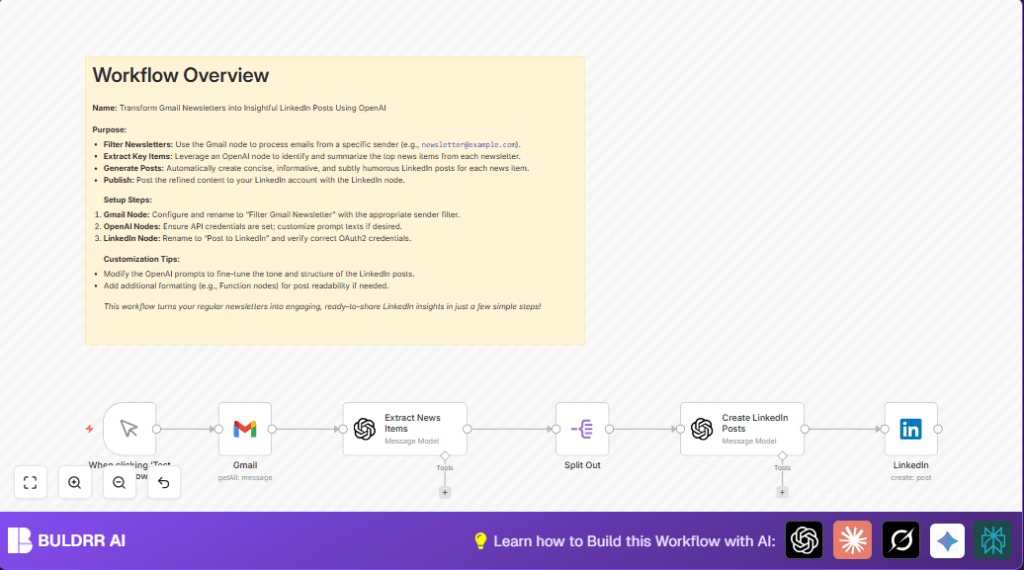

What this workflow does
This workflow gets newsletters from Gmail from a set sender. It reads the email content and finds the 5 main news points. Then it makes each news point into a short, clear LinkedIn post with a bit of dry humor. Finally, it posts these messages on LinkedIn automatically.
This stops users from spending hours reading and writing posts by hand. The end result is quick LinkedIn posts that share real news and keep your followers updated.
Who should use this workflow
This is good for people who get many newsletters about AI. Especially those who want to share quick updates on LinkedIn. It helps users save time and keep posts fun and sharp.
No need to spend hours reading or rewriting emails. Just set up the workflow and let it do the work.
Tools and services used
- Gmail API: To get emails from a specific sender.
- OpenAI API: To find main news and write posts.
- LinkedIn API: To publish posts.
- n8n platform: To run and connect all the steps.
Inputs, processing, and output overview
Input
The workflow takes emails from a Gmail account. It filters only from a chosen sender email.
Processing Steps
- Fetch the newsletter email.
- Use OpenAI to find and summarize the 5 main news points.
- Break these points into individual pieces.
- Use OpenAI again to write a brief LinkedIn post for each point with a witty tone.
- Send each post text to LinkedIn to publish.
Output
Multiple short LinkedIn posts, each based on one news item from the newsletter.
Beginner step-by-step: How to use this workflow in n8n
Download and Import Workflow
- Click the Download button on this page to get the workflow file.
- Open n8n editor where you work on workflows.
- Choose “Import from File” and select the downloaded file.
Set up Credentials and IDs
- Link your Gmail account with OAuth2 in the Gmail node.
- Enter your OpenAI API key for the OpenAI nodes.
- Connect LinkedIn account with OAuth2 in the LinkedIn node.
- Update sender email filter if your newsletter sender is different.
- Change LinkedIn person or company page ID where posts will publish.
Test the workflow
- Click on the Manual Trigger node and press Execute Workflow.
- Check the output messages in the LinkedIn node or n8n execution panel.
Activate for production
- Replace the Manual Trigger node with a Cron Trigger node if you want automation on a schedule.
- Save and activate the workflow.
- Consider self-host n8n for more control and privacy.
Step-by-step workflow explanation
Input: Gmail node
Filters Gmail inbox for emails from a set sender (like [email protected]). Fetches the latest newsletters.
Process 1: OpenAI Extract News Items node
Uses text content from email to find the 5 main pieces of news. Summaries avoid adverts and promotions.
=Given the following newsletter content, identify and summarize the 5 main news items. Focus on factual updates like new AI tools, product launches, or strategic investments. For each item, extract a headline and provide a concise summary. Please ignore purely promotional sections (e.g., calls to book demos or product advertisements).


{{ $json.text }}
Process 2: Split Out node
Splits the news items array so each item goes through the next steps separately.
Process 3: OpenAI Create LinkedIn Posts node
Crafts a short LinkedIn post from each news item using a smart, dry humor style and short paragraphs.
=Using the news item details below:

Headline: {{ $json.headline }}
Summary: {{ $json.summary }}

Craft a concise, non-promotional LinkedIn post in a smart, deadpan style with subtle humor. Focus on clearly conveying the main points and insights so readers gain practical value.
- Break up the text into short paragraphs or bullet points for clarity.
- Use line breaks where helpful.
- End with an observation or question that encourages reflection—without being overly salesy or flashy.
- Keep it under 80 words total.
Output: LinkedIn node
Posts each crafted message on LinkedIn under the specified user or page.
Customization ideas
- Change the tone of LinkedIn posts by editing the OpenAI node prompt.
- Adjust Gmail node’s sender filter to capture newsletters from any address.
- Add a Cron Trigger node to schedule automatic runs instead of manual triggers.
- Insert a Function node to add hashtags, mentions, or other formatting before posting.
Common problems and fixes
Problem: No emails fetched by Gmail node
Cause: Sender filter might be wrong or OAuth2 has no access.
Solution: Check sender email exactly matches. Verify OAuth2 login works. Test again.
Problem: OpenAI summaries are off-topic or promotional
Cause: Prompt text typed incorrectly or input path wrong.
Solution: Copy the prompt exactly. Make sure the input is set to {{ $json.text }}. Test the node separately.
Problem: LinkedIn posts do not appear
Cause: OAuth2 permissions missing or wrong author ID.
Solution: Confirm LinkedIn API app has post permissions. Re-authenticate OAuth2. Check person or company ID is correct.
Pre-production checklist
- Test if Gmail node gets recent newsletters.
- Verify OpenAI extracts exactly five main news points.
- Confirm Split Out node separates news correctly.
- Check OpenAI generates short, clear, funny LinkedIn posts.
- Do a dry run post on LinkedIn using test data.
- Export and save workflow backup before active use.
Deployment notes
After tests work as hoped, replace manual trigger with Cron Trigger node to run automatically.
Watch workflow health in n8n’s execution panel for errors.
Update prompts or filters if newsletter style or posting rules change.
Enable alerts if any posting or content extraction fails.
Summary
✓ Saves hours each week by automating reading and posting.
✓ Keeps LinkedIn posts timely, clear, and engaging.
✓ Works by fetching emails, summarizing news, creating posts, and publishing.
→ Provides quick social updates without manual writing.
→ Flexible to change sender filters and posting style.
