
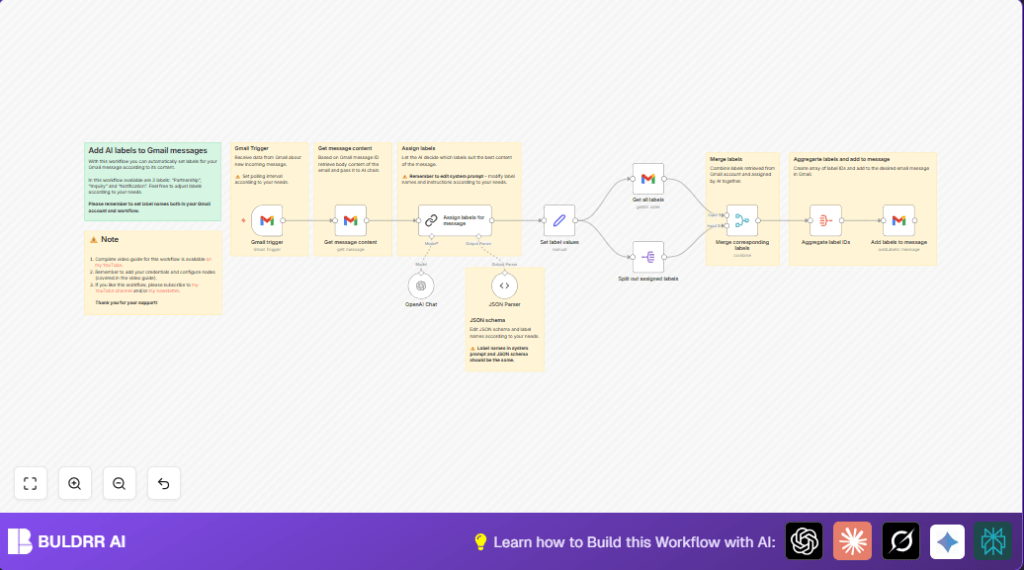

What This Workflow Does
Every email that hits your Gmail inbox gets categorized
the moment it arrives. No manual sorting. No rules to
maintain. No missed labels.
This workflow is your Gmail AI auto-tagger — it reads
each new email in full, sends it to OpenAI for classification,
and applies the right label directly in Gmail before you
even open the message.
Here’s what happens automatically for every email:
→ Email arrives in Gmail
→ Workflow reads full email content
→ AI classifies it: Partnership, Inquiry, or Notification
→ Correct label applied to the email in Gmail instantly
→ Your inbox is organized before you ever open it
No Gmail filters. No keyword rules. No manual tagging.
The AI reads context — not just subject lines — and tags
accordingly. A client reply that doesn’t match any keyword
still gets classified correctly because the AI understands
meaning, not just patterns.
Who Should Use This Workflow
This workflow is useful for people who get many emails and want to save time on sorting them. They need to keep their inbox organized without missing urgent messages. It fits marketing coordinators, customer support, and anyone using Gmail for work with labels like Partnership, Inquiry, or Notification.
The user should have basic n8n knowledge and access to Gmail and an AI provider like OpenAI.
What Gets Auto-Tagged the Moment It Arrives
Here are the email types this workflow categorizes
automatically on arrival — with zero manual intervention:
→ Partnership — Collaboration requests, sponsorship
pitches, affiliate inquiries, joint venture proposals
→ Inquiry — Product questions, service requests,
demo asks, pricing inquiries from potential clients
→ Notification — System alerts, platform updates,
billing confirmations, automated service emails
To add your own categories — Urgent, Follow-Up,
Newsletter, Support — edit the label names in the
AI prompt node. The workflow applies them immediately
on the next email that arrives.
Tools and Services Used
- Gmail API with OAuth2: To detect, fetch, and label emails.
- OpenAI API: To analyze email content and assign label names.
- n8n: Workflow automation platform to connect actions and handle data flow.
How This Workflow Works
Inputs
- New incoming Gmail messages detected by the Gmail Trigger node.
Processing Steps
- Step 1: Gmail Trigger checks Gmail for new emails regularly.
- Step 2: Gmail node fetches the full email content using the message ID.
- Step 3: AI node sends email text to an AI model with a prompt to classify labels: Partnership, Inquiry, Notification.
- Step 4: JSON Parser validates AI output to keep only correct label names.
- Step 5: Set node formats labels as an array for further use.
- Step 6: Gmail node fetches all existing Gmail labels and their IDs.
- Step 7: Split node turns AI labels into separate items to compare.
- Step 8: Merge node matches AI labels with Gmail labels by name to get label IDs.
- Step 9: Aggregate node collects all label IDs into one array.
- Step 10: Gmail node applies these label IDs to the original email, organizing the inbox.
Output
Emails in Gmail will have correct labels added automatically based on the AI classification. This improves inbox organization and prioritization.
Beginner Step-by-Step: How to Use This Workflow in n8n
Step 1: Import the Workflow
- Download the workflow file using the “Download” button on this page.
- In the n8n editor, choose “Import from File” and upload the downloaded workflow.
Step 2: Configure Credentials
- Add your Gmail OAuth2 credentials in the Gmail nodes.
- Enter your OpenAI API key in the AI node settings.
Step 3: Update Settings (If Needed)
- Check Gmail labels in your account match the names: Partnership, Inquiry, Notification.
- Modify label names in the AI prompt or JSON Parser if you change labels.
- Adjust polling interval in the Gmail Trigger node to suit your email traffic.
Step 4: Test the Workflow
- Send a test email to your Gmail inbox.
- Run the workflow manually to confirm labels are applied correctly.
Step 5: Activate for Production
- Turn on the workflow so it runs automatically on new emails.
- Monitor executions in the n8n UI to catch any errors early.
For users running this on own servers or VPS, consider self-host n8n to control environment and credentials securely.
AI Auto-Tagger vs Gmail’s Built-In Rules — What’s the Difference?
Gmail already offers filters — but they rely on fixed rules. An AI auto-tagger works very differently.
| Feature | Gmail Filter Rules | AI Auto-Tagger |
|---|---|---|
| Based on | Keywords, sender, subject | Full email content + context |
| Handles unusual phrasing | ✗ (often misses it) | ✓ (understands intent) |
| Adding new labels | Manual rule creation | Update AI prompt only |
| Classifies ambiguous emails | ✗ | ✓ |
| Multi-label assignment | Limited | ✓ (multiple labels at once) |
| Setup time | Rule-by-rule setup | One workflow for all emails |
Gmail filters tend to fail when emails don’t follow expected wording.
For example, a collaboration email that never mentions “partnership” might not get tagged correctly.
An AI auto-tagger reads the full context, so it understands intent — not just keywords — and labels emails more accurately.
Customization Ideas
- Change or add more labels by editing the AI node prompt and matching JSON schema.
- Use Gmail Trigger filters to limit which emails get classified by sender or subject.
- Adjust polling frequency in the Gmail Trigger node to balance response speed and API use.
- Add extra actions after labeling, such as notifications or archiving.
Summary of Results
✓ Emails get labeled automatically without manual work.
✓ Inbox becomes easier to scan for priority messages.
✓ Saves about two hours of email sorting each day.
✓ Reduces chances of missing important emails.
✓ Works with Gmail and AI to make smart decisions.
✓ Can be customized and scaled with user needs.
