

What This Workflow Does
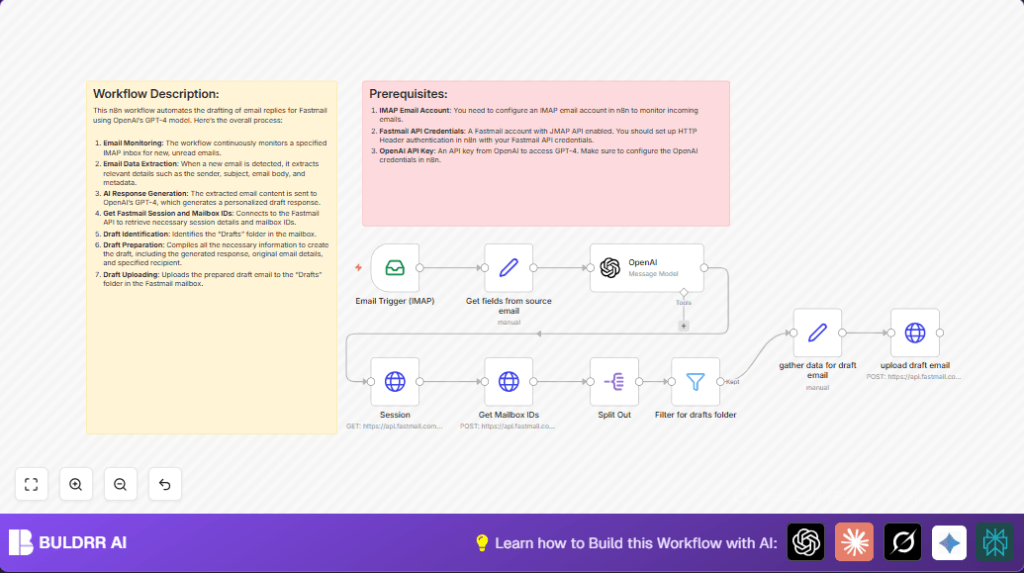
This workflow watches a Fastmail inbox for new unread emails and writes reply drafts automatically using AI.
It pulls useful info from incoming emails, sends them to the GPT-4 AI to get smart, casual replies, and uploads these replies as drafts back into Fastmail.
It saves time on writing replies while keeping answers clear and polite.
Who Should Use This Workflow
If you handle many emails daily and get stuck copying, pasting, or thinking how to answer fast, you can use this.
It helps customer support people or anyone wanting quick, personal email drafts with less typing.
Tools and Services
- Fastmail IMAP: Watches incoming unread emails.
- Fastmail JMAP API: Finds Drafts folder and uploads draft emails.
- OpenAI GPT-4: Creates personalized email reply drafts.
- n8n Automation: Orchestrates all steps automatically.
How This Workflow Works
Inputs
The workflow starts when a new unread email arrives in Fastmail.
It receives sender address, subject, plain text email body, and some metadata like message ID.
Processing Steps
First, it extracts important fields from the email for easy use later.
Next, it sends the email content to OpenAI GPT-4 with a prompt to draft a casual reply that matches tone and language formality.
Then, it connects to Fastmail’s JMAP API to get the user session info, including mailbox IDs.
It fetches mailbox list and finds the Drafts folder by filtering on mailbox role labeled “drafts”.
After that, it prepares the draft email data: sets the draft folder ID, reply message, original message reference, from/to addresses, and subject with a “Re:” prefix.
Finally, it sends the draft email creation request via Fastmail’s JMAP API to save the draft.
Output
The output is a new draft email in the Fastmail Drafts folder.
Users can now review and send that reply easily from their email client.
This saves 1–2 hours daily of manual writing and reduces errors.
Beginner Step-by-Step: How to Use This Workflow in n8n Production
Import the Workflow
- Open the n8n editor where workflows are created.
- Click on the Download button on this page to get the workflow file.
- Use the “Import from File” option in n8n to load the workflow.
Configure Credentials and Settings
- Add your Fastmail IMAP and API credentials to the credential manager.
- Enter your OpenAI API Key for GPT-4 access.
- Check and update any email addresses, folder IDs, or account IDs if needed.
- Verify that all expressions referencing fields (like subject, from, body) match your data.
Test the Workflow
- Send a test email to your monitored Fastmail inbox.
- Run the workflow manually or wait for the trigger to activate.
- Check if a draft reply shows up in the Drafts folder.
Activate for Production
- Turn on the workflow in n8n so it listens continuously.
- Monitor execution logs occasionally for errors.
- Optionally set alerts via email or Slack for failures.
- Plan to update API keys or prompts over time for best results.
- If using self-host n8n on your server, ensure the hosting environment is stable.
Workflow Code and Prompt Examples
OpenAI GPT-4 Draft Reply Prompt
This prompt is sent to GPT-4 to create the email reply. It tells AI how formal or casual to be based on email content:
=Please analyze the following personal email and draft a casual response based solely on its content. Return only the response text without any additional introductions or formatting. The response should include appropriate greetings (e.g., "Hi", "Hallo" for German) and sign-offs (e.g., "Gruß", "Regard"). Add thanks if appropriate. Use "Du" only if the email contains it; otherwise maintain formality.

Subject: {{ $json.subject }}
Email Content: {{ $json.textPlain }}
Fastmail JMAP Session Request Body
This JSON asks Fastmail for your mail session details, used in later API calls:
=
{
  "using": ["urn:ietf:params:jmap:core", "urn:ietf:params:jmap:mail"],
  "methodCalls": [
    [
      "Mailbox/get",
      { "accountId": "{{ $('Session').item.json.primaryAccounts['urn:ietf:params:jmap:mail'] }}" },
      "c0"
    ]
  ]
}
Fastmail Draft Upload JSON Body
This JSON creates the draft with the AI-generated reply and original email references:
=
{
  "using": ["urn:ietf:params:jmap:core", "urn:ietf:params:jmap:mail"],
  "methodCalls": [
    [
      "Email/set",
      {
        "accountId": "{{ $('Session').item.json.primaryAccounts['urn:ietf:params:jmap:mail'] }}",
        "create": {
          "newDraft": {
            "mailboxIds": {"{{ $json.draftsId }}": true},
            "keywords": {"$draft": true},
            "inReplyTo": ["{{ $json.metadata['message-id'] }}"],
            "references": ["{{ $json.metadata['message-id'] }}"],
            "from": [{"name": "", "email": "{{ $('Session').item.json.username }}"}],
            "to": [{"name": "{{ $json['to-friendly'] }}", "email": "{{ $json.to }}"}],
            "subject": "{{ $json.subject }}",
            "bodyValues": {
              "textBody": {"value": "{{ $json.message.content.replace(/\n/g, '\\n') }}"}
            },
            "bodyStructure": {"partId": "textBody"}
          }
        }
      },
      "c1"
    ]
  ]
}
Customization Ideas
- Change Email Tone: Edit the OpenAI prompt text to be more formal, funny, or caring.
- Filter Emails: Add nodes to only work on emails from certain senders or with keywords.
- Add Attachments: Extend to copy attachments into drafts if needed.
- Detect Language: Use a language detector before AI to switch greetings automatically.
- Log Drafts: Add Google Sheets nodes to save draft summaries for tracking.
Common Problems and Fixes
Authentication Failure in HTTP Requests
Usually cause is wrong or missing Fastmail API credentials.
Fix by checking credentials under HTTP Header Auth in n8n and re-enter your API Key if needed.
Drafts Folder Not Found
This happens if mailbox filtering is case sensitive or mailbox data is unexpected.
Add debug nodes to check mailbox data and adjust matching conditions.
AI Generates Off-Topic Replies
Prompt may be unclear or input data missing.
Improve the prompt text and check expressions pulling email content.
Pre-Production Checklist
- Test IMAP login and trigger with example emails.
- Run Fastmail session and mailbox ID requests to verify API access.
- Try OpenAI with test inputs to check API key validity.
- Confirm Drafts folder is detected correctly in filter steps.
- Fake an incoming email to see if the draft uploads as expected.
- Backup workflow JSON before making big changes.
Deployment Guide
Once tested, enable the workflow in n8n to run automatically.
Make sure Fastmail IMAP stays connected and monitor workflow logs.
Use alerting (Slack, email) for workflow errors if possible.
If hosting the workflow yourself, consider self-host n8n for control and stability.
Keep OpenAI prompts and API keys updated for smooth operation.
Summary
✓ Saves several hours daily by auto drafting replies
✓ Uses Fastmail IMAP and JMAP APIs with OpenAI GPT-4
✓ Creates ready email drafts with personalized text
✓ Simple setup in n8n with minimal manual typing
✓ Improves reply speed and consistency in customer support
→ Drafts appear in Fastmail ready to send
→ Less manual errors and more focus on important emails
→ Can be customized for tone, filters, and languages
