
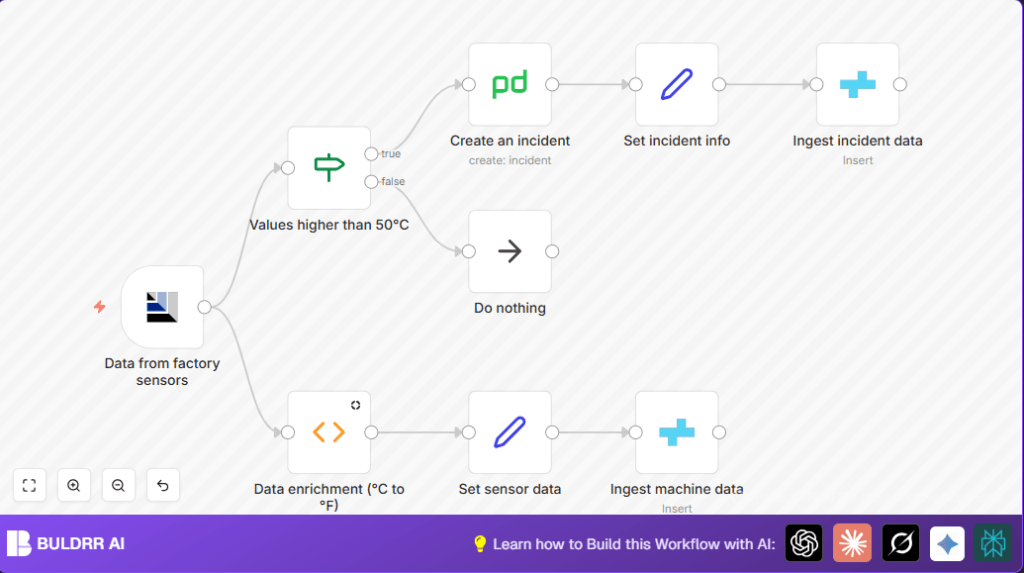

What This Automation Does
This workflow watches machine sensors in real time for temperature and uptime data.
It checks if the temperature hits 50°C or more, which means a problem might be coming.
If the temperature is high, it creates an instant alert in PagerDuty for the team to act fast.
It then saves all machine data and incident info into CrateDB for records and analysis.
If the temperature is normal, the workflow stops without doing extra work.
Inputs, Processing Steps, and Outputs
Input
- Sensor data: Real-time messages from factory machines with temperature (°C) and uptime via AMQP.
Processing Steps
- Convert Celsius temperature to Fahrenheit.
- Check if temperature is 50°C or above.
- If hot, create PagerDuty incident.
- Prepare machine info for storage.
- Save machine data to CrateDB.
- Save incident details to CrateDB.
- If not hot, skip further steps.
Output
- Machine metrics stored in CrateDB.
- Incident alerts created in PagerDuty and logged.
- Workflow stops cleanly on normal temps.
Tools and Services Used
- AMQP Broker: Delivers sensor messages (e.g., RabbitMQ).
- n8n: Workflow automation platform connecting all parts.
- PagerDuty API: Creates and manages incident alerts.
- CrateDB: Stores machine data and incident records.
Beginner Step-by-Step: How to Use This Workflow in n8n
Step 1: Import Workflow
- Click the Download button on this page to save the workflow file.
- Open the n8n editor where workflows are managed.
- Use the “Import from File” option to load the downloaded workflow.
Step 2: Add Credentials and Update Settings
- Fill in AMQP credentials to connect to the sensor data source named berlin_factory_01.
- Insert PagerDuty API Key in the PagerDuty node.
- Set CrateDB connection details for data storage nodes.
- Check machine IDs, emails, or table names if adjustment is needed for your setup.
Step 3: Test and Activate
- Run the workflow once manually with sample data to verify it works properly.
- If all looks good, activate the workflow to run automatically on new sensor data.
- Monitor workflow executions inside n8n dashboard for any errors.
You can explore self-host n8n options if running workflows on your own server.
Common Errors and Troubleshooting
- Workflow does not trigger: Ensure AMQPTrigger node has correct sink name and valid credentials.
- No PagerDuty incidents created: Check IF node’s temperature path matches sensor data and PagerDuty API key is set.
- Data not saving in CrateDB: Verify column names are correct and credentials have write access.
- Typo fixes: Correct misspelled fields like “temeprature_fahrenheit” to “temperature_fahrenheit” in Set nodes.
Customization Ideas
- Change the temperature alert threshold in the IF node to fit risk preferences.
- Add new sensor data like humidity or pressure in AMQPTrigger and subsequent nodes.
- Include Slack node after PagerDuty to send team notifications.
- Add machine location info to Set nodes to track incidents geographically.
Summary
→ Monitors real-time sensor info for high temperature alerts.
→ Creates PagerDuty incident when machines overheating.
→ Logs machine data and incidents reliably in CrateDB.
✓ Saves manual work and quickens incident response.
✓ Keeps factory data organized and ready for review.
