
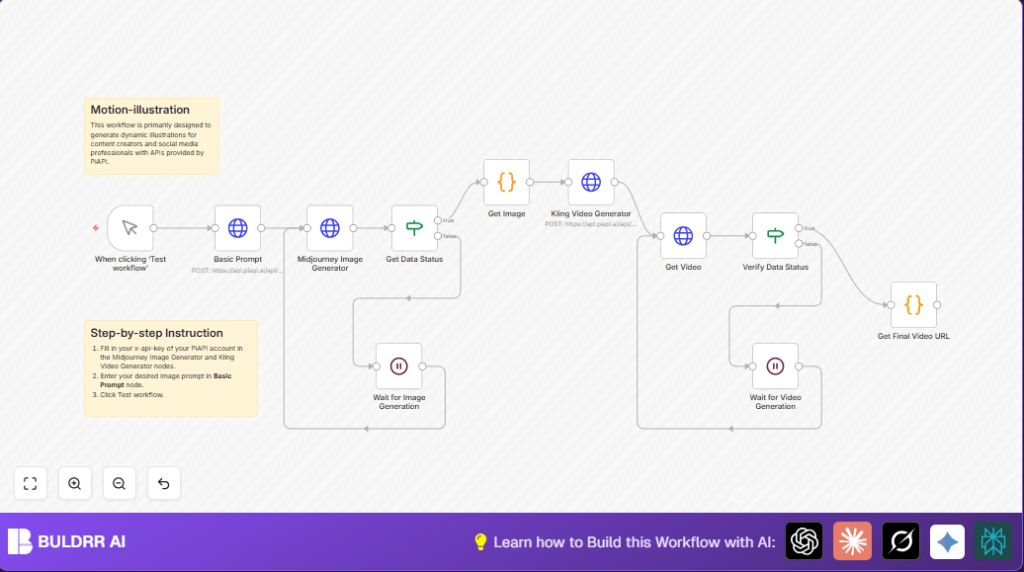

What this workflow does
This workflow helps create moving videos from text prompts automatically inside n8n.
It fixes the problem of making pictures and videos by hand, which takes too much time and mistakes happen easily.
When you run this, you get a ready video made from an AI picture without doing many steps yourself.
Tools and services used
- n8n: Automates the workflow steps and manages data flow.
- PiAPI: Provides API access to Midjourney and Kling video generation.
- Midjourney API: Creates AI-generated images from text.
- Kling API: Builds videos based on images and prompts.
Inputs, processing steps, and outputs
Inputs
- Text prompt that describes the desired image and video scenes.
- API key for PiAPI access.
Processing Steps
- Send a POST request to Midjourney with the prompt to start image generation.
- Check the image generation status repeatedly using an If node and a Wait node until it is done.
- Extract a random temporary image URL from the AI results.
- Send this image URL with a video prompt to Kling’s video generation API.
- Wait and check Kling video generation status until the video is completed.
- Extract final video URLs, including high quality and watermark-free versions.
Outputs
- Direct URLs of completed AI motion videos for download or embedding.
- Watermark-free video URLs for professional use.
Who should use this workflow
Anyone who wants to create AI-driven illustrations that move from simple text instead of doing slow manual steps.
Especially creators who want to save time and avoid syncing mistakes while keeping quality.
Beginner step-by-step: How to use this workflow in n8n production
Step 1: Import the workflow
- Download the workflow file using the “Download” button on this page.
- Inside the n8n editor, click on “Import from File” and select the downloaded workflow.
Step 2: Configure required settings
- Add your PiAPI API key into the HTTP Request node headers where “x-api-key” is required.
- Check any node that has IDs, emails, channel names, or folder links and update them if needed.
- If code or prompts are inside nodes, review and change prompt text to fit your project.
Step 3: Test and activate
- Run the Manual Trigger node by clicking “Test workflow” to ensure it starts and runs without errors.
- Watch the workflow execution to make sure images and videos generate as expected.
- Once testing works, activate the workflow by toggling the activation button at the top-right corner.
This setup runs on demand but can be linked to automated triggers.
For users running their own instance, consider self-host n8n for full control.
Detailed step-by-step workflow function
Input
The main input is a text description for the image and separate prompt for the video.
Step 1: Submit image generation request
Send a POST request to Midjourney’s API via PiAPI with the text prompt in JSON.
This creates an asynchronous task that starts generating AI images.
Step 2: Wait and check image status
Use an If node to test if the image generation status is “completed.”
If not done, the Wait node pauses the workflow for a set time before checking again.
Step 3: Get a random image URL
After images are ready, a Code node picks one temporary image URL from the list randomly.
Step 4: Start Kling video generation
Send this image URL with a video prompt to Kling’s API via HTTP POST.
The workflow again polls status using an If node and waits until the video is finished.
Step 5: Extract final video links
A Code node grabs the video URL and watermark-free URL from the response.
This final output can be used in social media or websites.
Common issues and troubleshooting
- 401 Unauthorized error: Check the “x-api-key” header in all HTTP requests. Make sure it is correct and active.
- Workflow stuck waiting: Confirm the If node checks the right JSON path for
data.status. Wrong path causes endless wait. - Random image URL undefined: Verify the initial Midjourney response contains images. Connection errors or empty outputs cause this.
Customization ideas
- Change prompt text inside the Basic Prompt node to make different images.
- Adjust video prompt in the Kling Video Generator node for mood or scene changes.
- Change wait times in Wait nodes to better fit internet speed or API delays.
- Add Slack or Email nodes to automatically send video links when ready.
- Use loops or multiple triggers to generate batches of videos automatically.
Summary
✓ Saves many manual steps by making AI images and videos automatically.
✓ Reduces wait time and syncing problems.
✓ Gives easy URLs for immediate use.
✓ Runs inside n8n with no extra software.
✓ Good for creators wanting fast multimedia outputs.
