How to Make AI Videos with Remotion + Claude Code (Beginner Setup Guide 2026)
Updated: July 25, 2026
You keep seeing those cool animated AI videos on YouTube and TikTok — the ones with flying text, smooth animations, and professional graphics. And you’re wondering: how is someone making those? haha, good news — it is not magic. You don’t need to be a video editor. You don’t need to know how to code.
This post will show you, step by step, how to set up Remotion + Claude Code and make your first AI-generated video using plain English.
Let’s do this.
What Is Remotion + Claude Code? (Explained Simply)
Remotion is a free, open-source tool that builds videos from code. Instead of dragging clips on a timeline like you do in iMovie or Premiere, Remotion reads instructions and draws each frame of your video automatically.
Think of it like a LEGO kit. You describe what you want — “put this text here, fade this logo in, make the background purple” — and Remotion builds it, piece by piece.
Claude Code is an AI assistant made by Anthropic. It lives in your computer’s terminal (a text-based window where you type commands). You describe a video in plain English, and Claude writes all the technical code for you. You never see or touch that code.
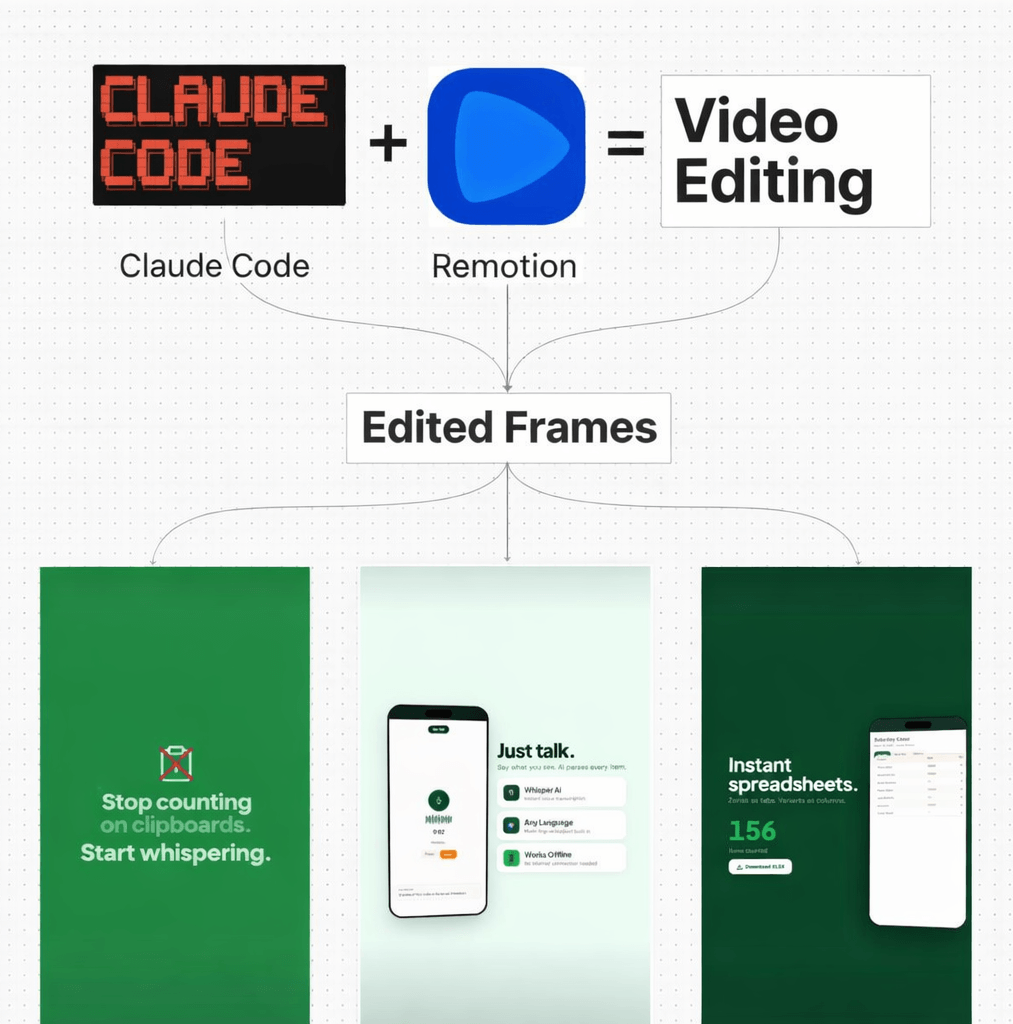
So the two tools work together like this: you talk to Claude Code → Claude writes the video code → Remotion turns that code into a real MP4 video file. That’s the whole system. Pretty cool, right?
Agent Skills are a set of instructions you install once. They teach Claude exactly how Remotion works — its rules, its patterns, what works and what doesn’t. It’s like handing Claude a cheat sheet before the exam.
According to the official Remotion documentation, this entire workflow — from setup to your first video preview — takes most beginners under 30 minutes.
What Do You Need Before You Start?
Before we go into steps, check that you have these three things. Don’t skip this part — missing one of them will stop you later.
Before you start
Setup checklist — tick each one
Node.js v18 or higher
Node.js is a program that lets your computer run JavaScript outside a browser. Remotion needs it to work.
node –version
Type the command above in your terminal. You should see v18.x.x or higher. If not, download it free at nodejs.org.
npm is a package manager — it downloads tools automatically.
npm –version
Any number appearing means it’s working.
How to Set Up Remotion + Claude Code (Step-by-Step)
Okay so here’s the part where we actually install everything. Take it one step at a time. There is no rush.
Step 1: Create your Remotion project
Open your terminal. Then type this command and press Enter:
npx create-video@latest my-video
This command downloads and sets up a new video project for you. It will ask you a few questions. Here is what to choose:
Project name: you can keep it as my-video or type any name you like
Template: choose blank — this gives you a clean starting point
TypeScript: choose Yes
Install dependencies: choose Yes
Wait for it to finish. It might take a minute or two. That’s normal.
✅ When done, you will see a message like “Your project is ready!”
???? Tip: If you see any red error text, the most common reason is that your Node.js version is too old. Run node --version and make sure you see v18 or higher.
Step 2: Go into your project folder
After the project is created, you need to move into it. Type this:
cd my-video
cd means “go into this folder.” Think of it like double-clicking a folder on your desktop — but in text form.
✅ Your terminal should now show my-video in the path at the top or left side.
Step 3: Install Remotion Agent Skills
This is the most important step. These “skills” teach Claude how to build Remotion videos correctly. Run this inside your project folder:
npx skills add remotion-dev/skills
Wait for it to finish. It downloads a file called SKILL.md into a hidden folder called .claude.
✅ When done, check the file is there by typing:
ls .claude/skills/remotion/
You should see SKILL.md in the output. If you see it — great, you’re ready.
???? Tip: If ls doesn’t work on Windows, try dir .claude\skills\remotion\ instead.
Step 4: Open Claude Code and sign in
Now start Claude Code by typing:
claude
The first time you do this, it will ask you to sign in with your Anthropic account. Follow the steps on screen — it usually opens a browser window for you. Once signed in, you will see the Claude Code prompt (it looks like a blinking cursor waiting for you to type).
✅ You should see something like Claude Code ready or a > prompt.
No worries if it takes an extra minute to authenticate — it only asks you to sign in once.
How to Make Your First AI Video with a Prompt
Here is where the magic happens, honestly. You just type what you want. Plain English. Claude reads the Remotion skills, builds all the files, and sets up the animation — automatically.
Here is a ready-to-use example prompt. Copy it, change the name, and paste it into Claude Code:
Create a 5-second intro video for a YouTube channel called "CodeFlow".
Resolution: 1920x1080, 30fps.
Dark background (#1a1a2e to #16213e gradient).
The channel name "CodeFlow" should fade in and scale up with a bounce.
Add subtle moving particles in the background.
Press Enter. Claude will start working. It reads the skills file, then writes all the code, creates the component files, and sets everything up. You don’t need to touch any of that code.
How long does it take? Usually 1–3 minutes for a simple video prompt. Wait for Claude to tell you it’s done.
Step 5: Preview your video in Remotion Studio
After Claude finishes, start the preview player by running:
npm run dev
Open your browser and go to: http://localhost:3000
You will see the Remotion Studio — a browser-based video player. Your composition (video) will appear in the list on the left. Click it. Press Play. Watch your AI-generated video.
✅ If you see the video playing in your browser — you just made your first AI video. That’s it.
Step 6: Change things with follow-up prompts
Don’t like something? Just ask Claude to fix it. Go back to the terminal where Claude Code is open and type, for example:
Make the text animation slower. Add a soft glow behind the text.
or:
Change the background to a red and purple gradient.
Remotion Studio will update almost immediately. You can keep refining until it looks exactly how you want.
Step 7: Render your final video as MP4
When you are happy with the preview, run this command to save the video as an MP4 file:
Replace MyComposition with the name shown in Remotion Studio’s sidebar. The finished video file will appear in a folder called out inside your project.
✅ Open the out folder. Your MP4 file is ready to upload anywhere.
???? Tip: For better quality, add --codec h264 --crf 18 at the end of the render command.
Before and After: What This Actually Changes
Before: You want a 10-second animated intro for your channel. You open a video editor, struggle with keyframes, spend 3 hours watching tutorials, give up, and use a generic template that looks like everyone else’s.
After: You type one paragraph in plain English. Claude builds the animation. You preview it, ask for two small changes, and render a professional-looking MP4 in about 20 minutes. Total.
That’s the real difference here.
What If Something Goes Wrong?
If you’re worried about breaking something — don’t be. Nothing you do here will delete your files or crash your computer. The worst that can happen is an error message in the terminal, and almost every error has a simple fix. Claude Code can fix most errors itself — just paste the error text back into Claude and ask “how do I fix this?
Here are the most common issues and their fixes:
Do I need to know coding to use Remotion + Claude Code?
No. Claude writes all the code for you. You only need to type descriptions in plain English. Basic comfort with the terminal (typing commands) is enough.
Is Claude Code free?
Claude Code costs $20/month on the Pro plan. There is no free Claude Code plan SSD Nodes — you need at least a Pro subscription to access it.
Can I make YouTube Shorts with this?
Yes. Just tell Claude the resolution you want. For vertical Shorts, use 1080×1920 in your prompt. Claude will build the video in the correct format.
How long does it take to make the first video?
From installation to your first preview, most beginners finish in 20–30 minutes. Rendering the final MP4 takes an additional 1–5 minutes depending on your computer.
Build Your AI Video Prompt — Interactive Tool
Use this prompt builder to generate a ready-to-paste Claude Code prompt for any type of video:
Copy-paste prompt generator
Build your AI video prompt
Your Claude Code prompt — ready to copy and paste:
Quick Recap
Remotion turns code into videos — you never write that code yourself
Claude Code writes all the code for you from a plain English description
Agent Skills teach Claude how to build Remotion videos correctly — install them once
The setup takes about 15–30 minutes from zero to your first video preview
You can change anything by typing follow-up instructions — no video editor needed
Your final video saves as a standard MP4 file, ready for YouTube, TikTok, or Instagram
What Should You Do Next?
Your one action right now: open a new browser tab and go to nodejs.org. Download the latest version. Then open your terminal and type node --version. Just do that one thing. You don’t have to install Remotion right now. You don’t have to touch Claude Code yet. Just confirm Node.js is ready on your computer — that’s the first domino.
Once that’s done, come back here and follow Step 1. The whole setup will feel much easier when you’re not doing everything at once.
And if you want to understand more about how AI automation tools like this fit into a bigger picture, check out BULDRR AI’s beginner guide to AI automation — it gives a great overview of how all these tools connect.
FAQ
Do I need to know React or JavaScript to use Remotion + Claude Code?
No. Claude Code writes all the React and JavaScript for you. You only need to describe what you want in plain English. Basic terminal comfort (typing commands) is all that’s required.
Is Claude Code free to use?
No. Claude Code requires at least a Claude Pro subscription, which costs $20/month. There is no free plan that includes Claude Code access.
What kind of videos can I make with Remotion + Claude Code?
YouTube intros, vertical Shorts, lower-third name tags, product demos, animated explainers, and title cards. Any video that uses text, shapes, and motion graphics works well. It is not for editing live-action footage.
How long does it take to set up the whole system?
Most beginners complete the full setup in 20–30 minutes. The first video preview usually appears within a few minutes of sending your first prompt to Claude.
What if Claude makes a mistake in the video?
Just tell Claude what’s wrong in plain English. For example: “The text is too small” or “The animation is too fast.” Claude will fix the code and Remotion will update the preview. You can iterate as many times as you need.
Can I use this for social media content – TikTok, Instagram Reels?
Yes. Just tell Claude you want a vertical 1080×1920 video. Claude knows how to set the safe zones so your text doesn’t get cut off by platform UI elements.
You keep seeing those cool animated AI videos on YouTube and TikTok — the ones with flying text, smooth animations, and professional graphics. And you’re wondering: how is someone making those? haha, good news — it is not magic. You don’t need to be a video editor. You don’t need to know how to code.
This post will show you, step by step, how to set up Remotion + Claude Code and make your first AI-generated video using plain English.
Let’s do this.
What Is Remotion + Claude Code? (Explained Simply)
Remotion is a free, open-source tool that builds videos from code. Instead of dragging clips on a timeline like you do in iMovie or Premiere, Remotion reads instructions and draws each frame of your video automatically.
Think of it like a LEGO kit. You describe what you want — “put this text here, fade this logo in, make the background purple” — and Remotion builds it, piece by piece.
Claude Code is an AI assistant made by Anthropic. It lives in your computer’s terminal (a text-based window where you type commands). You describe a video in plain English, and Claude writes all the technical code for you. You never see or touch that code.
So the two tools work together like this: you talk to Claude Code → Claude writes the video code → Remotion turns that code into a real MP4 video file. That’s the whole system. Pretty cool, right?
Agent Skills are a set of instructions you install once. They teach Claude exactly how Remotion works — its rules, its patterns, what works and what doesn’t. It’s like handing Claude a cheat sheet before the exam.
According to the official Remotion documentation, this entire workflow — from setup to your first video preview — takes most beginners under 30 minutes.
What Do You Need Before You Start?
Before we go into steps, check that you have these three things. Don’t skip this part — missing one of them will stop you later.
Before you start
Setup checklist — tick each one
Node.js v18 or higher
Node.js is a program that lets your computer run JavaScript outside a browser. Remotion needs it to work.
node –version
Type the command above in your terminal. You should see v18.x.x or higher. If not, download it free at nodejs.org.
npm is a package manager — it downloads tools automatically.
npm –version
Any number appearing means it’s working.
How to Set Up Remotion + Claude Code (Step-by-Step)
Okay so here’s the part where we actually install everything. Take it one step at a time. There is no rush.
Step 1: Create your Remotion project
Open your terminal. Then type this command and press Enter:
npx create-video@latest my-video
This command downloads and sets up a new video project for you. It will ask you a few questions. Here is what to choose:
Project name: you can keep it as my-video or type any name you like
Template: choose blank — this gives you a clean starting point
TypeScript: choose Yes
Install dependencies: choose Yes
Wait for it to finish. It might take a minute or two. That’s normal.
✅ When done, you will see a message like “Your project is ready!”
???? Tip: If you see any red error text, the most common reason is that your Node.js version is too old. Run node --version and make sure you see v18 or higher.
Step 2: Go into your project folder
After the project is created, you need to move into it. Type this:
cd my-video
cd means “go into this folder.” Think of it like double-clicking a folder on your desktop — but in text form.
✅ Your terminal should now show my-video in the path at the top or left side.
Step 3: Install Remotion Agent Skills
This is the most important step. These “skills” teach Claude how to build Remotion videos correctly. Run this inside your project folder:
npx skills add remotion-dev/skills
Wait for it to finish. It downloads a file called SKILL.md into a hidden folder called .claude.
✅ When done, check the file is there by typing:
ls .claude/skills/remotion/
You should see SKILL.md in the output. If you see it — great, you’re ready.
???? Tip: If ls doesn’t work on Windows, try dir .claude\skills\remotion\ instead.
Step 4: Open Claude Code and sign in
Now start Claude Code by typing:
claude
The first time you do this, it will ask you to sign in with your Anthropic account. Follow the steps on screen — it usually opens a browser window for you. Once signed in, you will see the Claude Code prompt (it looks like a blinking cursor waiting for you to type).
✅ You should see something like Claude Code ready or a > prompt.
No worries if it takes an extra minute to authenticate — it only asks you to sign in once.
How to Make Your First AI Video with a Prompt
Here is where the magic happens, honestly. You just type what you want. Plain English. Claude reads the Remotion skills, builds all the files, and sets up the animation — automatically.
Here is a ready-to-use example prompt. Copy it, change the name, and paste it into Claude Code:
Create a 5-second intro video for a YouTube channel called "CodeFlow".
Resolution: 1920x1080, 30fps.
Dark background (#1a1a2e to #16213e gradient).
The channel name "CodeFlow" should fade in and scale up with a bounce.
Add subtle moving particles in the background.
Press Enter. Claude will start working. It reads the skills file, then writes all the code, creates the component files, and sets everything up. You don’t need to touch any of that code.
How long does it take? Usually 1–3 minutes for a simple video prompt. Wait for Claude to tell you it’s done.
Step 5: Preview your video in Remotion Studio
After Claude finishes, start the preview player by running:
npm run dev
Open your browser and go to: http://localhost:3000
You will see the Remotion Studio — a browser-based video player. Your composition (video) will appear in the list on the left. Click it. Press Play. Watch your AI-generated video.
✅ If you see the video playing in your browser — you just made your first AI video. That’s it.
Step 6: Change things with follow-up prompts
Don’t like something? Just ask Claude to fix it. Go back to the terminal where Claude Code is open and type, for example:
Make the text animation slower. Add a soft glow behind the text.
or:
Change the background to a red and purple gradient.
Remotion Studio will update almost immediately. You can keep refining until it looks exactly how you want.
Step 7: Render your final video as MP4
When you are happy with the preview, run this command to save the video as an MP4 file:
Replace MyComposition with the name shown in Remotion Studio’s sidebar. The finished video file will appear in a folder called out inside your project.
✅ Open the out folder. Your MP4 file is ready to upload anywhere.
???? Tip: For better quality, add --codec h264 --crf 18 at the end of the render command.
Before and After: What This Actually Changes
Before: You want a 10-second animated intro for your channel. You open a video editor, struggle with keyframes, spend 3 hours watching tutorials, give up, and use a generic template that looks like everyone else’s.
After: You type one paragraph in plain English. Claude builds the animation. You preview it, ask for two small changes, and render a professional-looking MP4 in about 20 minutes. Total.
That’s the real difference here.
What If Something Goes Wrong?
If you’re worried about breaking something — don’t be. Nothing you do here will delete your files or crash your computer. The worst that can happen is an error message in the terminal, and almost every error has a simple fix. Claude Code can fix most errors itself — just paste the error text back into Claude and ask “how do I fix this?
Here are the most common issues and their fixes:
Do I need to know coding to use Remotion + Claude Code?
No. Claude writes all the code for you. You only need to type descriptions in plain English. Basic comfort with the terminal (typing commands) is enough.
Is Claude Code free?
Claude Code costs $20/month on the Pro plan. There is no free Claude Code plan SSD Nodes — you need at least a Pro subscription to access it.
Can I make YouTube Shorts with this?
Yes. Just tell Claude the resolution you want. For vertical Shorts, use 1080×1920 in your prompt. Claude will build the video in the correct format.
How long does it take to make the first video?
From installation to your first preview, most beginners finish in 20–30 minutes. Rendering the final MP4 takes an additional 1–5 minutes depending on your computer.
Build Your AI Video Prompt — Interactive Tool
Use this prompt builder to generate a ready-to-paste Claude Code prompt for any type of video:
Copy-paste prompt generator
Build your AI video prompt
Your Claude Code prompt — ready to copy and paste:
Quick Recap
Remotion turns code into videos — you never write that code yourself
Claude Code writes all the code for you from a plain English description
Agent Skills teach Claude how to build Remotion videos correctly — install them once
The setup takes about 15–30 minutes from zero to your first video preview
You can change anything by typing follow-up instructions — no video editor needed
Your final video saves as a standard MP4 file, ready for YouTube, TikTok, or Instagram
What Should You Do Next?
Your one action right now: open a new browser tab and go to nodejs.org. Download the latest version. Then open your terminal and type node --version. Just do that one thing. You don’t have to install Remotion right now. You don’t have to touch Claude Code yet. Just confirm Node.js is ready on your computer — that’s the first domino.
Once that’s done, come back here and follow Step 1. The whole setup will feel much easier when you’re not doing everything at once.
And if you want to understand more about how AI automation tools like this fit into a bigger picture, check out BULDRR AI’s beginner guide to AI automation — it gives a great overview of how all these tools connect.
FAQ
Do I need to know React or JavaScript to use Remotion + Claude Code?
No. Claude Code writes all the React and JavaScript for you. You only need to describe what you want in plain English. Basic terminal comfort (typing commands) is all that’s required.
Is Claude Code free to use?
No. Claude Code requires at least a Claude Pro subscription, which costs $20/month. There is no free plan that includes Claude Code access.
What kind of videos can I make with Remotion + Claude Code?
YouTube intros, vertical Shorts, lower-third name tags, product demos, animated explainers, and title cards. Any video that uses text, shapes, and motion graphics works well. It is not for editing live-action footage.
How long does it take to set up the whole system?
Most beginners complete the full setup in 20–30 minutes. The first video preview usually appears within a few minutes of sending your first prompt to Claude.
What if Claude makes a mistake in the video?
Just tell Claude what’s wrong in plain English. For example: “The text is too small” or “The animation is too fast.” Claude will fix the code and Remotion will update the preview. You can iterate as many times as you need.
Can I use this for social media content – TikTok, Instagram Reels?
Yes. Just tell Claude you want a vertical 1080×1920 video. Claude knows how to set the safe zones so your text doesn’t get cut off by platform UI elements.
Author
Written By
Vikash Kumar
Building AI agents, n8n workflows and end-to-end automation for 30+ Brands across India, the US, Europe, Dubai & Australia. 7+ years of Experience saving founders real hours every week - no code required.