

What This Automation Does
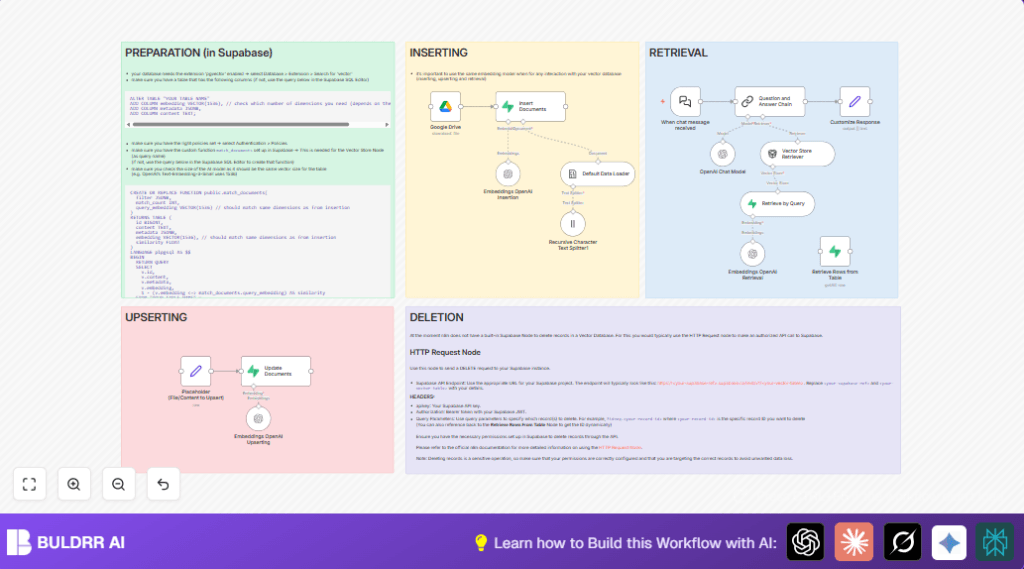
This workflow downloads documents from Google Drive, turns their content into small text pieces, makes special vectors using OpenAI, saves those vectors in Supabase, then answers your questions quickly by searching these vectors.
It helps stop wasting hours manually looking through many files and gives fast, clear answers.
Input files are ePub documents from Google Drive links. The workflow splits these into chunks, creates semantic embeddings, stores them in a vector database, and lets users chat to get specific info from the documents.
The final answer is generated using OpenAI’s chat model after finding the most relevant text parts.
Tools and Services Used
- Google Drive: Source of documents to process.
- n8n Automation Platform: Orchestrates the workflow and connects the services.
- OpenAI API: Creates text embeddings and chat completions.
- Supabase Vector Database: Stores embeddings for fast similarity search.
Who Should Use This Workflow
This workflow is useful for anyone who needs to search large sets of documents quickly.
It suits teams with many ebooks or PDFs in Google Drive who want to ask questions and get fast, accurate answers without manual reading.
Step-by-Step Guide to Use This Workflow in n8n
Download and Import
- Open this page and click the Download button to get the workflow file.
- Go to your n8n editor where you work on automation.
- Find the option Import from File and select the downloaded workflow file to load it.
Configure Credentials and Settings
- Enter Google Drive credentials so workflow can access and download your files.
- Insert your OpenAI API Key to allow embedding generation and chat answers.
- Provide Supabase project details including URL, API Key, and ensure the vector table (like
Kadampa) is correct. - If needed, update Google Drive file IDs, folders, or Supabase table names to match your data.
Test the Workflow
- Run the workflow once with a sample document to check if downloading, text splitting, embedding, and storage succeed.
- Use the chat trigger to send a test question and verify a proper answer is returned.
Activate for Production Use
- Enable the When chat message received trigger node to listen for real queries publicly.
- Share the webhook URL to allow users to interact.
- Monitor workflow runs to quickly spot and fix issues.
If running self hosting n8n, consider resources and access controls for production use.
Detailed Workflow Inputs, Processing, and Outputs
Inputs
- Google Drive file URLs to download.
- User chat questions sent to the webhook trigger.
Processing Steps
- Download file binary data from Google Drive.
- Load ePub text content from file.
- Split text into small chunks using recursive character splitter.
- Create vector embeddings for text chunks with OpenAI text-embedding-3-small model.
- Insert embeddings and metadata into Supabase vector table for efficient search.
- Embed chat queries and retrieve best matching document chunks from Supabase.
- Use OpenAI Chat model to make conversational answers based on retrieved text.
- Output answer text to chat response.
Outputs
- Fast, relevant answers to questions about the documents.
- Stored document embeddings for future search queries.
Common Troubles and How to Fix Them
- Google Drive download fails
Cause: Incorrect share link or no access permissions.
Fix: Use direct file links and check file sharing settings. - Supabase insert errors
Cause: Missing vector extension or wrong table setup.
Fix: Enablepgvectorextension and verify table columnsembedding VECTOR(1536),metadata JSONB, andcontent TEXT. - Chat gives unrelated answers
Cause: Different embedding models for storing and querying or poor retrieval settings.
Fix: Use the same OpenAI text-embedding-3-small model for both insertion and query. Adjust match document function to correct dimensions.
Customization Ideas
- Switch the embedding model name in Embeddings OpenAI Insertion and Embeddings OpenAI Retrieval nodes for better speed or accuracy.
- Change the Supabase vector table name if managing multiple document sets.
- Edit the welcome message in the When chat message received node for topic-specific greetings.
- Adjust chunk size or overlap values in the Recursive Character Text Splitter1 for finer text segmentation.
- Add an HTTP Request node to safely delete stored vectors using Supabase REST API when needed.
Final Summary
✓ Saves hours normally spent on manual document search.
✓ Quickly finds and returns very relevant answers from many files.
✓ Easy to configure and run inside any n8n setup.
✓ Works with Google Drive, OpenAI embeddings, and Supabase vector DB.
✓ Helps teams get info faster and reduce errors from missing documents.
→ Setup brings AI-driven Q&A to your document archives.
→ Workflow can expand to more file types, users, and controls.
→ Enables ongoing, fast document ingestion and querying.
