
Why Pay $20/month, When you can Self Host n8n @ $3.99 only

50+ InMails. Advanced Lead search. First 2 Users only

Promoted by BULDRR AI

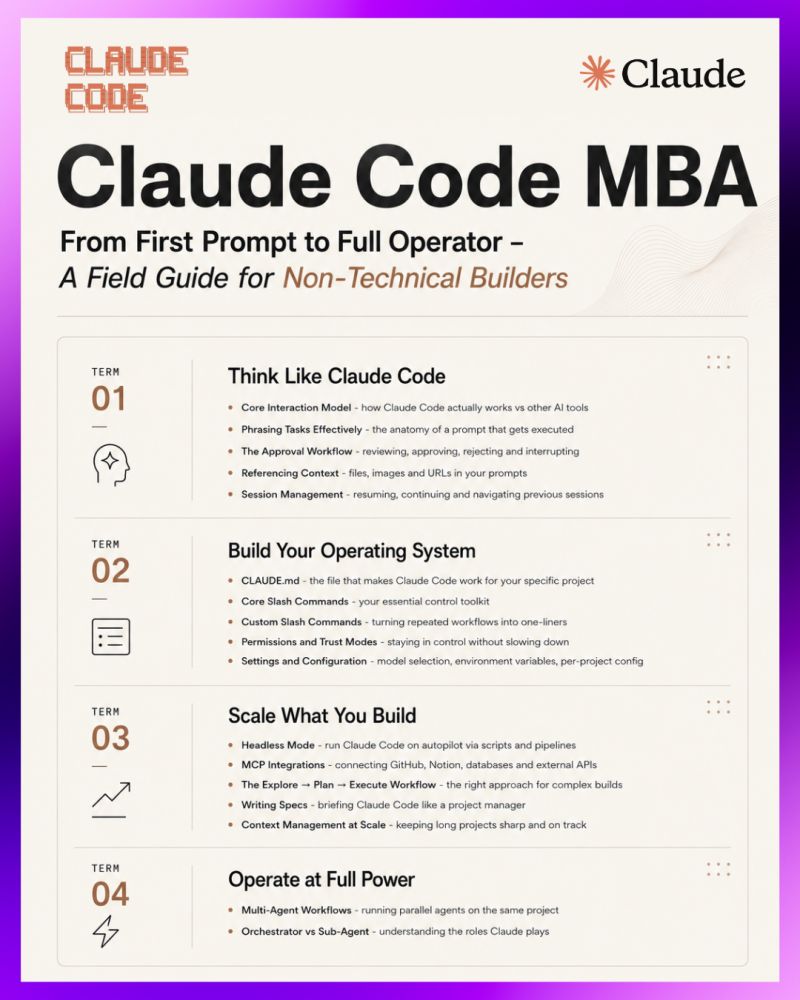
Claude Code MBA

From First Prompt to Full Operator – The Complete Field Guide for Non-Technical Builders

New to Claude Code? Start with the setup guide first: Claude Code Setup & Installation Guide

Table of Contents

Term 1 – Think Like Claude Code

Core Interaction Model – how Claude Code actually works vs other AI tools

Phrasing Tasks Effectively – the anatomy of a prompt that gets executed

The Approval Workflow – reviewing, approving, rejecting and interrupting

Referencing Context – files, images and URLs in your prompts

Session Management – resuming, continuing and navigating previous sessions

Term 2 – Build Your Operating System

CLAUDE.md – the file that makes Claude Code work for your specific project

Core Slash Commands – your essential control toolkit

Custom Slash Commands – turning repeated workflows into one-liners

Permissions and Trust Modes – staying in control without slowing down

Settings and Configuration – model selection, environment variables, per-project config

Term 3 – Scale What You Build

Headless Mode – run Claude Code on autopilot via scripts and pipelines

MCP Integrations – connecting GitHub, Notion, databases and external APIs

The Explore → Plan → Execute Workflow – the right approach for complex builds

Writing Specs – briefing Claude Code like a project manager

Context Management at Scale – keeping long projects sharp and on track

Term 4 – Operate at Full Power

Multi-Agent Workflows – running parallel agents on the same project

Orchestrator vs Sub-Agent – understanding the roles Claude plays

Advanced Prompting Patterns – what separates operators from beginners

Cost and Token Management – building efficiently without waste

Term 1 – Think Like Claude Code

Core Interaction Model

Claude Code is not a chat interface. It is an autonomous agent that reads your codebase, plans a sequence of actions, writes and edits files, and runs terminal commands – all within your local environment.

The most important mental shift: you are not asking Claude Code questions. You are delegating tasks.

When you give Claude Code a task, it will:

Read relevant files across your project to understand context

Form a plan of actions

Ask for your approval before making changes

Execute approved actions step by step

Report what it did and what changed

Chat AI (ChatGPT, Claude.ai)Claude Code
Responds with text you implementTakes actions directly in your project
No awareness of your codebaseReads and understands your full project
Stateless between messagesMaintains project context across a session
You copy-paste suggestionsIt writes, edits and runs files itself
Best for questions and draftsBest for tasks with a clear outcome

This distinction matters because the way you interact needs to change. Asking “how do I add authentication?” gives you an explanation. Saying “add JWT authentication to this Express app using the existing user model” gives you working code.

Phrasing Tasks Effectively

The quality of what Claude Code produces is directly proportional to the clarity of your task. Vague prompts produce vague results. Specific prompts produce specific, executable results.

A strong task prompt includes:

What you want done

Where it should happen (specific file, feature, or component)

Any constraints – patterns to follow, files not to touch, libraries to use

Expected outcome – what done looks like

Example – Weak vs Strong:

Weak

Fix the login bug

Strong

The login form at /components/LoginForm.tsx is not showing an error message when credentials are wrong. The API returns the error as res.data.error. Display it in red text below the submit button. Do not change the form layout or button styling.

Example – Weak vs Strong:

Weak

Add a dashboard

Strong

Create a /dashboard route in Next.js that shows three stat cards: total users, active subscriptions, and monthly revenue. Pull data from the existing /api/stats endpoint. Match the card styling used in /components/StatCard.tsx.

Useful prompt patterns:

“Without changing X, do Y” – scopes the task and protects existing work

“Use the same pattern as [file]” – gives Claude a reference to follow

“Before writing any code, tell me your plan” – gets a preview before execution

“Only touch files inside [folder]” – hard boundary for the task

The upfront investment in a clear prompt saves significant back-and-forth correction later.

The Approval Workflow

By default, Claude Code asks for your approval before taking any action that modifies files or runs commands. This is intentional – it keeps you in control.

What triggers an approval prompt:

Writing or editing a file

Running a terminal command

Deleting or renaming files

Installing packages

Your options at each approval step:

OptionWhat happens
YesApprove this single action and continue
NoReject this action – Claude Code will try an alternative approach
Yes to allApprove all remaining actions in this task without further prompts
Ctrl+CInterrupt the task immediately at any point

When to use Yes to all: Only when you have reviewed Claude Code’s full plan and are confident in the approach. For unfamiliar tasks or large changes, approve step by step.

When to interrupt with Ctrl+C: Use this the moment you see Claude heading in the wrong direction. It is better to interrupt early and redirect than to let it continue and undo a series of changes.

After an interrupt, you can clarify and continue:

Stop – that approach will break the existing tests. Instead, extend the current validateUser function rather than creating a new one.

Referencing Context

Claude Code reads your codebase automatically, but you can make a task sharper by pointing it directly at what is relevant.

Reference a specific file in your prompt:

Look at src/utils/auth.js and refactor the token validation logic to handle expired tokens gracefully.

Add files to active context mid-session:

/add src/components/Header.tsx /add src/styles/theme.css

Reference a URL:

Implement the cursor-based pagination pattern described at https://docs.stripe.com/api/pagination – apply it to the /api/orders endpoint.

Paste a screenshot or image directly:

Drag and drop a UI mockup, design file export, or error screenshot into the prompt. Claude Code reads it visually and can implement from it.

[paste screenshot of a Figma design]

Build this layout as a React component. Use Tailwind for styling. Match the spacing and font sizes as closely as possible.

Images are particularly powerful for UI work – describing a layout in words is slower and less accurate than just showing it.

Session Management

Claude Code does not automatically persist memory between sessions. When you close the terminal and reopen it, the previous context is gone unless you explicitly reload it.

Resume the most recent session:

claude –continue

Choose from a list of previous sessions:

claude –resume

This opens an interactive menu showing recent sessions with timestamps and a brief summary of what was worked on.

Practical session strategy for multi-day projects:

End each session by asking Claude Code to summarize what was completed and what is next

Paste that summary at the start of your next session as context

Keep your CLAUDE.md updated as the project evolves (covered in Term 2)

This combination of –resume and an updated CLAUDE.md means you rarely lose meaningful context between sessions.

Term 2 – Build Your Operating System

**CLAUDE.md – Your Project Brain**

CLAUDE.md is a plain text markdown file that Claude Code reads automatically at the start of every session in that project directory. It is the single most impactful thing you can set up – and most people skip it.

Without CLAUDE.md: Every session starts cold. Claude Code has to re-learn your stack, your conventions, and your constraints through your prompts.

With CLAUDE.md: Every session starts fully briefed. Claude Code knows your stack, follows your patterns, and avoids your no-go zones from the first prompt.

What to include:

Project: CustomerPortal

Stack

  • Frontend: Next.js 14, TypeScript, Tailwind CSS
  • Backend: Node.js, Express, PostgreSQL
  • Auth: Clerk
  • Testing: Vitest, React Testing Library

Conventions

  • Named exports only – no default exports
  • All API routes live in /app/api/
  • Use Zod for all input validation
  • Prefer server components unless client interactivity is needed
  • Error messages must be user-friendly, not raw API errors

Do Not Touch

  • /lib/legacy/ – deprecated code being phased out separately
  • Any file ending in .generated.ts – auto-generated, do not edit manually
  • The prisma/schema.prisma file without explicit instruction

Preferred Patterns

  • React Query for all client-side data fetching
  • Custom hooks live in /hooks/ and are prefixed with “use”
  • Keep components under 150 lines – extract into sub-components if larger
  • Write tests alongside every new utility function

Response Preferences

  • Show me a plan before writing code on tasks involving 3+ files
  • Flag any decision where there are meaningful tradeoffs

Two levels of CLAUDE.md:

LevelLocationWhen it loads
Project/your-project/CLAUDE.mdOnly in that project directory
User~/.claude/CLAUDE.mdIn every project, every session

Use the user-level file for personal working preferences – how you like plans presented, response length, whether you want explanations or just code. Use the project-level file for everything specific to the codebase.

Auto-generate a starting CLAUDE.md:

/init

This scans your project structure and generates a draft. It is a useful starting point but treat it as a scaffold – review and refine it. The most valuable parts (conventions, no-go zones, preferred patterns) come from you.

Treat CLAUDE.md as a living document. Add to it whenever you catch Claude Code doing something you need to correct repeatedly. If you find yourself saying the same thing in three different sessions, it belongs in CLAUDE.md.

Core Slash Commands

Slash commands are your primary controls during an active session.

CommandWhat it does
/helpShow all available commands and current session info
/clearClear conversation history and reset context entirely
/add [file]Add a specific file to the active context window
/compactSummarize the session history to free up context space
/memoryView and edit your CLAUDE.md instructions in-session
/initAuto-generate a CLAUDE.md for the current project
/statusShow current model, context usage and session info
/reviewAsk Claude Code to review recent changes it made

When to use /compact

In long sessions, the context window fills up. Claude Code starts to lose track of decisions made earlier in the session – it may contradict itself or “forget” a convention you established. /compact compresses the session history into a concise summary, freeing up space while preserving the essential thread.

Run it proactively when a session has been going for a while, before you notice quality degrading.

When to use /clear

Use /clear when you are starting a genuinely new task that has no relationship to what you were just doing. It gives Claude Code a clean slate. Your CLAUDE.md still loads, so project context is preserved – only the conversation history resets.

Custom Slash Commands

Custom slash commands let you save any workflow as a reusable one-liner. They are stored as markdown files and available instantly in any session.

File structure:

your-project/ .claude/ commands/ write-tests.md review-pr.md update-docs.md audit-routes.md

Example – .claude/commands/write-tests.md:

Write unit tests for $ARGUMENTS using Vitest. Cover: happy path, edge cases, null/undefined inputs, and error states. Place the test file alongside the source file as [filename].test.ts. Do not modify the source file.

Usage:

/write-tests src/utils/validator.ts

$ARGUMENTS captures everything you type after the command name and passes it into the template.

More examples:

.claude/commands/review-pr.md

Review the changes in $ARGUMENTS for:

  • Potential bugs or edge cases
  • Any deviation from our conventions in CLAUDE.md
  • Missing error handling
  • Test coverage gaps Give feedback as a numbered list ordered by severity.

.claude/commands/audit-routes.md

Audit all API routes in /app/api/ and produce a table showing:

  • Route path and method
  • Whether input validation exists
  • Whether authentication is enforced
  • Any obvious security concerns

Team sharing: Commit the .claude/commands/ folder to your repo. Every team member gets the same commands automatically.

Custom commands are especially powerful for tasks you do repeatedly – code reviews, test writing, documentation updates, security audits – where the instructions are always the same but the target changes.

Permissions and Trust Modes

Claude Code’s default behavior requires approval for every file write and terminal command. You can adjust this based on how much you trust a given task.

Restrict what Claude Code can do:

Allow file reading and writing but block all terminal commands

claude –allowedTools “Read,Write” –disallowedTools “Bash”

Allow everything except running bash

claude –disallowedTools “Bash”

Useful when you want Claude Code to make code changes but not execute anything.

Skip all permission prompts:

claude –dangerously-skip-permissions

Only use this in isolated environments – Docker containers, CI/CD pipelines, throwaway sandboxes. Never on your main working codebase without a clear plan, since there is no approval step to catch mistakes.

Settings and Configuration

Claude Code stores configuration in a settings.json file.

Locations:

ScopeLocation
User-level (global)~/.claude/settings.json
Project-level/your-project/.claude/settings.json

Project-level settings override user-level settings when you are working inside that project.

Key settings:

{ “model”: “claude-opus-4-5”, “autoApprove”: false, “theme”: “dark”, “env”: { “NODE_ENV”: “development”, “DATABASE_URL”: “postgresql://localhost/mydb” } }

Model selection:

ModelBest for
claude-sonnet-4-5 (default)Most tasks – fast and capable
claude-opus-4-5Complex architecture, difficult bugs, large refactors

Switch models mid-session if a task is proving difficult:

/model claude-opus-4-5

Environment variables: Define them in settings.json under “env” rather than exporting them manually each session. Claude Code will load them automatically.

Term 3 – Scale What You Build

Headless Mode

Headless mode runs Claude Code non-interactively – no prompts, no approval steps, output goes to your terminal or a file. This is where Claude Code moves from a manual tool to an automated one.

Basic syntax:

claude -p “your task here”

Practical examples:

Generate a daily code change summary:

claude -p “Summarize all changes made in the last 24 hours across the codebase. Format as a bullet list grouped by feature area.”

Audit API routes and save to a file:

claude -p “Audit all API routes in /app/api/ and list any that are missing input validation or authentication checks” > security-audit.md

Auto-fix failing tests as part of a CI step:

claude -p “Run the test suite and fix any failing tests. Do not change test assertions, only fix the implementation.” –dangerously-skip-permissions

Chain with other shell commands:

Run audit and immediately open the output

claude -p “Audit unused dependencies and list them” > audit.md && open audit.md

Run on a schedule (cron):

Add to crontab – runs every morning at 8am

0 8 * * * cd /your-project && claude -p “Generate today’s dev standup summary from yesterday’s git commits” >> standups/$(date +%F).md

Headless mode combined with custom slash commands and CLAUDE.md creates a powerful automation layer – Claude Code runs pre-briefed, scoped tasks without any manual input.

MCP Integrations

MCP (Model Context Protocol) is an open standard that lets Claude Code connect to external tools and services – and interact with them directly during a task. Instead of copy-pasting data between tools, Claude Code reads and writes to them as part of its workflow.

Adding an MCP server:

claude mcp add <name> <command> [arguments]

Connect to a Postgres database:

claude mcp add postgres npx @modelcontextprotocol/server-postgres postgresql://localhost/mydb

Once connected, Claude Code can query your database, inspect schemas, and write data as part of any task:

Look at the users table schema and write a migration that adds a last_login_at timestamp column with a default of now().

Connect to GitHub:

claude mcp add github npx @modelcontextprotocol/server-github

Claude Code can now read issues, create pull requests, and check CI status:

Create a PR for the current branch. Use the commit messages as the PR description. Assign it to me and add the label “ready-for-review”.

Connect to a filesystem (external directory):

claude mcp add files npx @modelcontextprotocol/server-filesystem /path/to/directory

Two scopes of MCP config:

ScopeCommandWhen it loads
User (global)claude mcp add <name> …All projects
Projectclaude mcp add –project <name> …Current project only

Manage your MCP servers:

List all connected servers

claude mcp list

Remove a server

claude mcp remove <name>

Check server status

claude mcp get <name>

Building a simple custom MCP server

If you have an internal API or tool with no existing MCP server, you can build a lightweight one. The MCP SDK makes this straightforward:

npm install @modelcontextprotocol/sdk

A minimal custom server exposes your API as a set of named tools that Claude Code can call. The Anthropic MCP documentation has starter templates for Node.js and Python.

The Explore → Plan → Execute Workflow

For any task involving multiple files, unfamiliar code, or significant changes – do not jump straight to execution. This three-step workflow produces dramatically better results.

Step 1 – Explore

Do not write any code yet. Explore the codebase and understand how the authentication system currently works end to end. Tell me: which files are involved, what the current flow is, and any areas that look fragile or non-standard.

This surfaces surprises before they become bugs.

Step 2 – Plan

Based on what you found, create a detailed step-by-step plan for adding Google OAuth alongside the existing email auth. List every file you will touch, what you will change in each, and any risks or dependencies I should know about.

Review the plan carefully. This is your checkpoint – it is far easier to correct a plan than to undo executed changes.

Step 3 – Execute

The plan looks good. Go ahead and implement it. Start with the backend OAuth handler before touching the frontend.

Why this works: Most errors in AI-generated code come from the agent misunderstanding the existing structure. The Explore step forces that understanding to surface before any code is written. The Plan step lets you verify it before approving action.

For simple, well-scoped tasks you do not need this workflow. Reserve it for anything that touches more than 3-4 files or involves meaningful architectural decisions.

Writing Specs

For larger features, write a spec file and point Claude Code to it. This is the closest equivalent to briefing a developer with a requirements document.

Why specs work:

Forces you to think through the feature before any code is written

Gives Claude Code a single source of truth to execute against

Serves as documentation after the feature ships

Easy to refine before any implementation cost is incurred

Create a spec – specs/user-notifications.md:

Feature: User Notifications

Goal

Show in-app notifications when a user receives a new message.

Requirements

  • Notification badge appears in the top nav showing unread count
  • Clicking the badge opens a dropdown with the last 10 notifications
  • Notifications are marked as read when the dropdown is opened
  • Use the existing WebSocket connection in /lib/socket.ts
  • Badge disappears when unread count reaches zero

Data

  • Notifications are already being sent via WebSocket as { type: “notification”, message, timestamp }
  • No new API endpoint needed – consume the existing socket event

Out of Scope

  • Email notifications (separate feature)
  • Push notifications
  • Notification settings or preferences

Files Likely Involved

  • /components/TopNav.tsx – add badge
  • /components/NotificationDropdown.tsx – create new
  • /lib/socket.ts – subscribe to notification events
  • /store/notifications.ts – create new state store

Invoke it:

Implement the feature described in specs/user-notifications.md. Start with the state store and socket subscription before building the UI components.

Specs scale well. A 20-minute investment in writing a clear spec typically saves 60+ minutes of corrections and iterations.

Context Management at Scale

In long projects and long sessions, context management becomes the main bottleneck. Claude Code’s context window is large but finite – and quality degrades as it fills up.

Signs your context is getting stale:

Claude Code contradicts decisions made earlier in the session

It recreates something you already built

Responses become less precise about your specific codebase

It stops following conventions from CLAUDE.md

The core principle: Keep context tight and relevant, not long.

ProblemSolution
Context window filling upRun /compact to compress session history
Claude forgetting project rulesPut rules in CLAUDE.md – they reload every session
Working across many filesUse /add to bring in only what is relevant to the current task
Starting a new phase of workRun /clear and start fresh with a focused brief
Multi-day projects losing threadAsk Claude to summarize at session end – paste summary at next start

Context budget thinking: Treat your context window like a working memory budget. Bring in what is needed for the current task. Clear or compact when the session has grown long. Rely on CLAUDE.md and spec files as permanent storage rather than trying to hold everything in the conversation.

Term 4 – Operate at Full Power

Multi-Agent Workflows

Claude Code can spawn sub-agents – separate Claude instances that work on independent tasks in parallel, coordinated by an orchestrating agent.

When multi-agent helps:

Large tasks that split cleanly into independent workstreams

Running tests while simultaneously working on a new feature

Researching multiple implementation approaches at once

Generating documentation while making code changes

When it adds unnecessary overhead:

Tasks where outputs depend on each other sequentially

Small focused tasks where a single agent is faster

When you need tight review control over every action

Example – invoking parallel work:

Split this into three parallel tasks and run them simultaneously:

  1. Write unit tests for every function in /utils/
  2. Update the README to reflect the current API endpoints
  3. Audit /components/ for unused imports and remove them

Report results from each when all three are complete.

Example – research then build:

Spawn two agents:

  1. Research agent: Look at how three popular open-source projects handle rate limiting in their APIs. Summarize the patterns.
  2. Implementation agent: While the research runs, set up the basic middleware structure we will need in /middleware/

Wait for both to complete, then we will decide on an approach.

Orchestrator vs Sub-Agent

In multi-agent workflows, Claude Code takes on different roles depending on how it is invoked.

RoleResponsibilityContext
OrchestratorBreaks down the goal, assigns tasks to sub-agents, consolidates resultsHas the full goal in context
Sub-AgentExecutes one specific delegated taskHas only its assigned task in context

Each sub-agent operates with its own isolated context window. Sub-agents do not see each other’s work or communicate directly – the orchestrator coordinates everything.

Practical implication: Sub-agents work best on tasks that are self-contained and produce a clear output. Tasks that require continuous back-and-forth between agents should be handled by the orchestrator sequentially instead.

For most use cases you do not need to explicitly think about these roles – just describe the parallel goal and Claude Code self-assigns. You need to reason about orchestrator vs sub-agent explicitly only when designing complex automated pipelines where you are controlling agent behavior programmatically.

Advanced Prompting Patterns

These patterns consistently produce better results across complex tasks.

Ask Claude to reason before acting:

Before writing any code, think through the tradeoffs between approach A (extending the existing auth middleware) and approach B (creating a separate permissions layer). Tell me which you recommend and why, then wait for my confirmation before proceeding.

Set explicit output format:

Refactor the /utils/ directory. After each file you change, print a one-line summary: [filename] – what changed and why. At the end, give me a total count of files modified.

Course-correct without losing context:

Stop. That direction will introduce a circular dependency. Keep everything you have done so far but take a different approach to the validation logic – model it on the pattern in /lib/validators/email.ts instead.

Use a scratchpad for complex problems:

This is a complex bug. Before suggesting a fix, work through it step by step in a scratchpad: what the code is doing, where it diverges from expected behavior, and what the root cause is. Then propose a fix.

Constrain scope explicitly:

Only modify files inside /features/checkout/. Do not touch any shared utilities, even if you think they could be improved.

Incremental building for large features:

We are building the notification system in phases. Today: only build the data layer – the store and socket subscription. Do not touch any UI components yet. We will do those next session.

The consistent theme: the more precisely you define the task, the scope, and the expected outcome, the more surgical and reliable Claude Code becomes.

Cost and Token Management

Every session with Claude Code consumes tokens – for reading files, processing context, and generating output. For most individual use, this is not a concern. For heavy use or automated pipelines, it is worth managing actively.

What drives token usage:

Large files added to context (especially files that are not directly relevant)

Long session histories that have not been compacted

Vague tasks that require extensive exploration before acting

Using Opus for tasks that Sonnet handles well

Reducing usage without reducing quality:

ActionImpact
Use /add selectively – only relevant filesHigh
Run /compact regularly in long sessionsHigh
Use Sonnet for standard tasks, Opus for hard onesHigh
Write specific prompts that minimize explorationMedium
Use headless mode with targeted task scopesMedium

Monitor usage:

/status

Shows current context usage and session costs.

Batching for pipelines: In headless mode, design tasks to be targeted rather than exploratory. A task that says “look through the entire codebase for issues” will consume far more tokens than “audit the input validation in /app/api/ for missing Zod schemas.”

Ask more Questions about this Blog with AI:

Follow us:

There’s no automation you can’t learn to build with BULDRR AI.

I'll show how you can implement AI AGENTS to take over repetitive tasks.

Promoted by BULDRR AI

Claude Code MBA

From First Prompt to Full Operator – The Complete Field Guide for Non-Technical Builders

New to Claude Code? Start with the setup guide first: Claude Code Setup & Installation Guide

Table of Contents

Term 1 – Think Like Claude Code

Core Interaction Model – how Claude Code actually works vs other AI tools

Phrasing Tasks Effectively – the anatomy of a prompt that gets executed

The Approval Workflow – reviewing, approving, rejecting and interrupting

Referencing Context – files, images and URLs in your prompts

Session Management – resuming, continuing and navigating previous sessions

Term 2 – Build Your Operating System

CLAUDE.md – the file that makes Claude Code work for your specific project

Core Slash Commands – your essential control toolkit

Custom Slash Commands – turning repeated workflows into one-liners

Permissions and Trust Modes – staying in control without slowing down

Settings and Configuration – model selection, environment variables, per-project config

Term 3 – Scale What You Build

Headless Mode – run Claude Code on autopilot via scripts and pipelines

MCP Integrations – connecting GitHub, Notion, databases and external APIs

The Explore → Plan → Execute Workflow – the right approach for complex builds

Writing Specs – briefing Claude Code like a project manager

Context Management at Scale – keeping long projects sharp and on track

Term 4 – Operate at Full Power

Multi-Agent Workflows – running parallel agents on the same project

Orchestrator vs Sub-Agent – understanding the roles Claude plays

Advanced Prompting Patterns – what separates operators from beginners

Cost and Token Management – building efficiently without waste

Term 1 – Think Like Claude Code

Core Interaction Model

Claude Code is not a chat interface. It is an autonomous agent that reads your codebase, plans a sequence of actions, writes and edits files, and runs terminal commands – all within your local environment.

The most important mental shift: you are not asking Claude Code questions. You are delegating tasks.

When you give Claude Code a task, it will:

Read relevant files across your project to understand context

Form a plan of actions

Ask for your approval before making changes

Execute approved actions step by step

Report what it did and what changed

Chat AI (ChatGPT, Claude.ai)Claude Code
Responds with text you implementTakes actions directly in your project
No awareness of your codebaseReads and understands your full project
Stateless between messagesMaintains project context across a session
You copy-paste suggestionsIt writes, edits and runs files itself
Best for questions and draftsBest for tasks with a clear outcome

This distinction matters because the way you interact needs to change. Asking “how do I add authentication?” gives you an explanation. Saying “add JWT authentication to this Express app using the existing user model” gives you working code.

Phrasing Tasks Effectively

The quality of what Claude Code produces is directly proportional to the clarity of your task. Vague prompts produce vague results. Specific prompts produce specific, executable results.

A strong task prompt includes:

What you want done

Where it should happen (specific file, feature, or component)

Any constraints – patterns to follow, files not to touch, libraries to use

Expected outcome – what done looks like

Example – Weak vs Strong:

Weak

Fix the login bug

Strong

The login form at /components/LoginForm.tsx is not showing an error message when credentials are wrong. The API returns the error as res.data.error. Display it in red text below the submit button. Do not change the form layout or button styling.

Example – Weak vs Strong:

Weak

Add a dashboard

Strong

Create a /dashboard route in Next.js that shows three stat cards: total users, active subscriptions, and monthly revenue. Pull data from the existing /api/stats endpoint. Match the card styling used in /components/StatCard.tsx.

Useful prompt patterns:

“Without changing X, do Y” – scopes the task and protects existing work

“Use the same pattern as [file]” – gives Claude a reference to follow

“Before writing any code, tell me your plan” – gets a preview before execution

“Only touch files inside [folder]” – hard boundary for the task

The upfront investment in a clear prompt saves significant back-and-forth correction later.

The Approval Workflow

By default, Claude Code asks for your approval before taking any action that modifies files or runs commands. This is intentional – it keeps you in control.

What triggers an approval prompt:

Writing or editing a file

Running a terminal command

Deleting or renaming files

Installing packages

Your options at each approval step:

OptionWhat happens
YesApprove this single action and continue
NoReject this action – Claude Code will try an alternative approach
Yes to allApprove all remaining actions in this task without further prompts
Ctrl+CInterrupt the task immediately at any point

When to use Yes to all: Only when you have reviewed Claude Code’s full plan and are confident in the approach. For unfamiliar tasks or large changes, approve step by step.

When to interrupt with Ctrl+C: Use this the moment you see Claude heading in the wrong direction. It is better to interrupt early and redirect than to let it continue and undo a series of changes.

After an interrupt, you can clarify and continue:

Stop – that approach will break the existing tests. Instead, extend the current validateUser function rather than creating a new one.

Referencing Context

Claude Code reads your codebase automatically, but you can make a task sharper by pointing it directly at what is relevant.

Reference a specific file in your prompt:

Look at src/utils/auth.js and refactor the token validation logic to handle expired tokens gracefully.

Add files to active context mid-session:

/add src/components/Header.tsx /add src/styles/theme.css

Reference a URL:

Implement the cursor-based pagination pattern described at https://docs.stripe.com/api/pagination – apply it to the /api/orders endpoint.

Paste a screenshot or image directly:

Drag and drop a UI mockup, design file export, or error screenshot into the prompt. Claude Code reads it visually and can implement from it.

[paste screenshot of a Figma design]

Build this layout as a React component. Use Tailwind for styling. Match the spacing and font sizes as closely as possible.

Images are particularly powerful for UI work – describing a layout in words is slower and less accurate than just showing it.

Session Management

Claude Code does not automatically persist memory between sessions. When you close the terminal and reopen it, the previous context is gone unless you explicitly reload it.

Resume the most recent session:

claude –continue

Choose from a list of previous sessions:

claude –resume

This opens an interactive menu showing recent sessions with timestamps and a brief summary of what was worked on.

Practical session strategy for multi-day projects:

End each session by asking Claude Code to summarize what was completed and what is next

Paste that summary at the start of your next session as context

Keep your CLAUDE.md updated as the project evolves (covered in Term 2)

This combination of –resume and an updated CLAUDE.md means you rarely lose meaningful context between sessions.

Term 2 – Build Your Operating System

**CLAUDE.md – Your Project Brain**

CLAUDE.md is a plain text markdown file that Claude Code reads automatically at the start of every session in that project directory. It is the single most impactful thing you can set up – and most people skip it.

Without CLAUDE.md: Every session starts cold. Claude Code has to re-learn your stack, your conventions, and your constraints through your prompts.

With CLAUDE.md: Every session starts fully briefed. Claude Code knows your stack, follows your patterns, and avoids your no-go zones from the first prompt.

What to include:

Project: CustomerPortal

Stack

  • Frontend: Next.js 14, TypeScript, Tailwind CSS
  • Backend: Node.js, Express, PostgreSQL
  • Auth: Clerk
  • Testing: Vitest, React Testing Library

Conventions

  • Named exports only – no default exports
  • All API routes live in /app/api/
  • Use Zod for all input validation
  • Prefer server components unless client interactivity is needed
  • Error messages must be user-friendly, not raw API errors

Do Not Touch

  • /lib/legacy/ – deprecated code being phased out separately
  • Any file ending in .generated.ts – auto-generated, do not edit manually
  • The prisma/schema.prisma file without explicit instruction

Preferred Patterns

  • React Query for all client-side data fetching
  • Custom hooks live in /hooks/ and are prefixed with “use”
  • Keep components under 150 lines – extract into sub-components if larger
  • Write tests alongside every new utility function

Response Preferences

  • Show me a plan before writing code on tasks involving 3+ files
  • Flag any decision where there are meaningful tradeoffs

Two levels of CLAUDE.md:

LevelLocationWhen it loads
Project/your-project/CLAUDE.mdOnly in that project directory
User~/.claude/CLAUDE.mdIn every project, every session

Use the user-level file for personal working preferences – how you like plans presented, response length, whether you want explanations or just code. Use the project-level file for everything specific to the codebase.

Auto-generate a starting CLAUDE.md:

/init

This scans your project structure and generates a draft. It is a useful starting point but treat it as a scaffold – review and refine it. The most valuable parts (conventions, no-go zones, preferred patterns) come from you.

Treat CLAUDE.md as a living document. Add to it whenever you catch Claude Code doing something you need to correct repeatedly. If you find yourself saying the same thing in three different sessions, it belongs in CLAUDE.md.

Core Slash Commands

Slash commands are your primary controls during an active session.

CommandWhat it does
/helpShow all available commands and current session info
/clearClear conversation history and reset context entirely
/add [file]Add a specific file to the active context window
/compactSummarize the session history to free up context space
/memoryView and edit your CLAUDE.md instructions in-session
/initAuto-generate a CLAUDE.md for the current project
/statusShow current model, context usage and session info
/reviewAsk Claude Code to review recent changes it made

When to use /compact

In long sessions, the context window fills up. Claude Code starts to lose track of decisions made earlier in the session – it may contradict itself or “forget” a convention you established. /compact compresses the session history into a concise summary, freeing up space while preserving the essential thread.

Run it proactively when a session has been going for a while, before you notice quality degrading.

When to use /clear

Use /clear when you are starting a genuinely new task that has no relationship to what you were just doing. It gives Claude Code a clean slate. Your CLAUDE.md still loads, so project context is preserved – only the conversation history resets.

Custom Slash Commands

Custom slash commands let you save any workflow as a reusable one-liner. They are stored as markdown files and available instantly in any session.

File structure:

your-project/ .claude/ commands/ write-tests.md review-pr.md update-docs.md audit-routes.md

Example – .claude/commands/write-tests.md:

Write unit tests for $ARGUMENTS using Vitest. Cover: happy path, edge cases, null/undefined inputs, and error states. Place the test file alongside the source file as [filename].test.ts. Do not modify the source file.

Usage:

/write-tests src/utils/validator.ts

$ARGUMENTS captures everything you type after the command name and passes it into the template.

More examples:

.claude/commands/review-pr.md

Review the changes in $ARGUMENTS for:

  • Potential bugs or edge cases
  • Any deviation from our conventions in CLAUDE.md
  • Missing error handling
  • Test coverage gaps Give feedback as a numbered list ordered by severity.

.claude/commands/audit-routes.md

Audit all API routes in /app/api/ and produce a table showing:

  • Route path and method
  • Whether input validation exists
  • Whether authentication is enforced
  • Any obvious security concerns

Team sharing: Commit the .claude/commands/ folder to your repo. Every team member gets the same commands automatically.

Custom commands are especially powerful for tasks you do repeatedly – code reviews, test writing, documentation updates, security audits – where the instructions are always the same but the target changes.

Permissions and Trust Modes

Claude Code’s default behavior requires approval for every file write and terminal command. You can adjust this based on how much you trust a given task.

Restrict what Claude Code can do:

Allow file reading and writing but block all terminal commands

claude –allowedTools “Read,Write” –disallowedTools “Bash”

Allow everything except running bash

claude –disallowedTools “Bash”

Useful when you want Claude Code to make code changes but not execute anything.

Skip all permission prompts:

claude –dangerously-skip-permissions

Only use this in isolated environments – Docker containers, CI/CD pipelines, throwaway sandboxes. Never on your main working codebase without a clear plan, since there is no approval step to catch mistakes.

Settings and Configuration

Claude Code stores configuration in a settings.json file.

Locations:

ScopeLocation
User-level (global)~/.claude/settings.json
Project-level/your-project/.claude/settings.json

Project-level settings override user-level settings when you are working inside that project.

Key settings:

{ “model”: “claude-opus-4-5”, “autoApprove”: false, “theme”: “dark”, “env”: { “NODE_ENV”: “development”, “DATABASE_URL”: “postgresql://localhost/mydb” } }

Model selection:

ModelBest for
claude-sonnet-4-5 (default)Most tasks – fast and capable
claude-opus-4-5Complex architecture, difficult bugs, large refactors

Switch models mid-session if a task is proving difficult:

/model claude-opus-4-5

Environment variables: Define them in settings.json under “env” rather than exporting them manually each session. Claude Code will load them automatically.

Term 3 – Scale What You Build

Headless Mode

Headless mode runs Claude Code non-interactively – no prompts, no approval steps, output goes to your terminal or a file. This is where Claude Code moves from a manual tool to an automated one.

Basic syntax:

claude -p “your task here”

Practical examples:

Generate a daily code change summary:

claude -p “Summarize all changes made in the last 24 hours across the codebase. Format as a bullet list grouped by feature area.”

Audit API routes and save to a file:

claude -p “Audit all API routes in /app/api/ and list any that are missing input validation or authentication checks” > security-audit.md

Auto-fix failing tests as part of a CI step:

claude -p “Run the test suite and fix any failing tests. Do not change test assertions, only fix the implementation.” –dangerously-skip-permissions

Chain with other shell commands:

Run audit and immediately open the output

claude -p “Audit unused dependencies and list them” > audit.md && open audit.md

Run on a schedule (cron):

Add to crontab – runs every morning at 8am

0 8 * * * cd /your-project && claude -p “Generate today’s dev standup summary from yesterday’s git commits” >> standups/$(date +%F).md

Headless mode combined with custom slash commands and CLAUDE.md creates a powerful automation layer – Claude Code runs pre-briefed, scoped tasks without any manual input.

MCP Integrations

MCP (Model Context Protocol) is an open standard that lets Claude Code connect to external tools and services – and interact with them directly during a task. Instead of copy-pasting data between tools, Claude Code reads and writes to them as part of its workflow.

Adding an MCP server:

claude mcp add <name> <command> [arguments]

Connect to a Postgres database:

claude mcp add postgres npx @modelcontextprotocol/server-postgres postgresql://localhost/mydb

Once connected, Claude Code can query your database, inspect schemas, and write data as part of any task:

Look at the users table schema and write a migration that adds a last_login_at timestamp column with a default of now().

Connect to GitHub:

claude mcp add github npx @modelcontextprotocol/server-github

Claude Code can now read issues, create pull requests, and check CI status:

Create a PR for the current branch. Use the commit messages as the PR description. Assign it to me and add the label “ready-for-review”.

Connect to a filesystem (external directory):

claude mcp add files npx @modelcontextprotocol/server-filesystem /path/to/directory

Two scopes of MCP config:

ScopeCommandWhen it loads
User (global)claude mcp add <name> …All projects
Projectclaude mcp add –project <name> …Current project only

Manage your MCP servers:

List all connected servers

claude mcp list

Remove a server

claude mcp remove <name>

Check server status

claude mcp get <name>

Building a simple custom MCP server

If you have an internal API or tool with no existing MCP server, you can build a lightweight one. The MCP SDK makes this straightforward:

npm install @modelcontextprotocol/sdk

A minimal custom server exposes your API as a set of named tools that Claude Code can call. The Anthropic MCP documentation has starter templates for Node.js and Python.

The Explore → Plan → Execute Workflow

For any task involving multiple files, unfamiliar code, or significant changes – do not jump straight to execution. This three-step workflow produces dramatically better results.

Step 1 – Explore

Do not write any code yet. Explore the codebase and understand how the authentication system currently works end to end. Tell me: which files are involved, what the current flow is, and any areas that look fragile or non-standard.

This surfaces surprises before they become bugs.

Step 2 – Plan

Based on what you found, create a detailed step-by-step plan for adding Google OAuth alongside the existing email auth. List every file you will touch, what you will change in each, and any risks or dependencies I should know about.

Review the plan carefully. This is your checkpoint – it is far easier to correct a plan than to undo executed changes.

Step 3 – Execute

The plan looks good. Go ahead and implement it. Start with the backend OAuth handler before touching the frontend.

Why this works: Most errors in AI-generated code come from the agent misunderstanding the existing structure. The Explore step forces that understanding to surface before any code is written. The Plan step lets you verify it before approving action.

For simple, well-scoped tasks you do not need this workflow. Reserve it for anything that touches more than 3-4 files or involves meaningful architectural decisions.

Writing Specs

For larger features, write a spec file and point Claude Code to it. This is the closest equivalent to briefing a developer with a requirements document.

Why specs work:

Forces you to think through the feature before any code is written

Gives Claude Code a single source of truth to execute against

Serves as documentation after the feature ships

Easy to refine before any implementation cost is incurred

Create a spec – specs/user-notifications.md:

Feature: User Notifications

Goal

Show in-app notifications when a user receives a new message.

Requirements

  • Notification badge appears in the top nav showing unread count
  • Clicking the badge opens a dropdown with the last 10 notifications
  • Notifications are marked as read when the dropdown is opened
  • Use the existing WebSocket connection in /lib/socket.ts
  • Badge disappears when unread count reaches zero

Data

  • Notifications are already being sent via WebSocket as { type: “notification”, message, timestamp }
  • No new API endpoint needed – consume the existing socket event

Out of Scope

  • Email notifications (separate feature)
  • Push notifications
  • Notification settings or preferences

Files Likely Involved

  • /components/TopNav.tsx – add badge
  • /components/NotificationDropdown.tsx – create new
  • /lib/socket.ts – subscribe to notification events
  • /store/notifications.ts – create new state store

Invoke it:

Implement the feature described in specs/user-notifications.md. Start with the state store and socket subscription before building the UI components.

Specs scale well. A 20-minute investment in writing a clear spec typically saves 60+ minutes of corrections and iterations.

Context Management at Scale

In long projects and long sessions, context management becomes the main bottleneck. Claude Code’s context window is large but finite – and quality degrades as it fills up.

Signs your context is getting stale:

Claude Code contradicts decisions made earlier in the session

It recreates something you already built

Responses become less precise about your specific codebase

It stops following conventions from CLAUDE.md

The core principle: Keep context tight and relevant, not long.

ProblemSolution
Context window filling upRun /compact to compress session history
Claude forgetting project rulesPut rules in CLAUDE.md – they reload every session
Working across many filesUse /add to bring in only what is relevant to the current task
Starting a new phase of workRun /clear and start fresh with a focused brief
Multi-day projects losing threadAsk Claude to summarize at session end – paste summary at next start

Context budget thinking: Treat your context window like a working memory budget. Bring in what is needed for the current task. Clear or compact when the session has grown long. Rely on CLAUDE.md and spec files as permanent storage rather than trying to hold everything in the conversation.

Term 4 – Operate at Full Power

Multi-Agent Workflows

Claude Code can spawn sub-agents – separate Claude instances that work on independent tasks in parallel, coordinated by an orchestrating agent.

When multi-agent helps:

Large tasks that split cleanly into independent workstreams

Running tests while simultaneously working on a new feature

Researching multiple implementation approaches at once

Generating documentation while making code changes

When it adds unnecessary overhead:

Tasks where outputs depend on each other sequentially

Small focused tasks where a single agent is faster

When you need tight review control over every action

Example – invoking parallel work:

Split this into three parallel tasks and run them simultaneously:

  1. Write unit tests for every function in /utils/
  2. Update the README to reflect the current API endpoints
  3. Audit /components/ for unused imports and remove them

Report results from each when all three are complete.

Example – research then build:

Spawn two agents:

  1. Research agent: Look at how three popular open-source projects handle rate limiting in their APIs. Summarize the patterns.
  2. Implementation agent: While the research runs, set up the basic middleware structure we will need in /middleware/

Wait for both to complete, then we will decide on an approach.

Orchestrator vs Sub-Agent

In multi-agent workflows, Claude Code takes on different roles depending on how it is invoked.

RoleResponsibilityContext
OrchestratorBreaks down the goal, assigns tasks to sub-agents, consolidates resultsHas the full goal in context
Sub-AgentExecutes one specific delegated taskHas only its assigned task in context

Each sub-agent operates with its own isolated context window. Sub-agents do not see each other’s work or communicate directly – the orchestrator coordinates everything.

Practical implication: Sub-agents work best on tasks that are self-contained and produce a clear output. Tasks that require continuous back-and-forth between agents should be handled by the orchestrator sequentially instead.

For most use cases you do not need to explicitly think about these roles – just describe the parallel goal and Claude Code self-assigns. You need to reason about orchestrator vs sub-agent explicitly only when designing complex automated pipelines where you are controlling agent behavior programmatically.

Advanced Prompting Patterns

These patterns consistently produce better results across complex tasks.

Ask Claude to reason before acting:

Before writing any code, think through the tradeoffs between approach A (extending the existing auth middleware) and approach B (creating a separate permissions layer). Tell me which you recommend and why, then wait for my confirmation before proceeding.

Set explicit output format:

Refactor the /utils/ directory. After each file you change, print a one-line summary: [filename] – what changed and why. At the end, give me a total count of files modified.

Course-correct without losing context:

Stop. That direction will introduce a circular dependency. Keep everything you have done so far but take a different approach to the validation logic – model it on the pattern in /lib/validators/email.ts instead.

Use a scratchpad for complex problems:

This is a complex bug. Before suggesting a fix, work through it step by step in a scratchpad: what the code is doing, where it diverges from expected behavior, and what the root cause is. Then propose a fix.

Constrain scope explicitly:

Only modify files inside /features/checkout/. Do not touch any shared utilities, even if you think they could be improved.

Incremental building for large features:

We are building the notification system in phases. Today: only build the data layer – the store and socket subscription. Do not touch any UI components yet. We will do those next session.

The consistent theme: the more precisely you define the task, the scope, and the expected outcome, the more surgical and reliable Claude Code becomes.

Cost and Token Management

Every session with Claude Code consumes tokens – for reading files, processing context, and generating output. For most individual use, this is not a concern. For heavy use or automated pipelines, it is worth managing actively.

What drives token usage:

Large files added to context (especially files that are not directly relevant)

Long session histories that have not been compacted

Vague tasks that require extensive exploration before acting

Using Opus for tasks that Sonnet handles well

Reducing usage without reducing quality:

ActionImpact
Use /add selectively – only relevant filesHigh
Run /compact regularly in long sessionsHigh
Use Sonnet for standard tasks, Opus for hard onesHigh
Write specific prompts that minimize explorationMedium
Use headless mode with targeted task scopesMedium

Monitor usage:

/status

Shows current context usage and session costs.

Batching for pipelines: In headless mode, design tasks to be targeted rather than exploratory. A task that says “look through the entire codebase for issues” will consume far more tokens than “audit the input validation in /app/api/ for missing Zod schemas.”

Ask more Questions about this Blog with AI:

Follow us:

Promoted by BULDRR AI

Our AI Articles

Learn from our AI Articles to excel in your profession ;)

Build n8n Automations With Claude Code

This guide shows how to build AI automation systems using Cursor, Claude Code, n8n, MCP, and agents....

Anthropic’s Prompt Engineering Guide, Explained Simply

Anthropic’s workshop reveals prompt engineering is about context, structure, and iteration — not magic words....

Building Effective AI Agents

A practical breakdown of Barry’s Anthropic talk on AI agents, workflows, orchestration systems, and production deployment....

Tools Stack

A curated AI tools stack covering research, coding, automation, creativity, sales, and learning workflows....

Claude Code MBA

A complete beginner-to-operator guide for mastering [Claude Code](https://www.anthropic.com/claude-code?utm_source=chatgpt.com) without needing a technical background. Learn how to think like an AI...

OpenRouter Free Models 2026: Full API Key Setup + 15+ Free Model IDs Listed

The complete OpenRouter free tier guide for 2026. Get your API key, see all 15+ free models with their exact...

CLAUDE Viral Content Machine

Complete Setup Guide Important Note: Unlike ChatGPT custom GPTs, Claude Projects cannot be shared directly via links. That’s why I’m...

Create motion graphic videos using Codex + Remotion

Create motion graphic videos using Codex and Remotion by turning prompts into code-driven animations, building scenes, adding assets, and rendering...

7 AI Agents Businesses Pay $3,000–$15,000/Month For in 2026 (With Real Pricing)

These 7 AI agents are generating $3K–$15K/month for automation agencies in 2026. We cover the build cost, time to deploy,...

How to Use Claude Code for Free in 2026 (No Subscription Needed)

Yes, Claude Code is free to use in 2026 — here's exactly how. This guide covers the free tier, no-subscription...

Frequently Asked Questions

We share all our insights and resources for free, but building them isn’t cheap. Ads help us recover those costs so we can keep offering everything at no charge forever.

Yes, Ofcourse. Contact us and we’ll set it up. We also offer 100+ hours of free visibility to select brands.

No, nothing at all. In fact, many ads come with extra discounts for you.

Yes, sometimes. If you buy through our links, we may earn a small commission at no extra cost to you.

1:1 Free Strategy Session
Your competitors are already automating. Are you still paying for it manually?

Do you want to adopt AI Automation?

Every hour your team does repetitive work, you're burning real money.
While you wait, faster businesses are cutting costs and moving quicker.
AI and automations aren't the future anymore — they're the present.

Book a live 1-on-1 session where we show you exactly which of your daily tasks can be automated — and what it’s costing you not to.