
Create motion graphic videos using Codex + Remotion

Codex
Updated: July 25, 2026

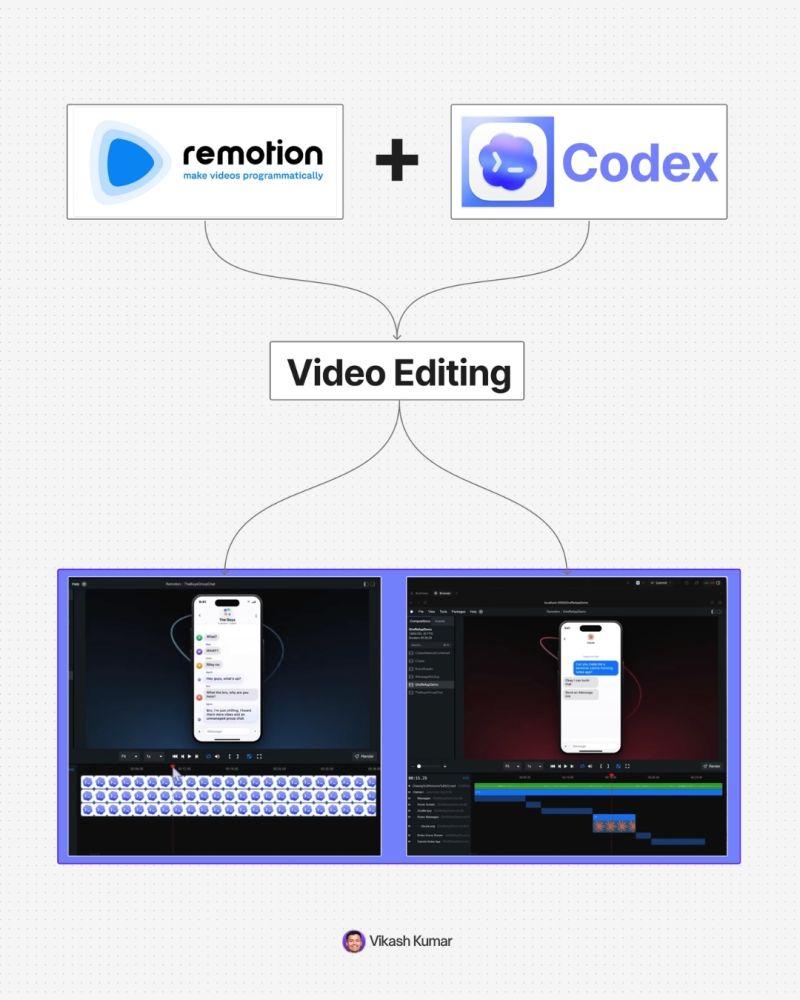
This method turns text into videos using AI agents. You describe the video, the system writes code, and the video renders automatically.

1. Understand the setup

You are using:

→ Codex
↳ OpenAI’s all in one AI workspace

→ Remotion plugin
↳ converts code into motion graphics

→ GPT-5 level reasoning inside Codex
↳ handles complex instructions

You are not editing videos.
You are directing a system.

2. Install Codex and create a project

  1. Download Codex desktop
  2. Open it
  3. Create a new project folder

→ Example: “remotion project”

Why this matters:

→ keeps all videos organized
→ lets you create multiple videos in one workspace

3. Install the Remotion plugin

Inside Codex:

→ Go to Plugins
→ Search “Remotion”
→ Install

After this:

→ Codex can generate videos
→ You can trigger it using prompts

4. Create your first video

Start simple.

Type:

@remotion-video create a simple hello world animation with black text on white background

What happens:

→ AI writes code
→ Runs locally
→ Gives a preview link

Open the localhost preview.

You now have your first video.

5. Understand core concepts

You need to know 4 things:

  1. Composition

→ a full video or scene

  1. Timeline

→ duration of video

  1. Sequences

→ multiple scenes inside one video

  1. Assets

→ images, logos, audio files

Everything you build uses these.

6. Add assets to your video

Example:

  1. Download logos or images
  2. Drag into your project folder

Then prompt:

@remotion use codeex.png and remotion.png
place them on screen with animation

What happens:

→ AI detects assets
→ inserts them into video
→ animates them

7. Build scenes step by step

Instead of one big prompt, iterate.

Example flow:

→ Add logos
→ Add text
→ Add animation
→ Adjust timing

Example prompt:

extend scene by 2 seconds
animate logos off screen
change text to “full guide”

Key rule:

Be specific.

Better input = better output.

8. Control animations precisely

You can go deeper:

→ reference frames
→ change transitions
→ modify motion style

Example:

at frame 417
replace text with typing animation
instead of fade

Also:

Use screenshots to guide AI.

→ circle what you want changed
→ upload
→ explain clearly

This removes confusion.

9. Create multiple scenes

You can build full videos.

Example prompt:

create 3 new scenes:

scene 1: typing interface
scene 2: loading animation
scene 3: show final rendered video

keep background consistent

Result:

→ AI adds sequences
→ builds full storyline

10. Add music

  1. Download audio (mp3)
  2. Drag into project folder

Prompt:

@audio.mp3
add this at 75% volume across entire video

Now your video has sound.

11. Create reusable brand assets

Create a “brand assets” composition.

Include:

→ gradients
→ background patterns
→ logos
→ UI elements

Then reuse:

use red gradient from brand assets

This keeps videos consistent.

12. Refine with iteration

You will not get perfect output in one prompt.

Fix things like:

→ wrong animation
→ bad transitions
→ timing issues

Example:

remove this line
keep the animation ball
make transition smoother

This is normal.

13. Final rendering

When ready:

→ Click Render
→ Choose format (MP4 H.264)

Output:

→ export video
→ upload to social platforms

14. What makes this powerful

This is not a video tool.

This is a system:

→ AI agents write code
automation builds video
→ you guide outcomes

Speed difference:

→ manual editing: hours
→ this workflow: minutes

15. When to use this

Best use cases:

social media videos
→ product launches
→ explainer clips
→ UI demos
→ quick content production

Not ideal yet for:

→ high end cinematic work
→ complex VFX

Final takeaway

You are not learning editing.

You are learning:

→ how to think in scenes
→ how to describe motion
→ how to guide AI systems

That is the real skill.

Once you understand this:

You can create any video.

This method turns text into videos using AI agents. You describe the video, the system writes code, and the video renders automatically.

1. Understand the setup

You are using:

→ Codex
↳ OpenAI’s all in one AI workspace

→ Remotion plugin
↳ converts code into motion graphics

→ GPT-5 level reasoning inside Codex
↳ handles complex instructions

You are not editing videos.
You are directing a system.

2. Install Codex and create a project

  1. Download Codex desktop
  2. Open it
  3. Create a new project folder

→ Example: “remotion project”

Why this matters:

→ keeps all videos organized
→ lets you create multiple videos in one workspace

3. Install the Remotion plugin

Inside Codex:

→ Go to Plugins
→ Search “Remotion”
→ Install

After this:

→ Codex can generate videos
→ You can trigger it using prompts

4. Create your first video

Start simple.

Type:

@remotion-video create a simple hello world animation with black text on white background

What happens:

→ AI writes code
→ Runs locally
→ Gives a preview link

Open the localhost preview.

You now have your first video.

5. Understand core concepts

You need to know 4 things:

  1. Composition

→ a full video or scene

  1. Timeline

→ duration of video

  1. Sequences

→ multiple scenes inside one video

  1. Assets

→ images, logos, audio files

Everything you build uses these.

6. Add assets to your video

Example:

  1. Download logos or images
  2. Drag into your project folder

Then prompt:

@remotion use codeex.png and remotion.png
place them on screen with animation

What happens:

→ AI detects assets
→ inserts them into video
→ animates them

7. Build scenes step by step

Instead of one big prompt, iterate.

Example flow:

→ Add logos
→ Add text
→ Add animation
→ Adjust timing

Example prompt:

extend scene by 2 seconds
animate logos off screen
change text to “full guide”

Key rule:

Be specific.

Better input = better output.

8. Control animations precisely

You can go deeper:

→ reference frames
→ change transitions
→ modify motion style

Example:

at frame 417
replace text with typing animation
instead of fade

Also:

Use screenshots to guide AI.

→ circle what you want changed
→ upload
→ explain clearly

This removes confusion.

9. Create multiple scenes

You can build full videos.

Example prompt:

create 3 new scenes:

scene 1: typing interface
scene 2: loading animation
scene 3: show final rendered video

keep background consistent

Result:

→ AI adds sequences
→ builds full storyline

10. Add music

  1. Download audio (mp3)
  2. Drag into project folder

Prompt:

@audio.mp3
add this at 75% volume across entire video

Now your video has sound.

11. Create reusable brand assets

Create a “brand assets” composition.

Include:

→ gradients
→ background patterns
→ logos
→ UI elements

Then reuse:

use red gradient from brand assets

This keeps videos consistent.

12. Refine with iteration

You will not get perfect output in one prompt.

Fix things like:

→ wrong animation
→ bad transitions
→ timing issues

Example:

remove this line
keep the animation ball
make transition smoother

This is normal.

13. Final rendering

When ready:

→ Click Render
→ Choose format (MP4 H.264)

Output:

→ export video
→ upload to social platforms

14. What makes this powerful

This is not a video tool.

This is a system:

→ AI agents write code
automation builds video
→ you guide outcomes

Speed difference:

→ manual editing: hours
→ this workflow: minutes

15. When to use this

Best use cases:

social media videos
→ product launches
→ explainer clips
→ UI demos
→ quick content production

Not ideal yet for:

→ high end cinematic work
→ complex VFX

Final takeaway

You are not learning editing.

You are learning:

→ how to think in scenes
→ how to describe motion
→ how to guide AI systems

That is the real skill.

Once you understand this:

You can create any video.

Author
Written By
Vikash Kumar
Building AI agents, n8n workflows and end-to-end automation for 30+ Brands across India, the US, Europe, Dubai & Australia. 7+ years of Experience saving founders real hours every week - no code required.
Ask more Questions about this Blog with AI:

Our AI Articles

Learn from our AI Articles to excel in your profession ;)

10 Best n8n Workflows Every Business Should Automate

Manual work is killing business speed. In 2026, companies that still copy-paste data between apps are already behind. This is...

Automating the First 14 Days After Someone Buys From You

How to automate the first 14 days after a sale closes — welcome messages, account setup, kickoff booking, and day-7/day-14...

10 Questions to Ask Before Hiring an n8n Automation Agency

Before hiring an n8n automation agency, ask about their pricing model (per-workflow vs retainer), who owns the finished workflows, how...

n8n vs Zapier vs Make: Which Automation Tool is Best for Business

n8n is the best fit for businesses that want self-hosting, unlimited executions, and deep AI-agent capability and have some technical...

How to Use OpenRouter with n8n: Free AI Workflows (No Card Needed)

You keep hearing about AI automation but every option seems to cost money. ChatGPT Plus is $20 a month. Claude...

How to Automate Lead Follow-Up Calls with AI: A Step-by-Step Guide

Here is a number that should worry every business owner: leads that are called within five minutes of showing interest...

10 Claude Tips: From Using 10% of Claude to Actually Using It

A practical guide to getting more out of Claude, this post shares 10 tips from beginner to advanced, including choosing...

How Claude Killed Prompt Engineering (And What To Do Instead)

Anthropic’s latest Claude updates suggest a shift away from long, rule-heavy prompts toward minimal, goal-first context. This post explains Record...

Why AI Recommends the Business With Recent Reviews, Not Just More of Them

Why AI search tools like ChatGPT and Google AI Overviews weigh review recency and response rate above raw review count...

Build a Second Brain for Your Business With Claude Code and Obsidian

This guide shows how to build a business second brain with Claude Code and Obsidian in under 10 minutes. Using...

Does AI Actually Care How Old Your Content Is?

Does content freshness really affect AI citations? Yes, but it's one of 23 factors, not the deciding one, and the...

Does Your “About Us” Page Actually Help AI Trust Your Business?

Does an About Us page actually help AI trust your business? Yes, it's a core E-E-A-T signal Google's own quality...
1:1 Free Strategy Session
Your competitors are already automating. Are you still paying for it manually?

Do you want to adopt AI Automation?

Every hour your team does repetitive work, you're burning real money.
While you wait, faster businesses are cutting costs and moving quicker.
AI and automations aren't the future anymore — they're the present.

Book a live 1-on-1 session where we show you exactly which of your daily tasks can be automated — and what it’s costing you not to.