

1. Opening Problem Statement
Meet Julia, a freelance photographer who spends hours each week branding her images by manually adding watermarks in design software. This repetitive task not only wastes her valuable editing time but also introduces errors in watermark positioning, sometimes obscuring key parts of her photos. Julia needs a way to automatically place her transparent logo perfectly centered on any image background without repeatedly resizing or tweaking placement manually. This workflow using n8n solves Julia’s exact problem by automating the overlay process based on image metadata.
2. What This Automation Does
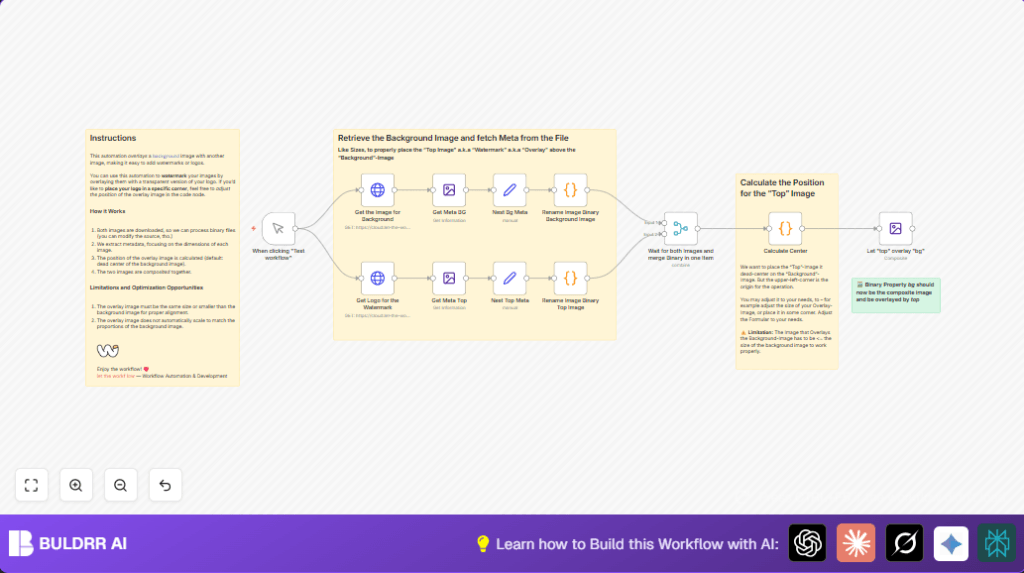
This n8n workflow downloads a background image and a transparent logo (watermark) image, calculates their sizes, and overlays the logo exactly centered on the background. Here’s what you get when the workflow runs:
- Automatically fetches both background and logo images from URLs.
- Extracts image metadata to determine dimensions.
- Calculates the centered coordinates on the background image where the logo should be placed.
- Composites (merges) the logo onto the background image at the calculated position.
- Exports the final combined image as a new JPEG file named “out.png”.
- Eliminates manual image editing and placement guesswork, saving hours of work.
3. Prerequisites ⚙️
- n8n account (cloud or self-hosted) 🔑
- Internet connection to fetch images via HTTP requests 🔌
- Basic understanding of running workflows in n8n
4. Step-by-Step Guide
Step 1: Start with Manual Trigger
Navigate to the n8n editor. Click + Add Node → Core Nodes → Manual Trigger. This allows you to run the workflow on demand for testing and automation.
You’ll see a node titled When clicking “Test workflow”. No parameters need setting here.
Outcome: The workflow will start when you click “Execute workflow” manually.
Common mistake: Forgetting to trigger manually; ensure to start the workflow for testing.
Step 2: Fetch the Background Image
Add an HTTP Request node named Get the Image for Background. Configure it:
- Set Method to GET
- Enter the image URL (e.g.,
https://cloud.let-the-work-flow.com/workflow-data/robot-1.png) - Leave other settings on default.
This node downloads the background image binary for processing.
Outcome: You get the background image data ready for manipulation.
Common mistake: Incorrect URL or permission issues causing fetch failure.
Step 3: Fetch the Logo/Watermark Image
Add another HTTP Request node titled Get Logo for the Watermark. Configure similarly:
- Method: GET
- URL:
https://cloud.let-the-work-flow.com/workflow-data/logo-shadow.png
This node downloads the transparent logo image which will overlay the background.
Outcome: Logo image binary ready for overlay.
Common mistake: Fetching a non-transparent logo can obscure your background.
Step 4: Extract Metadata from Background Image
Add an Edit Image node named Get Meta BG. Set the Operation to information. Connect it to the Get the Image for Background node.
This node reads image properties (like width and height) necessary for positioning the overlay.
Outcome: Metadata JSON containing width and height of the background.
Common mistake: Skipping metadata extraction prevents correct overlay calculation.
Step 5: Extract Metadata from Logo Image
Add another Edit Image node named Get Meta Top with the same information operation. Connect it to Get Logo for the Watermark.
Outcome: Metadata JSON for the logo image.
Step 6: Rename Binary Properties for Clarity
Add two Code nodes to rename the automatic binary property from data to bg for background and top for the logo. This helps in merging later.
Example JavaScript in Rename Image Binary Background Image node:
$input.item.binary.bg = $input.item.binary.data;
delete $input.item.binary.data;
return $input.item;
Similarly, for Rename Image Binary Top Image:
$input.item.binary.top = $input.item.binary.data;
delete $input.item.binary.data;
return $input.item;
Outcome: Properly named binary properties for merge.
Step 7: Merge Image Binaries into One Item
Add a Merge node named Wait for both Images and merge Binary in one Item. Set mode to combine and combine by position.
Connect the renamed binary output nodes to this merge node. It waits until both images are fetched and paired in one data item.
Outcome: Single item with both bg and top binary data ready.
Step 8: Calculate Center Position with Code Node
Add a Code node named Calculate Center. Use this JavaScript:
const centerX = ($input.item.json.metaBg.size.width + $input.item.json.metaTop.size.width) / 2;
const centerY = ($input.item.json.metaBg.size.height + $input.item.json.metaTop.size.height) / 2;

$input.item.json.center = { x: centerX, y: centerY };

return $input.item;
This calculates the coordinates to place the overlay dead center on the background.
Outcome: JSON property center with x and y coordinates.
Step 9: Composite the Images
Add an Edit Image node called Let “top” overlay “bg”. Configure:
- Operation: composite
- Format: jpeg
- Filename: out.png
- PositionX:
={ $json.center.x - $json.metaTop.size.width } - PositionY:
={ $json.center.y - $json.metaTop.size.height } - Data Property Name: bg (background image)
- Data Property Name Composite: top (overlay image)
This overlays the logo exactly centered on the background image binary.
Outcome: A merged image with the watermark centered.
Step 10: Preview or Export Your Result
After the composite node, you can add nodes to save, upload, or email your watermarked image as needed.
5. Customizations ✏️
- Change Overlay Position: In the Calculate Center code node, modify the formula for
center.xandcenter.yto position the watermark in a different corner or offset. - Use Your Own Images: Replace URLs in the HTTP Request nodes with your own background and watermark image links.
- Change Output Format: In the Let “top” overlay “bg” edit image node, switch the output format to PNG if you need transparency in the final image.
- Add Image Scaling: Insert an additional Edit Image node before compositing to resize the logo to fit the background proportionally.
- Automate Trigger: Replace the manual trigger with a webhook to automate image watermarking from external sources.
6. Troubleshooting 🔧
Problem: “Overlay image too large or position incorrect”
Cause: The watermark dimensions are bigger than the background image or center calculation is off.
Solution: Check image sizes in metadata nodes. Adjust overlay image size or position formulas in the Calculate Center node.
Problem: “Binary data missing in composite node”
Cause: Rename Code nodes did not properly assign the binary properties.
Solution: Verify the JavaScript in the rename nodes exactly matches the workflow code and that the merge node is correctly combining both binary streams.
7. Pre-Production Checklist ✅
- Verify URLs for both images are accessible and correct.
- Test manual trigger and ensure both images download successfully.
- Confirm metadata extraction returns expected width and height.
- Check code node outputs correct center coordinates.
- Run composite node and preview the output image.
- Backup previous images if overwriting any files.
8. Deployment Guide
Activate the workflow by saving and switching it from draft to active status in n8n. You can trigger it manually or integrate a webhook trigger for automation from external apps.
Monitor executions in the n8n dashboard for errors or logs. Adjust image URLs or node settings as you refine your workflow for production.
9. Conclusion
By following this detailed tutorial, you have built a precise image watermarking automation that overlays your transparent logo perfectly centered on any background image. This saves manual effort, reduces errors, and speeds up your branding process by hours each week. Try customizing with your own images or automate bulk watermarking next to maximize efficiency!
Next steps you might explore include:
- Adding image resizing to scale logos automatically
- Triggering watermarking via file uploads using webhooks
- Saving watermarked images to cloud storage for easy access
Happy automating! ⚙️
