
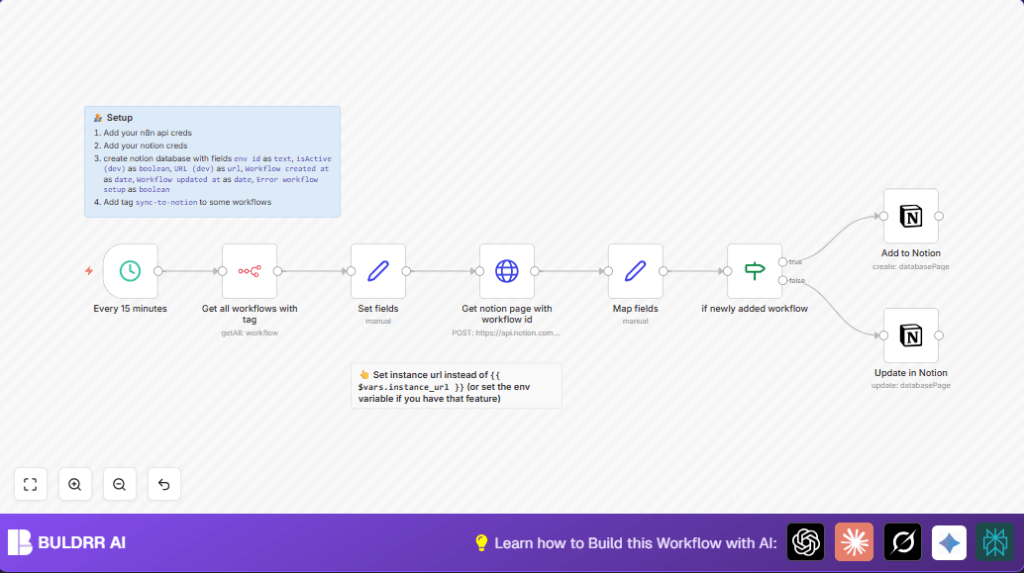

What This Automation Does
This workflow syncs all n8n workflows labeled sync-to-notion into a Notion database every 15 minutes.
It helps track active workflows, errors, and updates automatically in Notion.
The workflow gets workflow info, searches for matching pages in Notion, and updates or creates pages accordingly.
This removes manual work and keeps team info current and clear.
Inputs, Processing, and Outputs
Inputs
- n8n workflows tagged
sync-to-notion. - n8n instance URL as environment or static variable.
- Notion database with fields to track workflow data.
- API credentials for n8n and Notion.
Processing Steps
- Triggered every 15 minutes by a Schedule Trigger.
- Uses n8n node to get workflows filtered by tag.
- Extracts data like active status, name, URLs, timestamps, and error flags using a Set node.
- Builds unique IDs and workflow URLs using the instance URL variable.
- Makes a filtered POST request to Notion API to find pages matching the workflow’s env id.
- Uses If node to check if matching pages exist.
- Creates new or updates existing Notion pages by Notion node accordingly.
Outputs
- Notion database with updated entries reflecting workflows’ current status.
- Clickable URLs to workflows in Notion.
- Error workflows flagged in Notion.
Who Should Use This Workflow
Anyone managing many n8n workflows that need regular status tracking.
Teams using Notion for status reporting can save hours.
It is helpful if workflows are tagged to organize syncing.
Users who want less manual work and fewer mistakes benefit most.
Tools and Services Used
- n8n: To list and process workflows.
- Notion API: To read and write database entries.
- Schedule Trigger node: To run workflows every 15 minutes.
- Set node: To prepare workflow data.
- If node: To decide between creating or updating pages.
- HTTP Request node: To query Notion database.
- Notion node: To create or update Notion pages.
Beginner Step-by-Step: How to Use This Workflow in Production
1. Import the Workflow
- Download the workflow using the Download button on this page.
- In your n8n editor, click on “Import from File”.
- Choose the downloaded workflow file to import.
2. Configure Credentials and Variables
- Open the imported workflow.
- Add required API credentials for n8n and Notion in the credential settings.
- Update the Notion database ID and any other IDs or fields as needed.
- Make sure to set or update the
instance_urlvariable to your n8n URL.
3. Test the Workflow
- Run the workflow once manually.
- Watch the logs to check for errors.
- Verify a new or updated page is created correctly in Notion.
4. Activate for Production
- Toggle the workflow’s Active switch in n8n editor.
- The workflow will now run every 15 minutes automatically.
- Check executions in the Execution List regularly.
If using self-host n8n, set alerts for failures.
Common Edge Cases and Failures
- Empty or failed workflow list: Usually wrong or missing n8n API credentials.
- Notion API 401 Unauthorized: Notion API Key may be invalid or expired.
- Broken URLs in Notion:
instance_urlvariable missing or incorrect. - No Notion page created: Notion database ID missing or permission issues.
- Rate limits reached: Sync frequency might be too often for large setups.
Customization Ideas
- Change the tag filter in the n8n node to sync other workflow groups.
- Add more workflow fields like owner or description in the Set node and update Notion accordingly.
- Adjust sync frequency in the Schedule Trigger to faster or slower intervals.
- Flag error workflows specially or add notes in Notion for better visibility.
- Use environment variables to set the instance URL for easier migration.
Pre-Production and Deployment Tips
- Verify API credentials have needed permissions.
- Check Notion database properties exactly match expected fields.
- Test Notion API connection alone before full workflow run.
- Run workflow manually first and verify data.
- Backup Notion database before large updates.
- Activate and monitor workflow runs regularly.
Summary of Results
✓ Saves hours of manual tracking each week.
✓ Eliminates errors from manual status copying.
✓ Updates Notion database every 15 minutes automatically.
✓ Shows active and error workflows clearly in Notion.
✓ Links workflows in Notion for easy access.
✓ Helps teams stay informed with up-to-date info.
