

What This Workflow Does ⚙️
This workflow gets images from Google Cloud Storage, turns them into vectors using an AI model, and uploads them to Qdrant. It solves the long, slow job of doing each image one by one. The result is a fast, easy-to-search vector database for crop analysis.
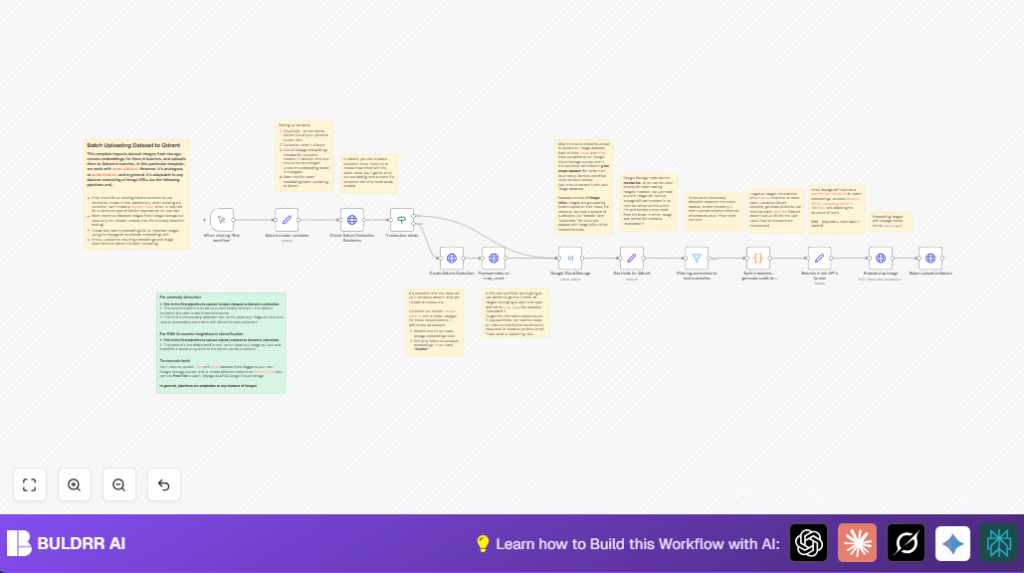
It checks if the Qdrant collection exists and makes one if missing. Then it loads image links, skips unwanted crops, splits images into batches, generates embeddings in groups, and uploads batches with IDs and metadata. This saves much time and cuts errors.
Tools and Services Used
- Google Cloud Storage: Holds thousands of crop images.
- Qdrant Cloud: Stores and searches vector data with similarity metrics.
- Voyage AI Embedding API: Converts images to 1024-dimensional vectors.
- n8n Automation Platform: Runs workflow to connect services and automate steps.
Inputs, Processing, and Outputs
Inputs
- Google Cloud Storage bucket with crop images organized by crop types as folders.
- API credentials for Voyage AI and Qdrant Cloud.
- Configuration variables for collection name, batch size, and vector dimension.
Processing Steps
- Checks Qdrant collection existence, creates if missing.
- Fetches all crop images metadata from storage using a prefix filter.
- Sets up public image URLs and extracts crop names from file paths.
- Filters out specified crops (e.g., tomatoes) for anomaly testing.
- Splits images into batches sized for efficient API calls.
- Generates unique IDs (UUIDs) for each image point.
- Formats batches for embedding API and Qdrant upload with metadata.
- Calls Voyage AI API to create embeddings from image URLs.
- Uploads each batch as vector points with metadata to Qdrant collection.
Output
- A fully populated Qdrant vector collection with crop image embeddings and metadata.
- Indexed data ready for similarity search and AI anomaly detection pipelines.
Who Should Use This Workflow
Anyone with large image datasets in Google Cloud Storage who wants to build AI models on images quickly. Especially useful if searching images by content or detecting crop anomalies matters.
Users with Qdrant Cloud accounts and access to Voyage AI embedding API can automate big image uploads without manual work.
Beginner Step-by-Step: How to Use This Workflow in n8n
Importing the Workflow
- Download the workflow JSON file using the Download button on this page.
- In the n8n editor, click on menu and select “Import from File”.
- Choose the downloaded workflow JSON and import it.
Configuring Credentials and Variables
- Add Google Cloud Storage credentials to n8n credential manager.
- Add Qdrant Cloud API credentials (URL and authorization headers) in n8n.
- Add Voyage AI API key in the HTTP Request node headers for embedding.
- Open the Qdrant cluster variables node and update these values as needed:
– Qdrant Cloud URL
– Collection name
– Embedding dimension (usually 1024)
– Batch size (suggest 4 or fewer if new)
Running and Activating
- Run the workflow once in test mode to check for errors.
- Look at execution logs to ensure images are batched, embedded, and uploaded correctly.
- Fix any credential or configuration errors that appear.
- Activate the workflow in n8n for ongoing or scheduled execution.
- Optionally, host your n8n instance using self-host n8n for control and security.
Customization Ideas
- Change batch size in Qdrant cluster variables to balance API speed and rate limits.
- Use a different dataset by editing Google Cloud Storage prefix filter in the Google Cloud Storage node.
- Switch distance metric in Qdrant collection creation node from Cosine to Euclidean if needed.
- Add filters to skip other crop types besides tomatoes, using filter nodes.
- Change embedding model name in the Voyage AI API JSON payload to use a different model.
Common Issues and Troubleshooting
Collection Already Exists Error
This happens if the workflow tries to create a Qdrant collection that is already there.
Make sure the node Check Qdrant Collection Existence correctly skips the creation step when the collection exists.
API 401 Unauthorized Errors
These errors mean API keys for Voyage or Qdrant are wrong or missing.
Double-check credentials in n8n credential manager and test the HTTP nodes separately to confirm access.
Wrong Crop Name Extraction
If crop names look wrong, probably the path parsing is off.
Edit the expressions in the Get fields for Qdrant node so the slice occurs on correct parts of the file paths.
Pre-Production Checklist ✅
- Check the Google Cloud Storage bucket and prefix path are correct and accessible with current credentials.
- Test the existing Qdrant collection API call, and collection creation logic.
- Ensure Voyage AI API key is valid and has allowed enough requests for batch processing size.
- Run the workflow with a small batch count (like 2) to catch errors before full runs.
- Backup existing Qdrant collections if overwriting data.
Summary of Benefits
✓ Saves time by automating image batch embedding and uploading.
✓ Avoids manual errors by linking cloud storage directly to vector search.
✓ Produces searchable Qdrant collections ready for AI anomaly detection.
✓ Users get batch processing with unique IDs and metadata tagging.
→ The workflow turns thousands of images into vectors fast and manages data flow.
→ It allows easy scaling and rerunning with minimal tweaking needed.
