

What This Automation Does
This workflow helps users ask questions about Google Search Console data using simple chat messages. It solves the problem of spending hours manually pulling reports and filtering data. The result is fast answers in table format through a chat interface, saving time and effort.
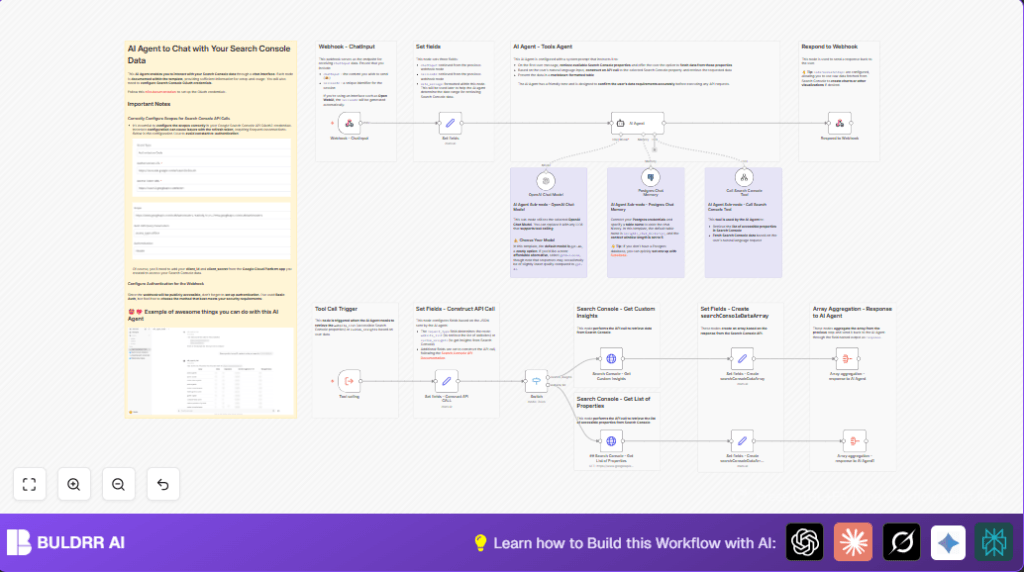
The user sends a chat message with their question and a session ID to a secure webhook. The workflow keeps track of the conversation using a Postgres database. It then uses AI (OpenAI GPT-4) to understand the user’s question and makes Search Console API calls. The data is returned as easy-to-read markdown tables in the chat reply.
Tools and Services Used
- Google Search Console API: Provides website search data and performance metrics.
- OpenAI GPT-4o model: Understands natural language queries and generates responses.
- PostgreSQL Database: Stores chat history for remembering context across messages.
- n8n Automation Platform: Runs the workflow nodes handling webhook, API calls, and AI processing.
- Basic Authentication: Secures the webhook receiving chat messages.
How This Workflow Works
Inputs
- User sends a POST request to the Webhook node with two fields: chatInput (the question) and sessionId (unique conversation ID).
- The webhook requires Basic Authentication for security.
Processing Steps
- Set node extracts the chatInput and sessionId fields and adds the current date as date_message.
- Postgres Chat Memory node loads and saves conversation history in the PostgreSQL table
insights_chat_histories. This keeps the chat context for the AI. - OpenAI Chat Model node runs the GPT-4o model to understand and generate replies from the user’s words and memory.
- AI Agent node uses a system prompt that guides the AI to dynamically build API calls to Google Search Console based on questions. The prompt also instructs the AI to reply with markdown tables for readability.
- The AI agent can call tools (like getting the website list or insights) through a separate Execute Workflow Trigger node. This node parses the AI’s request details.
- A Switch node routes API calls based on the request type: either listing Search Console properties or querying analytics data.
- HTTP Request nodes call the Google Search Console API endpoints authorized with OAuth 2.0 credentials.
- Set nodes format the JSON API responses into arrays called searchConsoleData.
- Aggregate nodes combine the result arrays into a single field named response, which is sent back to the chat interface with Respond to Webhook node.
Outputs
- The user receives a JSON reply containing markdown tables summarizing the Search Console data.
- The chat memory is updated to keep conversation context for future questions.
Beginner Step-by-Step: How to Use This Workflow in n8n Production
Importing the Workflow
- Download the workflow file using the Download button on this page.
- In n8n editor, click on “Import from File” and select the downloaded workflow.
Configuring Credentials
- Add Google Search Console OAuth2 credentials with required scopes.
- Add your OpenAI API Key with access to the GPT-4o model.
- Connect the PostgreSQL database credentials for the Postgres Chat Memory node.
Updating Settings
- In the Set node that maps chat inputs, confirm the incoming JSON fields match your client structure.
- Verify the PostgreSQL table named
insights_chat_historiesexists and has proper read/write permissions. - If the workflow has any placeholders like property URLs or session ID formats, update them accordingly.
- Check Basic Auth credentials on the Webhook node for security settings and update your client calls to include them.
Testing and Activation
- Run the workflow manually by sending a POST request with sample chatInput and sessionId to the webhook URL.
- Confirm the workflow returns data as markdown tables in the response.
- Activate the workflow by switching it ON in n8n for production use.
- Consider using self-host n8n for full control and better security in your production environment.
Customization Ideas
- Switch the OpenAI Chat Model node to a smaller GPT-4o-mini model to save cost, trading small quality loss.
- Adjust how many past messages the PostgreSQL chat memory stores to make conversations longer or shorter.
- Add more Search Console dimensions like “device”, “country”, or “searchAppearance” in the API call Set node for richer insights.
- Change webhook authentication method from Basic Auth to OAuth or API key based on your security needs.
- Enhance the AI’s reply formatting by adding charts or different markdown styles using the Respond to Webhook node options.
Troubleshooting
Invalid OAuth token or frequent re-authentication
This usually happens when the Google OAuth client lacks the correct scopes, especially the Search Console scope https://www.googleapis.com/auth/webmasters.readonly.
Review your Google Cloud OAuth settings and update scope. Renew tokens if needed.
No data received or empty Search Console responses
Often caused by wrong date formats, wrong property URLs, or wrong dimension arrays in the API body.
Make sure dates use YYYY-MM-DD format, dimensions are correct arrays, and property URLs exactly match those from the list API.
AI agent giving unclear or wrong answers
Check that the AI Agent’s system prompt includes clear instructions for interpreting queries and calling tools.
Ensure the Postgres Chat Memory node is connected properly so that conversation context is remembered.
Summary & Results
✓ Save hours weekly by automating Search Console data queries via chat.
✓ Reduce manual errors by automating input parsing and API calls.
✓ Get easy-to-understand data output as markdown tables.
→ The workflow handles user questions, remembers context, and returns dynamic data.
→ This makes SEO data accessible for non-technical users without coding or complex queries.
