

1. What this workflow does
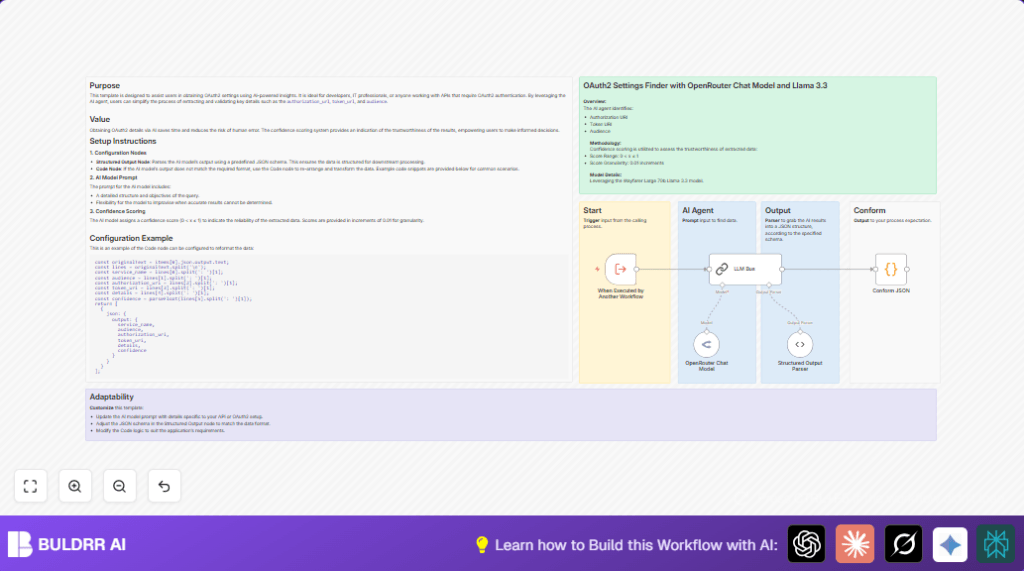
This workflow takes the name of an OAuth2 service and finds the OAuth2 settings like service name, audience, authorization URI, and token URI.
It uses an AI model to get the data and gives a confidence score to show how sure it is about the info.
This helps users avoid wasting time searching API docs manually and reduces errors in adding OAuth2 details.
2. Who should use this workflow
This is useful for people who add APIs with OAuth2 to software but do not want to spend hours looking for OAuth details.
It suits developers and automation users who want quick OAuth information from only a service name.
3. Tools and services used
- n8n: The automation platform to run the workflow.
- OpenRouter API: Gives access to an AI model for understanding OAuth service names.
- Wayfarer Large 70b Llama 3.3 Model: The AI model that processes the data.
- JavaScript Code Node: Cleans and structures the AI output.
- LangChain Nodes: Manage interaction with the AI and parsing of its output.
Users can self-host n8n if preferred by visiting self-host n8n.
4. Beginner step-by-step: How to use this workflow in n8n
Importing the workflow
- Download the workflow file by clicking the Download button on this page.
- Open n8n editor and select Import from File.
- Choose the downloaded file to add the workflow to your n8n.
Configure API credentials
- Go to the OpenRouter Chat Model node.
- Add your OpenRouter API Key in the credentials settings.
Adjust settings if needed
- Update any IDs, emails, or channels required by connected nodes.
- If the Code node has prompt or parsing code, make sure it stays as is or update carefully if changing the AI output.
Test the workflow
- Run the workflow with a sample input like {“name”:”Atlassian”}.
- Check that the output shows service_name, audience, OAuth URIs, and confidence score.
Activate for production
- Switch the workflow to active in n8n.
- Use it from other workflows by calling the execute trigger node.
5. Inputs, Processing, and Outputs
Inputs
- A JSON object with the OAuth service name, for example {“name”:”Atlassian”}.
Processing Steps
- When Executed by Another Workflow runs on input receive.
- OpenRouter Chat Model node sends the service name to the AI model.
- LLM Bus node manages AI chain communication.
- Structured Output Parser node converts raw AI text to JSON format using a schema.
- Code node named “Conform JSON” parses text fields into exact JSON keys.
Outputs
- A JSON object with keys: service_name, audience, authorization_uri, token_uri, details, and confidence.
- Confidence is a number from 0.01 to 1.00 indicating AI certainty.
6. Customize the workflow
- Change AI model in the OpenRouter Chat Model node by picking a different model for better accuracy.
- Adjust prompt in the LLM Bus node to gather more OAuth details or handle special API cases.
- Expand JSON schema in Structured Output Parser node to include extra fields like scopes or token expiration, then update Code node parsing.
7. Handling common issues
Problem: “Failed to authenticate OpenRouter API”
Cause: API Key missing or wrong in OpenRouter Chat Model node.
Fix: Enter correct API Key in n8n OpenRouter credentials and test connection.
Problem: “JSON parser error due to unexpected output format”
Cause: AI output changed or schema incorrect.
Fix: Check AI prompt and output format, then update JSON schema in Structured Output Parser and Code node parsing as needed.
8. Pre-production checklist
- Check OpenRouter API credentials are valid.
- Try multiple service names such as Atlassian, Google, and SAP.
- Make sure Code node output matches what other tools expect.
- Save a copy of the workflow JSON file before activating for easy rollback.
9. Deploy and monitor
Activate the workflow inside n8n settings.
Call this workflow from other workflows using the execute trigger.
Watch execution logs to catch failures or odd outputs early.
10. Summary of results
✓ Save many hours looking for OAuth2 info.
✓ Quickly get well-structured OAuth2 settings from just a service name.
✓ Lower risk of mistakes from manual data entry.
→ Ready-to-use JSON output with reliability score.
