
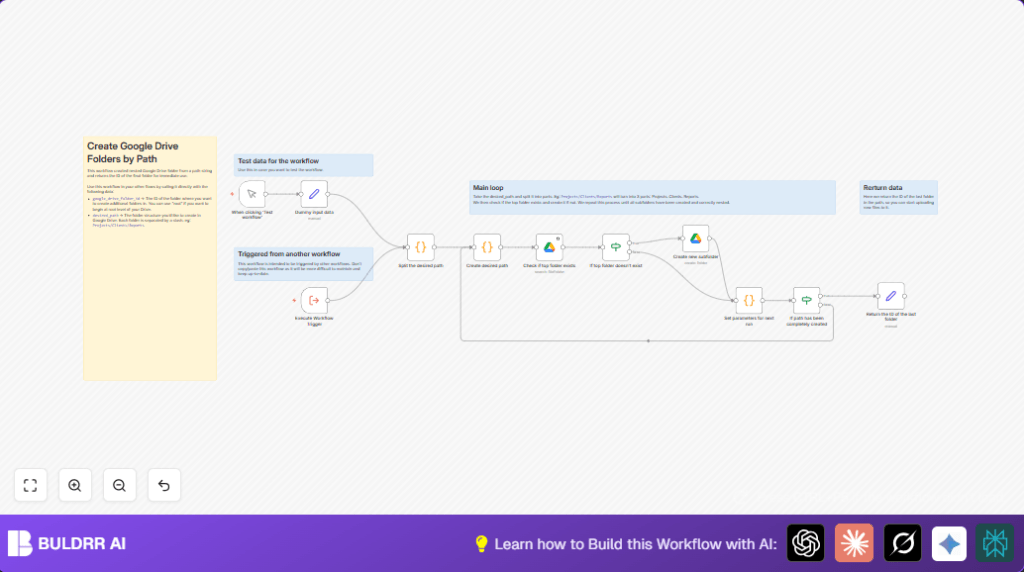

What this workflow does
Whether your folder structure is 2 levels deep or 10,
this workflow builds the entire path in Google Drive
automatically — from a single input string.
Just pass in any path like:
→ Clients/Acme Corp/2026/Contracts
→ Projects/Website Redesign/Assets/Images
→ Finance/Q2 2026/Invoices/Pending
→ HR/New Hires/John Smith/Onboarding Docs
The workflow checks each level, creates only the folders
that don’t already exist, skips the ones that do, and
returns the deepest folder’s ID — ready to use in any
downstream workflow.
No hardcoded folder names. No manual Drive clicking.
No missed levels. Any folder structure you define gets
built exactly as specified, every single time.
Who should use this workflow
People who manage lots of files on Google Drive and need to create folders regularly.
It is for anyone wanting to save time and avoid mistakes in folder creation.
Real Use Cases — What People Actually Build With This
Client Onboarding
When a new client signs, automatically create:
Clients/[Client Name]/Contracts
Clients/[Client Name]/Deliverables
Clients/[Client Name]/Invoices
Clients/[Client Name]/Communication
One trigger from your CRM or form → complete Drive
folder structure ready in seconds. No manual setup,
no forgotten folders.
Project Management
When a new project is created in your tool, auto-build:
Projects/[Project Name]/Brief
Projects/[Project Name]/Design/Drafts
Projects/[Project Name]/Design/Finals
Projects/[Project Name]/Development
Projects/[Project Name]/Reports
Team members land in an already-organized Drive structure
from day one.
Monthly Reporting
Schedule a monthly run to auto-create:
Reports/[Year]/[Month]/Raw Data
Reports/[Year]/[Month]/Analysis
Reports/[Year]/[Month]/Final Outputs
Every month, the structure is ready before anyone needs it.
HR & Recruitment
When a new hire is confirmed:
HR/[Department]/[Employee Name]/Offer Letter
HR/[Department]/[Employee Name]/Onboarding
HR/[Department]/[Employee Name]/Training
In all these cases, this workflow runs as a sub-workflow
called by the main automation — passing the folder path
as a variable and getting back the folder ID to use
for file uploads immediately after.
Tools and services used
- n8n: Automation platform to build workflows.
- Google Drive API: To list, find, and create folders.
Inputs, processing steps, and output
Inputs
- Root Google Drive folder ID (like “root” for main Drive).
- Full desired folder path as a string, separated by slashes (example: Projects/Clients/Reports).
Processing steps
- The path string is split into individual folder names.
- For each folder name, the workflow checks if it exists inside the current parent folder.
- If a folder does not exist, it creates the folder in Google Drive.
- The parent folder ID updates to the newly created or found folder ID for the next step.
- This process repeats until the full path is processed.
Output
- The ID of the last (deepest) folder created or found in Google Drive is returned.
Beginner step-by-step: How to use this workflow in n8n
Import the workflow
- Download the workflow file using the Download button on this page.
- Open n8n editor and select “Import from File” to upload the downloaded workflow.
Configure the workflow
- Add Google Drive API credentials in n8n if not already set up.
- Update the root folder ID and desired path in the Set node to your own folders.
Test the workflow
- Run the workflow manually by clicking “Execute Workflow” to check for errors.
Activate for production
- Once happy with how it works, toggle the workflow to active to let it run automatically.
For users running self hosting n8n, see self-host n8n for deployment tips.
How the workflow works in detail
Step 1: Manual trigger
Starts the workflow execution manually or by external calls.
Step 2: Set input parameters
Uses a Set node to provide the starting folder ID and the path string.
Step 3: Split path
A Code node splits the path string into array of folder names.
Step 4: Prepare data
Another Code node passes the current folder ID and folder array forward.
Step 5: Check folder existence
The Google Drive node lists folders under the current parent to find the next folder.
Step 6: Decision check
An If node decides whether the folder exists or needs to be created.
Step 7: Create folder if missing
If missing, a Google Drive node creates the new folder under the current parent.
Step 8: Setup for next folder
A Code node updates the folder array and folder ID for the next iteration.
Step 9: Loop control
An If node checks if all folders are processed or to loop back for next folder.
Step 10: Output final folder ID
A Set node returns the ID of the last folder created or found.
Customization ideas
- Change root folder ID in the input Set node to create folders inside another folder.
- Add prefixes or suffixes to folder names in the Create new subfolder node for naming conventions.
- Return extra folder details like creation date or URL by updating the final Set node.
- Adapt the workflow to accept multiple folder paths in batch and loop over them.
Common edge cases and errors
- If Google Drive node returns authentication errors, it usually means the OAuth2 credentials need reauthorization.
- If folder creation does not work or layers are missing, check if the workflow correctly passes folder IDs and arrays between nodes.
- Using debug nodes inside n8n can help inspect variable values at each step.
Summary of benefits
✓ Saves time by automating nested folder creation.
✓ Prevents errors caused by missing or misplaced folders.
✓ Returns the exact folder ID for use in other workflows.
✓ Can be reused as a sub-workflow in larger automations.
