
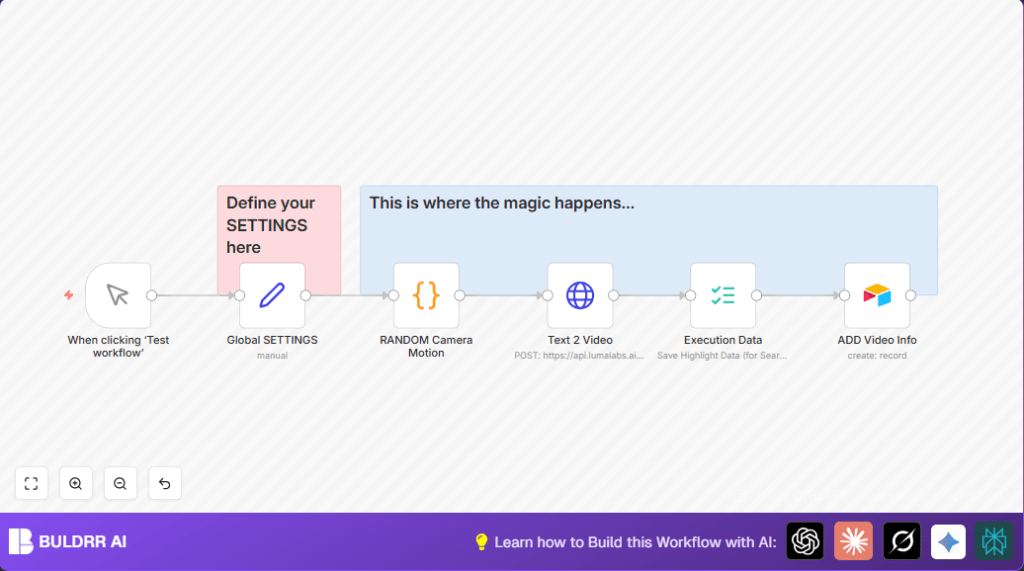

What This Workflow Does ⚙️
This workflow helps create AI videos automatically in n8n.
It solves the problem of spending too much time setting video prompts and camera moves.
After running, it makes videos with random camera actions and saves info in Airtable for easy follow-up.
The main result is faster video creation with less mistakes, freeing time for more ideas.
Inputs, Processing Steps, and Outputs
Inputs
- User-defined video prompt describing the scene or idea.
- Preset camera motions list inside the code node for variety.
- API credentials for Luma AI and Airtable.
Processing Steps
- The Set node holds main video settings like prompt and duration.
- The Code node picks one camera motion randomly from a list.
- The HTTP Request node builds and sends a POST request to the Luma AI API with combined text prompt and motion.
- The Execution Data node reads returned video metadata.
- The Airtable node saves the video details like model, aspect ratio, and cluster ID for tracking.
Outputs
- New AI-generated video initiated by Luma AI.
- Video metadata recorded in Airtable for project management.
- A unique cluster ID for each video batch.
Who Should Use This Workflow?
This is for video creators who want to save time and avoid errors during AI video making.
Anyone who needs quick, varied camera motions and reliable video data logging will benefit.
This also suits automation lovers using n8n on the cloud or through self-host n8n.
Tools and Services Used
- n8n Automation Platform: Runs the workflow.
- Luma AI Dream Machine API: Creates AI videos from text.
- Airtable: Stores video metadata.
- JavaScript Code Node: Selects random camera motion.
- HTTP Header Authentication: Secures API connection.
Beginner Step-by-Step: How to Use This Workflow in n8n
Step 1: Download and Import the Workflow
- Click the Download button on this page.
- Open your n8n editor.
- Select Import from File and upload the downloaded workflow file.
Step 2: Configure Credentials and Settings
- Go to Credentials and add your Luma AI API Key using HTTP Header Authentication.
- Set your Airtable API Key with the correct base and table names.
- In the Set (Global SETTINGS) node, update fields like
video_prompt,aspect_ratio,duration, and thecallback_url.
Step 3: Test the Workflow
- Run the Manual Trigger node by clicking “Execute Node”.
- Check the execution data and Airtable for the new video records.
Step 4: Activate the Workflow
- Switch the workflow toggle to active for production use.
- Use this to trigger video generation anytime without manual setup.
Example Code for Random Camera Motion
This code picks one motion randomly from a list.
const items = [
  "Static",
  "Move Left",
  "Move Right",
  "Move Up",
  "Move Down",
  "Push In",
  "Pull Out",
  "Zoom In",
  "Zoom Out",
  "Pan Left",
  "Pan Right",
  "Orbit Left",
  "Orbit Right",
  "Crane Up",
  "Crane Down"
];
const randomItem = items[Math.floor(Math.random() * items.length)];
return [{ json: { action: randomItem } }];
Common Customizations
- Change the main video prompt in the Set node to any scene description.
- Edit the camera motions list in the Code node to add or remove actions.
- Adjust video
durationandloopsettings for different styles. - Use a real callback URL to catch video status updates.
- Add more Airtable nodes to save videos in multiple bases.
Troubleshooting ????
- 401 Unauthorized error means the API Key is wrong or missing.
Check HTTP Header Authentication setup. - Code node syntax error means the JavaScript has mistakes.
Copy-paste the exact code, watch for missing symbols. - No data in Airtable means Base or Table IDs don’t match.
Double check your Airtable setup.
Pre-Production Checklist ✅
- Verify all API Keys for Luma AI and Airtable are active.
- Run the workflow manually to confirm no errors happen.
- Confirm Airtable tables allow writing new data.
- Check that callback URL is correctly set if used.
- Ensure HTTP Request nodes return valid JSON with video info.
Summary and Results
→ The workflow creates AI videos with random camera motions in few clicks.
✓ Saves time from repeating manual video setup.
✓ Logs all video information in Airtable automatically.
✓ Generates unique cluster IDs for organizing video batches.
→ Works with n8n, Luma AI, and Airtable to streamline video projects.
