

What This Automation Does
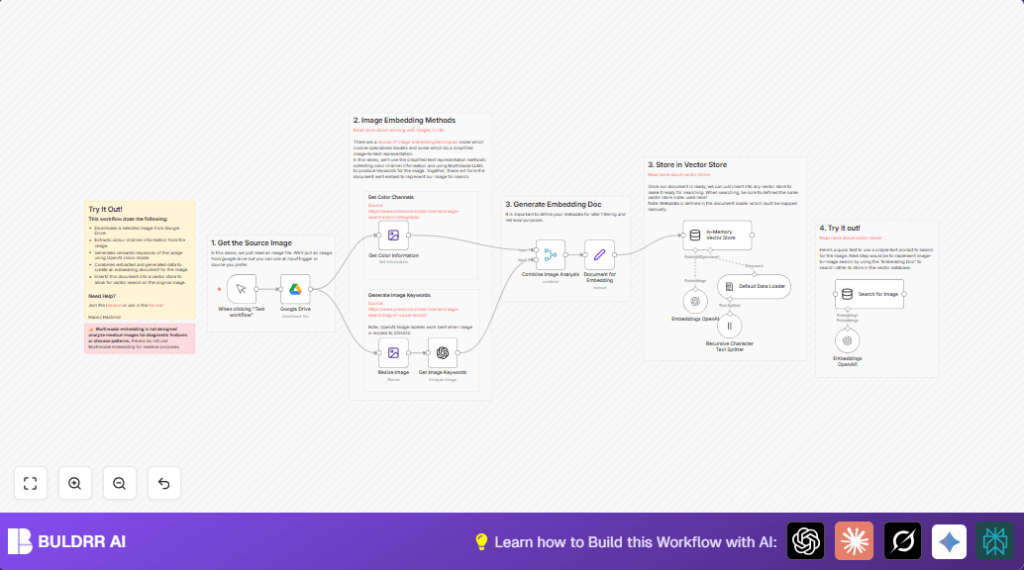
This workflow downloads one image from Google Drive and studies its colors and inside details. It then makes a list of words that describe what is in the image, its style, and lighting. Next, it mixes these color details and words into one data piece and puts that into a special memory place that helps find images fast. The workflow lets you look for images using text search with meaning, not just plain tags.
This saves lots of time that people used to spend tagging each image by hand. The result is faster, smarter image searching that helps teams work quicker.
Tools and Services Used
- n8n: Automates the workflow steps.
- Google Drive: Stores and provides the image files.
- OpenAI GPT-4 Vision Model: Creates image keyword lists describing content and style.
- OpenAI Embedding API: Converts keywords and color info into number vectors.
- In-memory Vector Store: Holds embeddings for quick searching.
Who Should Use This Workflow
This is good for people or teams who manage many images and find it hard to tag them well or search fast. If manual tagging wastes hours or makes it hard to find images by meaning, this workflow helps.
It works best for marketing, content, and creative teams who use Google Drive for image storage and want to speed up their search by content and colors.
Beginner step-by-step: How to build this in n8n
1. Download the workflow
- Find and click “Download” button on this page to get the workflow file.
- Open your n8n editor where you want to use this workflow.
- Click “Import from File” and select the downloaded workflow file.
2. Configure credentials and settings
- Add your Google Drive OAuth2 credentials in the connected Google Drive node.
- Enter your OpenAI API Key in the Get Image Keywords and Embeddings OpenAI nodes.
- Change the
fileIdin the Google Drive node to the image you want to process. - Check if other settings like image resize dimensions or prompt text match your needs.
3. Test and run
- Run the workflow once using the Manual Trigger node to test.
- Look at each node output to see if images and data look correct.
- If okay, activate the workflow by turning off the manual trigger and adding a schedule or webhook as trigger as needed.
Following these steps lets you quickly install and run this image processing workflow. For more control and privacy, consider self-host n8n.
Inputs, Processing Steps, and Output
Inputs
- Image file stored in Google Drive.
- User-trigger to start workflow in n8n.
Processing Steps
- Download image binary data from Google Drive using the file ID.
- Extract detailed color channel data like red, green, blue intensity and background color.
- Resize image down to 512×512 pixels if it is bigger, for model compatibility.
- Send resized image to OpenAI GPT-4 vision model with a prompt that asks for lots of descriptive keywords.
- Combine numeric color data with generated semantic keywords into one unified data object.
- Create a document embedding this combined data and add metadata like file format and background color.
- Generate vector embeddings representing meaning of the document using OpenAI Embedding API.
- Insert the embedding document into an in-memory vector store for vector-based querying.
- Run a sample search query by text prompt to find images similar in semantic meaning.
Output
The output is a data structure that has detailed color info and semantic keywords for the image stored in a vector store. This store answers text prompt searches with matching image data quickly.
Common Edge Cases and Failures
- If Google Drive node shows file download error, check if file ID is correct and credentials have access.
- If OpenAI node fails to create keywords, verify API key, image format (should be base64), and model availability.
- If resizing fails, confirm that binary data is a proper image and nodes are properly connected.
Customization Ideas
- Replace the Google Drive node to pull images from other cloud storage like Dropbox.
- Change the resize dimensions to fit different AI models or quality needs.
- Improve the OpenAI keyword prompt to focus keywords on texture, mood, or objects important to the user.
- Swap the in-memory vector store with a persistent database for saving embeddings longer term.
- Automate the trigger using scheduled times or webhooks for large batch processing.
Summary and Result
✓ This workflow automatically downloads images and extracts detailed color and content keywords.
✓ Combines color stats and semantic info to a structured document for deep search meaning.
✓ Stores documents into a vector database for very fast and accurate text-based image search.
→ Saves hours in manual tagging by automating image description generation.
→ Makes it easier to find images based on how they look and what they show, not just file names.
