
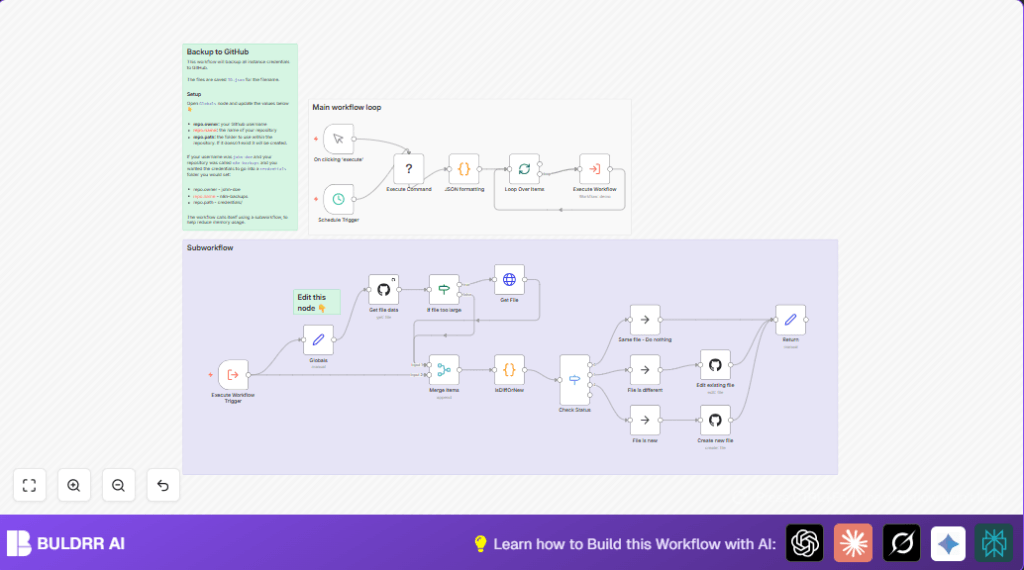

What This Workflow Does
This workflow backs up all your n8n credentials automatically to a GitHub repository.
It solves the problem of manually exporting credentials every week and losing data by mistake.
The result is a secure, versioned backup stored on GitHub, updated only when changes happen.
It can run manually or every two hours on a schedule to keep backups fresh.
Who Should Use This Workflow
This workflow is for people who use n8n and want to save their credentials safely without extra manual work.
It works well if you manage many credentials or want to avoid data loss due to accidents.
You also need access to a GitHub repo where backups will be stored.
Tools and Services Used
- n8n Execute Command node: Runs the shell command to export decrypted credentials.
- GitHub Node: Reads and writes credential backup files in the GitHub repository.
- Code Node: Parses JSON output and compares existing and new backups.
- SplitInBatches Node: Loops through each credential item efficiently.
- HTTP Request Node: Fetches raw file content if GitHub file is too large to fetch normally.
How the Workflow Works (Inputs → Processing → Output)
Inputs
- Manual or scheduled trigger to start the backup.
- Shell command output from
npx n8n export:credentials --all --decrypted. - GitHub personal access token and repo details.
Processing Steps
- Run shell command to export all credentials in decrypted JSON format.
- Extract and beautify the JSON data using a Code node.
- Split the list into batches for manageable processing.
- For each credential, try to get existing backup file data from GitHub.
- If file is missing or too large, retrieve raw content using HTTP Request.
- Compare new exported JSON with existing backup after sorting keys.
- Decide if the backup file is new, changed, or unchanged.
- If new, create a new file in GitHub. If changed, update existing file. If unchanged, skip commit.
Output
Updated or created credential backup files in the GitHub repository saved under specified folder.
Logs showing which credentials were processed and whether files were created, edited, or unchanged.
Beginner Step-by-Step: How to Use This Workflow in n8n
1. Importing the Workflow
- Download the workflow file using the Download button on this page.
- Inside the n8n editor, click on “Import from File” and select the downloaded workflow.
2. Configuring Credentials
- Add your personal access token credentials for GitHub in the GitHub nodes.
- Make sure your n8n instance has access to run shell commands for the Execute Command node.
3. Updating Repository Settings
- Open the Globals (Set node).
- Update
repo.ownerwith your GitHub username. - Set
repo.nameto your repository name where you want to save backups. - Modify
repo.pathto the folder where backups should save (make sure to keep the trailing slash).
4. Testing the Workflow
- Trigger the workflow manually using the Manual Trigger.
- Check the execution logs for any errors or confirmation that backups were created or updated.
5. Activating for Production
- Activate the Schedule Trigger to run the workflow every two hours automatically.
- Monitor regularly to ensure backups continue without error.
You do not have to build the workflow yourself from scratch if you import it and configure as above.
Common Edge Cases and Failures
- If the export command does not output valid JSON, the workflow will log an error in the formatting step.
- Missing backup files in GitHub are normal at first; workflow creates new ones automatically.
- Large backup files may require HTTP Request fallback to get raw file content instead of the API method.
- Long credential lists may require lowering batch size in SplitInBatches node to avoid memory limits.
Customization Ideas
- Change the folder path in GitHub by only editing
repo.pathin the Globals node. - Adjust the schedule in the Schedule Trigger node to run backups more or less often.
- Modify batch size in the SplitInBatches node for your environment’s capacity.
- Customize commit messages in GitHub nodes to add timestamps or descriptive notes.
- Add error alerts after GitHub nodes to send notifications on backup failures via email or Slack.
- If using self-host n8n, ensure your environment supports the Execute Command node and GitHub access properly.
Summary of Benefits
✓ Backup all n8n credentials automatically to GitHub.
✓ Avoid manual exports that take hours and cause mistakes.
✓ Save a secure, version-controlled backup updated only when needed.
→ Schedule backups every two hours or run manually anytime.
→ Easy to configure and test inside n8n after import.
