

What This Workflow Does
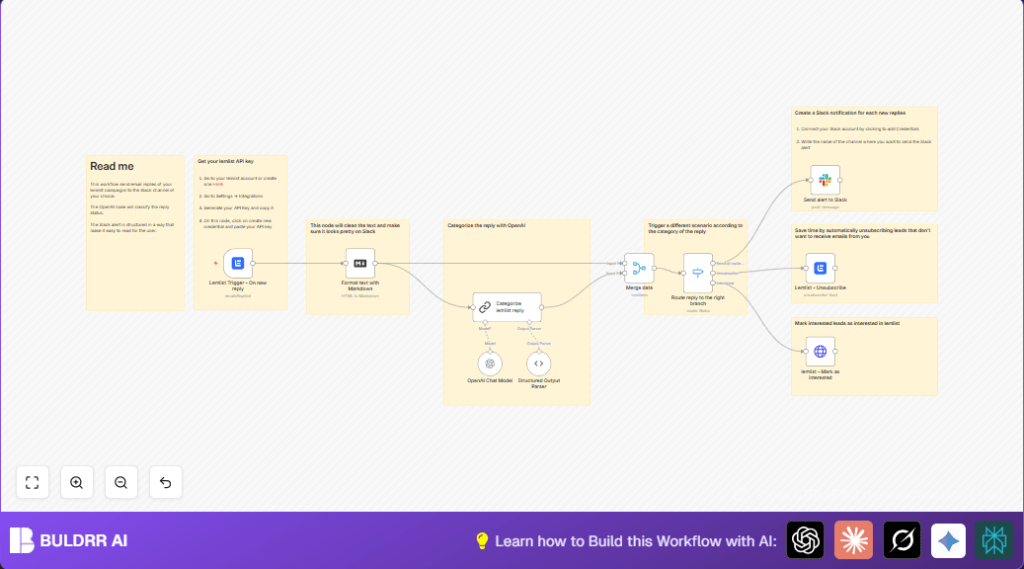
This workflow listens for new replies to outbound email campaigns sent through Lemlist.
It reads each reply, cleans the text format, then uses AI to decide if the reply shows interest, asks to unsubscribe, is an out of office, or is not interested.
According to the reply type, it takes different actions automatically, like unsubscribing leads or marking them as interested.
Teams get clear Slack messages with key info to act fast.
This saves time and avoids missing important replies.
Who Should Use This Workflow
This is for sales teams or managers who run many Lemlist campaigns and get lots of replies.
If reading replies one by one is slow or error-prone, this automation helps handle emails faster.
It suits users who want to keep lead lists clean and act on interested customers quickly.
Tools and Services Used
- Lemlist API: Detects new email replies from campaigns.
- OpenAI GPT-4: Classifies replies into categories.
- Langchain Chat Model node: Controls the AI prompt and output parsing.
- Slack API: Sends detailed notification messages.
- n8n automation platform: All nodes are set up and controlled here.
Inputs, Processing Steps, and Output
Inputs
- New email reply data received from Lemlist campaigns through the Lemlist Trigger node.
- Reply content text in raw form.
Processing Steps
- The Format text with Markdown node cleans the reply text for readability.
- The OpenAI Chat Model node along with Langchain nodes classify the reply by analyzing the cleaned text.
- The Merge data node combines formatted text with classification for clear data.
- The Switch node routes the flow based on reply category (Interested, Unsubscribe, etc.).
- Actions like unsubscribing or marking leads interested happen via appropriate Lemlist API nodes.
Output
- Automatic unsubscribe updates in Lemlist for leads responding with opt-out.
- Leads marked as interested in Lemlist for prompt sales follow-up.
- Slack notifications with structured info to alert the team.
Beginner Step-by-Step: How to Use This Workflow in n8n
Step 1: Import the Workflow
- Download the workflow file using the Download button on this page.
- Open your n8n editor.
- Use the Import from File option to load the workflow.
Step 2: Configure Credentials and IDs
- Add your Lemlist API Key in the Lemlist Trigger and other Lemlist nodes.
- Set your OpenAI API Key in the OpenAI Chat Model node.
- Add your Slack API Key and specify the channel name in the Send alert to Slack node.
- Update campaign IDs, lead emails, or URLs in the nodes if required.
- Copy and paste prompts or expressions if visible in prompt or code nodes.
Step 3: Test the Workflow
- Run a test reply in Lemlist to trigger the workflow.
- Check if Slack messages appear and leads are updated correctly.
Step 4: Activate for Production
- Turn the workflow ON in n8n.
- Ensure the webhook URL stays unchanged in Lemlist integration to keep triggers live.
For users who run self-host n8n, ensure that server resources and internet access are stable to handle all API calls smoothly.
Edge Cases and How to Fix Common Problems
No webhook response from Lemlist Trigger
The webhook URL might be missing or not correctly added in Lemlist campaign settings.
Make sure to copy the exact webhook URL from the node and paste it into Lemlist Webhook Integration.
Incorrect or missing classification by AI
Check the AI prompt in the Categorize lemlist reply node for clear instructions.
Make sure the Structured Output Parser node JSON schema fits the AI reply exactly.
Slack messages show missing data or look broken
Validate the Slack Block JSON using Slack Block Kit Builder.
Test all dynamic expressions in n8n so data fields are not empty when sending.
Customization Ideas
- Edit the AI classification categories in the Langchain prompt to match campaign goals.
- Add phone numbers or other lead details to Slack messages by changing the blocks JSON.
- Try different OpenAI models in the node parameter to save cost or improve speed.
- Add logging nodes to record reply classifications for auditing.
Summary
✓ Saves time by automating reply sorting and actions.
✓ Keeps lead lists accurate with automatic unsubscribes and interests.
✓ Sends clear alerts to sales teams via Slack.
✓ Easy to import, configure, test, and activate inside n8n.
✓ Supports editing prompts, Slack messages, and categories to fit needs.
