

What This Workflow Does
This workflow helps you save time by updating product titles and descriptions automatically for Printify products using n8n, OpenAI, and Google Sheets.
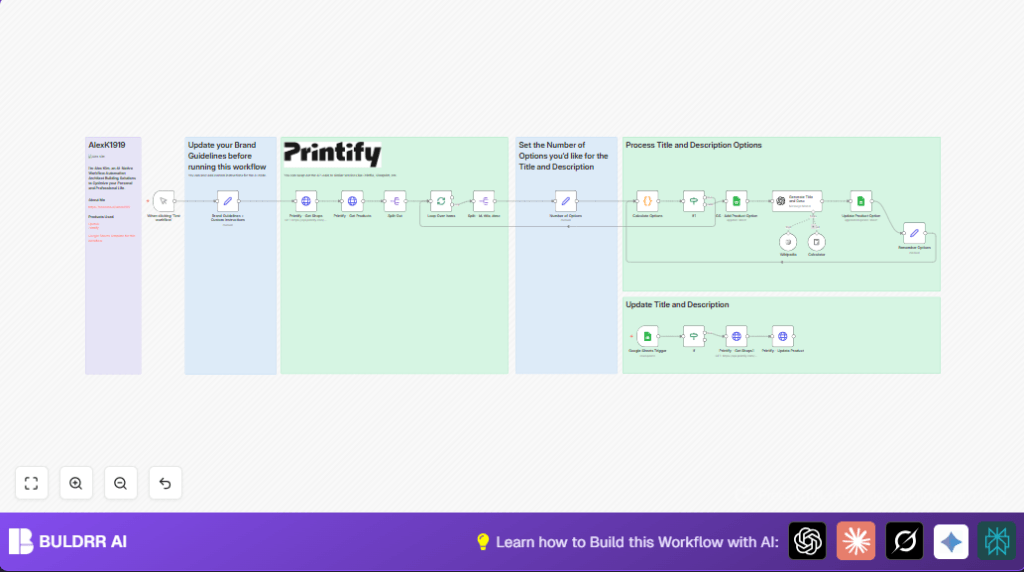
It gets product info from Printify, uses AI (GPT-4o-mini) to rewrite the content, stores results in Google Sheets, and updates Printify once you approve.
No more manual rewrites. Your product listings stay fresh, SEO-friendly, and brand-consistent with little work.
Inputs, Processing Steps, and Outputs
Inputs
- Printify API: Provides shops and product details.
- Google Sheets: Contains product list and stores AI rewritten content.
- OpenAI GPT-4o-mini: Generates new product titles, descriptions, and keywords.
- Manual trigger or Google Sheets update: Starts the workflow.
Processing Steps
- Fetch all shops from Printify API.
- For each shop, get all products.
- Process each product separately.
- Extract product data like ID, title, and description.
- Set brand instructions and number of rewrite options.
- Call OpenAI GPT-4o-mini to get new titles, descriptions, and SEO keywords.
- Save AI results with metadata in Google Sheets for review.
- Watch Google Sheets for upload approval to update Printify.
- Send updates back to Printify products via API.
- Update Google Sheets with live status and final keywords.
Outputs
- New AI-written title and description options stored in Google Sheets.
- Live Printify products updated with approved new content.
- Google Sheets tracking status and metadata for audit.
Beginner Step-by-Step: How to Use This Workflow in Production
Step 1: Import Workflow
- Click the Download button on this page to save the workflow file.
- Open the n8n editor where you want to use the workflow.
- Use the Import from File option inside n8n.
- Select the downloaded workflow file to load it.
Step 2: Configure Credentials and IDs
- Add your Printify API key in the HTTP Request nodes authentication section.
- Insert your OpenAI API key in the OpenAI node settings.
- Connect your Google Sheets account with proper OAuth2 credentials.
- Update product or shop IDs, Google Sheets spreadsheet IDs, and sheet names if needed.
- Copy and paste any prompt or code snippets from the workflow inputs as provided.
Step 3: Test and Activate
- Run the workflow with the Manual Trigger to verify it fetches data and generates output.
- Check Google Sheets to confirm AI-generated titles and descriptions appear.
- After testing, activate the workflow in n8n to run automatically when Google Sheets change.
- Monitor logs and adjust as needed based on results or errors.
- For ongoing large scale usage, consider self-host n8n to have better performance and control.
Customization Ideas
- Change Brand Tone: Edit the “brand_tone” field in the brand instructions node to match your preferred style.
- Adjust Number of Rewrite Options: Set how many new title and description variants you want in the corresponding node.
- Use Other Print-on-Demand APIs: Replace Printify API calls with other services like Printful by updating HTTP URLs and credentials.
- Refine AI Prompts: Modify the OpenAI prompt to include different SEO keywords or seasonal themes beyond the default ones.
Troubleshooting
- 401 Unauthorized from Printify API: Check and update API keys in your HTTP Request nodes.
- OpenAI returns off-topic or incomplete content: Review prompt wording and confirm API key has enough quota.
- Google Sheets Trigger does not activate: Verify sheet name, column to watch, and that OAuth2 has editing rights.
Pre-Production Checklist
- Test Printify “Get Shops” and “Get Products” HTTP requests separately.
- Confirm OpenAI API key works with test calls.
- Manually add a row in Google Sheets and check if trigger fires.
- Ensure brand instructions are set as desired.
- Add a sample product in Google Sheets to verify the full loop.
Deployment Guide
After importing and configuring, run the workflow on demand to generate new titles and descriptions.
Approve desired options in Google Sheets by marking “upload” as “yes”.
The workflow will update Printify products automatically.
Check logs for errors and fix credentials or prompts if needed.
For better performance and control, hosting n8n yourself with a VPS or provider is recommended. Visit self-host n8n to learn more.
Summary of Benefits and Results
✓ Saves hours of manual product copy editing
✓ Produces consistent, SEO-friendly product titles and descriptions
✓ Lets user review and approve AI-generated content before publishing
✓ Automates updates across multiple platforms via Printify API
✓ Tracks all changes and metadata in Google Sheets for transparency
