

What this workflow does
This workflow gets product details from many e-commerce webpages automatically. It solves the problem of manual copying and mistakes in price and brand information collection. The workflow uses AI to read screenshots and HTML to get product names, prices, brands, and promotions. The result is clean, organized data saved in Google Sheets for easy analysis.
This helps save many hours of work and improves the quality of competitor data.
Who should use this workflow
This is good for anyone who needs to track product info on many websites. Especially helpful for marketing teams, price watchers, and analysts who want fast and accurate data without typing or copying manually.
You do not need deep technical skill but should know basic n8n workflow operation.
Tools and services used in this workflow
- Google Sheets: Stores product URLs and saves scraped product data.
- ScrapingBee API: Captures full-page screenshots and raw HTML of product pages.
- Google PaLM API (Google Gemini): Analyzes screenshots with vision AI to extract product details.
- n8n platform: Runs the automation workflow connecting services and processing data.
Inputs, processing steps, and outputs
Inputs
- A list of product URLs from a Google Sheet named “List of URLs”.
- API credentials for ScrapingBee and Google PaLM.
Processing Steps
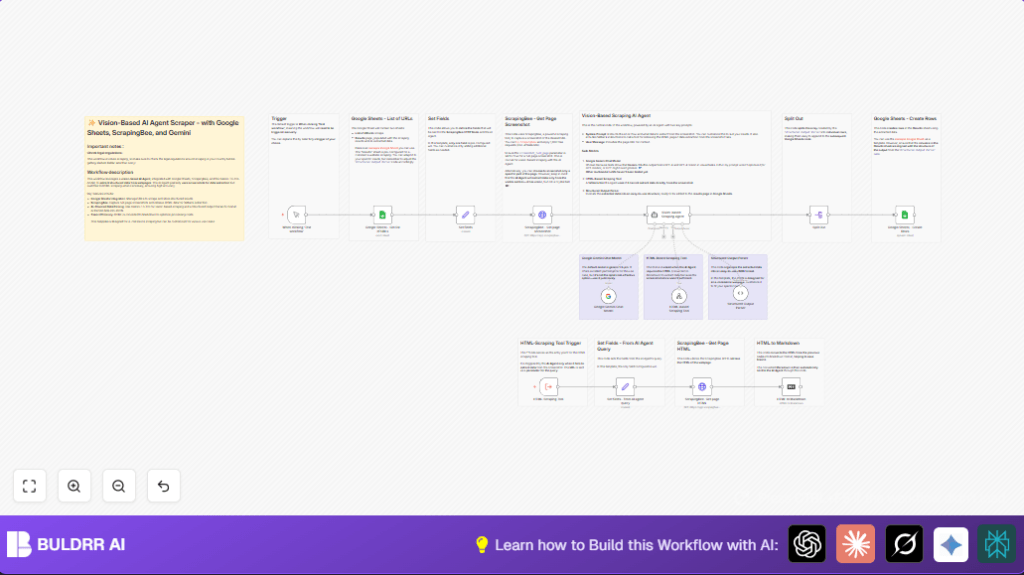
- Read product page URLs from Google Sheets.
- Send URLs to ScrapingBee to get full-page screenshots.
- Use Google Gemini AI model to read screenshots and extract product information.
- If screenshot data is incomplete, fallback to fetch page HTML via ScrapingBee and parse with AI.
- Parse AI output into structured JSON with product fields.
- Split the JSON array into individual product items.
- Append parsed product details into Google Sheets “Results” tab.
Outputs
- Clean, structured product data including title, price, brand, promotions saved in Google Sheets.
- Data ready for analysis and reporting with minimal manual work.
Beginner step-by-step: How to use this workflow in n8n for production
Step 1: Download and import the workflow
- Download the workflow file using the Download button on this page.
- Open the n8n editor where you want to use this workflow.
- Use the Import from File feature in n8n to upload this workflow JSON file.
Step 2: Add credentials and configure nodes
- Add ScrapingBee API key under credentials in n8n.
- Add Google PaLM API credentials for the Google Gemini model.
- Provide Google Sheets service account credentials with access to the correct spreadsheet.
- Update the Google Sheets node with the correct document ID for the URLs sheet and the results tab if needed.
- If required, update any email addresses or channels in notifications or sub-workflows.
Step 3: Test the workflow
- Use the manual trigger Manual Trigger (When clicking ‘Test workflow’) to run the workflow once.
- Check the workflow logs and Google Sheets results to make sure data is fetched and saved as expected.
Step 4: Activate for production use
- After confirming test works, activate the workflow in n8n.
- Optionally replace the manual trigger with a time trigger to run daily or weekly.
- Monitor execution and errors regularly to ensure consistent data flow.
For users running on their own server, consider using self-host n8n for more control and reliability.
Edge cases and failure handling
The workflow uses a fallback method if the AI cannot extract data from screenshots. It fetches the HTML version of the page and retries AI parsing there. This helps catch missing or unclear info.
If API keys are wrong or expired, the workflow will stop. Check credentials regularly.
Google Sheets formatting mistakes like mismatched columns may cause data to save incorrectly. Make sure sheet columns match expected fields exactly.
Customization ideas
- Change fields extracted by updating the JSON schema in the Structured Output Parser. For example, add product ratings or stock availability.
- Use different AI models compatible with LangChain instead of Google Gemini if wanted for other AI behavior.
- Set up automated triggers to run scraping regularly without manual intervention.
- Add filtering nodes to only scrape certain domains or categories based on URL patterns.
- Capture only relevant screenshot areas for focused AI reading and reduced API usage.
Summary of benefits and results
✓ Saves many hours of manual scraping work
✓ Improves accuracy and consistency of product competitor data
✓ Produces structured, detailed product info for easy analysis
✓ Uses AI vision with screenshot and HTML fallback for better data collection
✓ Integrates with Google Sheets for convenient data storage and reporting
→ Data is ready for pricing strategies, competitive analysis, and market insights faster
→ Automation reduces errors and manual effort in e-commerce data gathering
