
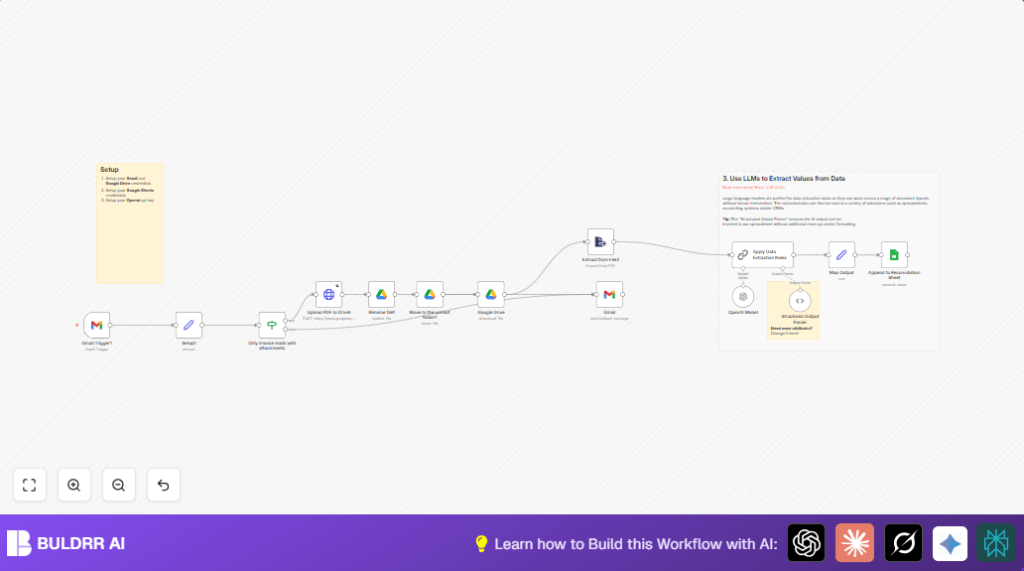

What this workflow does
This workflow watches Gmail for unread emails with PDF invoices.
It downloads these PDFs, uploads them to Google Drive in the right folder, and renames them with email subject and date.
Then it reads text from PDFs and uses OpenAI GPT-4 to find invoice details like date, description, and total price.
The details plus a file link are added to Google Sheets.
Finally, it marks emails as read to stop repeated work.
This saves lots of time, cuts errors, and keeps invoices well-organized.
Who should use this workflow
This workflow is good for people handling many invoice emails daily.
It helps if you want to stop manual copying of invoice info and file organizing.
No coding is needed but some n8n basics help.
Works best with Gmail, Google Drive, Sheets, and OpenAI GPT-4 access.
Tools and services used
- Gmail: To check unread invoice emails and download attachments.
- Google Drive: To store, rename, and move invoice PDFs to folders.
- Google Sheets: To add invoice details as rows in a ledger.
- OpenAI GPT-4: To extract invoice data from PDF text.
- n8n: To automate the entire workflow with nodes and triggers.
Inputs, processing, and outputs
Inputs
- Unread Gmail emails with PDF invoice attachments.
- Google Drive folder IDs where to store files.
- API Keys and OAuth2 credentials for Gmail, Drive, Sheets, and OpenAI.
Processing steps
- Trigger fires every minute checking Gmail for unread emails with attachments.
- Filters emails to allow only those with PDF invoices.
- Downloads the PDF attachments.
- Uploads PDF as binary to Google Drive using HTTP Request node.
- Renames file with email subject and date using Google Drive update operation.
- Moves file to the right client folder in Drive.
- Downloads file from Drive for content extraction.
- Extracts text from PDF using Extract From File node.
- Sends text to OpenAI GPT-4 with a prompt asking for invoice date, description, total price, and link.
- Parses AI response into structured JSON using Structured Output Parser node.
- Prepares data to append into Google Sheets.
- Appends invoice details and Drive link as new row in Google Sheets ledger.
- Marks Gmail message as read to prevent re-processing.
Outputs
- Organized invoice PDFs in Google Drive.
- Accurate invoice data rows in Google Sheets.
- Gmail inbox updated with messages marked read.
Beginner step-by-step: How to build this in n8n
Step 1: Import the workflow
- Download the workflow file using the Download button on this page.
- Open n8n Editor and click the menu for Import.
- Select “Import from File” option and pick the downloaded workflow.
Step 2: Add Credentials and API Keys
- Add or update Gmail OAuth2 credentials for email access.
- Add Google Drive OAuth2 to upload and manage files.
- Add Google Sheets OAuth2 credentials for appending data.
- Add OpenAI API Key for GPT-4 model access.
Step 3: Update IDs and settings
- In the Set node, update
url_to_drive_folderwith the Google Drive folder ID to store invoices. - Optionally, change spreadsheet ID and sheet name in Google Sheets node to your invoice ledger.
Step 4: Test the workflow
- Send a test unread email with a PDF invoice attachment to your Gmail.
- Run the workflow manually or wait for the minute trigger to fire.
- Check if PDF uploads, invoice data extracts, and Google Sheets row appends correctly.
Step 5: Activate for production
- Turn on the workflow using the Active toggle in n8n Editor.
- Monitor workflow run history to catch errors or unexpected results.
For self-host n8n users, consider visiting self-host n8n for setup help.
Customization ideas
- Change Google Drive folder dynamically in the Set node per client or year.
- Add more invoice fields by updating the OpenAI prompt and JSON schema for extraction.
- Support other file types by adjusting upload node to accept DOCX, images, and add OCR if needed.
- Add Slack notifications after Google Sheets node to alert finance staff on new invoices.
- Adapt OpenAI prompt language for invoices in different languages.
Problem spots and fixes
- If the HTTP Upload PDF to Drive node fails with 403 Forbidden, re-check Google Drive OAuth2 credentials have correct permissions and are active.
- If AI extraction returns empty data, check if PDF text is readable (not scanned image). Add OCR step if needed.
- If workflow reprocesses same email, verify Gmail node marks emails as read properly after processing. Validate Gmail filters for unread.
Summary of results
✓ Saves 2-3 hours daily by automating invoice handling.
✓ Removes errors from manual invoice data entry.
✓ Files invoices neatly in Google Drive with clear names.
✓ Records invoice details automatically in Google Sheets.
✓ Ensures emails are marked read to avoid duplicates.
✓ Makes finance workflow faster and more reliable.
