
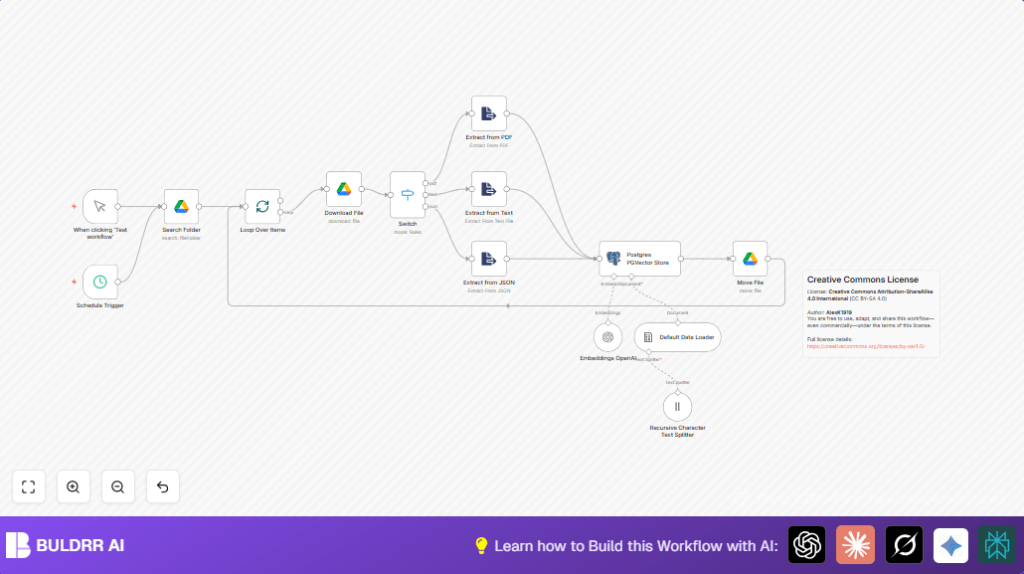

What this workflow does
This workflow automatically loads files from a Google Drive folder, extracts their text content, splits that text into small parts, creates embeddings with OpenAI, and saves these embeddings into a Postgres database using PGVector. It stops manual work and mistakes. It helps users find information fast from many documents in Google Drive.
The main problem solved is saving time and avoiding errors in handling different file types and large text for vector search databases.
Who should use this workflow
This is for anyone who has many documents like PDFs, text files, or JSON files in Google Drive and wants them turned automatically into searchable vectors. Users who want to connect these vectors with a Postgres PGVector database will find it useful.
If you want to stop manually downloading and processing files but still want fast, reliable search over document content, this workflow fits well.
Tools and services used
- Google Drive API: To list and download files from a specific Drive folder.
- n8n nodes: Including Schedule Trigger, Search Folder, SplitInBatches, Download File, Switch, text and JSON Extract nodes, Recursive Character Text Splitter, Default Data Loader, Embeddings OpenAI, Postgres PGVector Store, and Move File.
- OpenAI API: For generating vector embeddings using the model
text-embedding-3-small. - Postgres Database with PGVector extension: For storing vector embeddings and enabling similarity searches.
How the workflow works (Input → Process → Output)
Inputs
- Files located in a selected Google Drive folder, which can be PDFs, plain text files, or JSON files.
- OpenAI API Key to generate embeddings.
- Postgres database credentials with PGVector enabled.
Processing Steps
- The Schedule Trigger runs the workflow on a set time or manually.
- Search Folder node lists all files in the chosen Drive folder.
- SplitInBatches node processes files one by one to manage load.
- Download File node fetches each file content using its ID.
- Switch node checks the file type by MIME type (PDF, text, or JSON).
- Depending on the type, the workflow uses specific extraction nodes to get readable text:
- PDF text extractor for PDFs.
- Plain text extractor for text files.
- JSON parser for JSON files.
- Recursive Character Text Splitter breaks long texts into small parts with 50 characters overlapping for better embedding quality.
- Default Data Loader prepares the text chunks for embedding.
- Embeddings OpenAI generates vector embeddings using the
text-embedding-3-smallmodel. - Postgres PGVector Store saves these vectors in the table
n8n_vectors_wfsinside the collectionn8n_wfs. - Move File moves processed files to a “vectorized” folder in Google Drive to keep the source clean.
Outputs
- Vectors stored in a Postgres database ready for fast similarity search.
- Processed files organized in the “vectorized” folder.
- Logs and status updates inside n8n for each workflow run.
Beginner step-by-step: How to build this workflow in n8n
Import the workflow
- Download the workflow file from this page using the Download button.
- Open n8n editor where you want to use this workflow.
- Click “Import from File” and upload the downloaded workflow JSON file.
Set up credentials and IDs
- Add or update Google Drive OAuth2 credentials in n8n.
- Set OpenAI API Key in the Embeddings OpenAI node credentials.
- Update Postgres database credentials in the Postgres PGVector Store node.
- Replace the Google Drive folder IDs for the source and target folders if needed (for Search Folder and Move File nodes).
Test the workflow
- Run the workflow manually once to check it downloads files, extracts content, generates embeddings, stores vectors, and moves files correctly.
- Review logs in n8n to catch any errors.
Activate for production
- Switch the workflow to active mode to run on schedule.
- Monitor executions regularly.
- If self-hosting n8n, consider checking self-host n8n for server setup advice.
Common errors and how to fix them
- No files found: Check Google Drive folder ID. Make sure OAuth2 credentials have enough permissions. Re-authenticate if needed.
- Embedding API errors: Confirm OpenAI API Key is valid and not expired. Update keys if needed.
- Files not moving: Verify the target folder ID and that your Google Drive account has edit rights.
- PGVector errors: Ensure Postgres has PGVector extension installed and the connection details are correct.
Customization ideas
- Change the Recursive Character Text Splitter overlap size to tune embedding context.
- Add MIME types in the Switch node to support more file types (like Word documents).
- Modify the Move File node folder to send processed files to a different destination.
- Adjust batch size in the SplitInBatches node to control processing speed.
- Try other OpenAI embedding models like
text-embedding-3-largefor better quality embeddings.
Summary of results
✓ Saves time by automating file downloads and content extraction.
✓ Reduces errors by processing files automatically based on type.
✓ Creates quality embeddings for fast search in Postgres PGVector.
✓ Organizes files by moving processed ones to a separate folder.
→ Enables faster and more accurate data retrieval from many documents.
→ Makes document handling easier and consistent across file types.
