
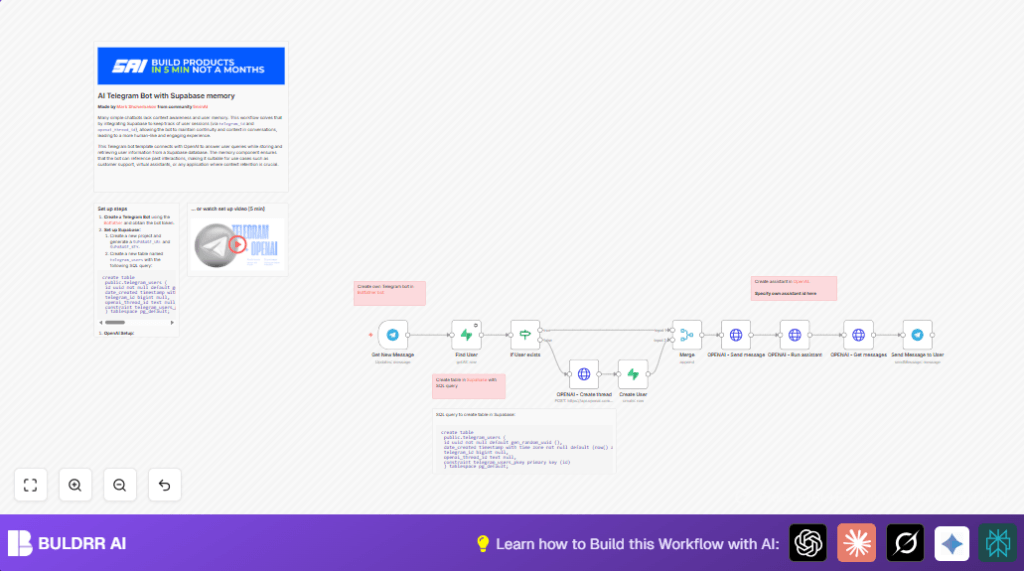

What this workflow does
This workflow creates a Telegram chatbot that remembers past chat history using OpenAI and saves user data in Supabase.
The chatbot keeps conversation context by linking Telegram users to OpenAI chat threads stored in a database.
When users send messages, the bot replies with answers that consider previous chats, avoiding repetitive or generic responses.
This saves time and makes conversations better and more natural.
Who should use this workflow
People who manage many Telegram groups where users ask lots of questions and want quick, smart help.
Users looking to add memory and context to Telegram chatbots without coding everything themselves.
Anyone who wants a simple system to keep conversations linked using Supabase and OpenAI inside n8n.
Tools and services used
- Telegram Bot API: Receives user messages.
- OpenAI Assistant API: Creates and runs chat threads with memory.
- Supabase Database: Stores Telegram user data and OpenAI thread IDs.
- n8n Automation Platform: Links the Telegram, OpenAI, and Supabase nodes.
How the workflow works: Inputs → Process → Outputs
Inputs
- New Telegram messages from users or groups via the Telegram Trigger node.
- Telegram user chat ID to identify returning or new users.
Processing steps
- Check Supabase database to find if the Telegram user exists and get their OpenAI thread ID.
- If user not found, create a new OpenAI chat thread via HTTP Request node and save user info with thread ID into Supabase.
- Merge data so following steps always have user and thread info.
- Send the user’s message into the correct OpenAI thread to keep the chat context.
- Run the OpenAI assistant on the updated thread to create a response based on conversation history.
- Fetch the assistant’s latest message.
Output
- Send the OpenAI assistant reply back to the original Telegram chat.
- The user sees an AI response that remembers the whole conversation.
Beginner step-by-step: How to use this workflow in n8n
Step 1: Import workflow
- Download the workflow file using the Download button on this page.
- Open n8n editor and choose “Import from File” to add the workflow.
Step 2: Configure credentials
- In n8n, go to Credentials and add your Telegram Bot API Key, Supabase project URL and API Key, and OpenAI API Key.
- Make sure to enter the correct OpenAI assistant ID inside the HTTP Request node named “OPENAI – Run assistant”.
Step 3: Adjust IDs and tables (if needed)
- Verify the Supabase table name matches “telegram_users” or update node configurations accordingly.
- Check if the Telegram chat ID and OpenAI thread ID use the correct data paths for your setup.
Step 4: Test and activate
- Send a test message to your Telegram bot and see if the workflow runs and replies correctly.
- If tests are successful, activate the workflow to start running in production.
For those using self-host n8n, see this resource to host the workflow yourself.
Customization ideas
- Change the OpenAI assistant ID to use a different assistant personality.
- Add user fields like first name or username to stored Supabase data to personalize responses.
- Include the user’s first name in bot replies by referencing
{{$json.message.chat.first_name}}. - Modify Telegram Trigger node to handle messages inside groups by allowing different update types.
Common edge cases and how to fix them
Telegram messages do not start the workflow
Check if the Telegram webhook URL from the Telegram Trigger node is set in Botfather or Telegram correctly.
Make sure the webhook URL is public and reachable.
OpenAI API returns errors or unauthorized
Confirm the OpenAI API key is correctly entered in n8n and the required header OpenAI-Beta: assistants=v2 is included in requests.
Supabase node returns no user found
Check the Supabase filter is comparing telegram_id to the correct incoming chat ID value.
Ensure API key has read and write permissions on telegram_users table.
Summary
→ Create a Telegram bot that keeps memory of conversations using OpenAI and Supabase.
→ Save user and thread info to keep context across chats.
→ Answer user messages with AI that knows past questions.
✓ Easy to use with n8n importing and configuring credentials.
✓ Improves chat quality and saves time for community managers.
