

What this workflow does
This workflow takes chat messages about expenses and automatically saves them as organized records in a Google Sheets document.
It stops the time lost on manual entry and reduces errors like wrong amounts or missing data.
Users get expense details stored correctly without switching apps.
Who should use this workflow
This workflow is useful for anyone who tracks expenses by chat or messages but wants to save time.
It is especially good for freelancers or small business owners handling many small expense notes.
Users looking to reduce mistakes and streamline bookkeeping will benefit.
Tools and services used
- n8n automation platform: Runs the workflow logic.
- OpenAI API: Processes free text into expense data.
- Google Sheets: Stores expense records.
- Webhook: Receives chat expense messages.
How inputs become output step-by-step
Inputs
- Expense information sent as chat messages like “lunch; 12.50 usd; 20 Feb 2024”.
Processing steps
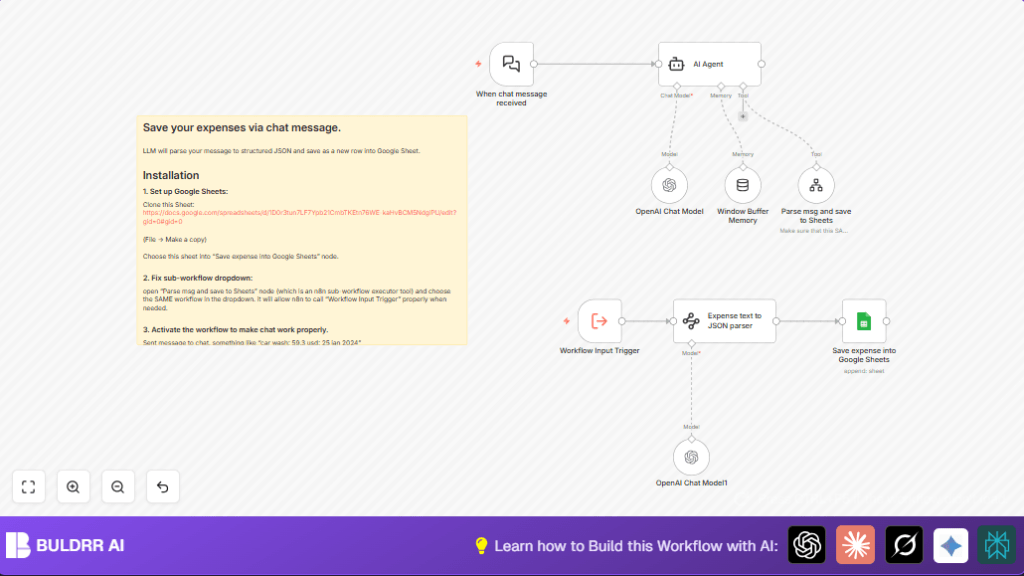
- Webhook node captures each incoming chat message.
- AI Agent uses OpenAI to read message and extract cost, description, and date.
- AI converts free text into structured JSON data with those fields.
- Sub-workflow receives JSON and passes it to the Google Sheets node.
- Google Sheets node appends a new row with the expense data.
- Confirmation message is sent back to chat about success and saved details.
Output
- Google Sheets updated with correct date, cost, description, and original message.
- Chat shows confirmation messages.
Beginner step-by-step: How to use this workflow in n8n
Step 1: Import the workflow
- Download the workflow file by clicking the Download button on this page.
- Open the n8n editor.
- Use the “Import from File” option to add the workflow into n8n.
Step 2: Configure credentials and IDs
- Add your OpenAI API Key in the AI Agent node settings.
- Connect your Google Sheets OAuth credentials in the Google Sheets node.
- Update the Google Sheet Document ID and Sheet name to match your copied template.
- Check the sub-workflow node points to the current workflow.
- Verify the Webhook node URL to receive chat messages.
Step 3: Test and activate
- Send a sample expense message to the webhook URL like “car wash; 59.3 usd; 25 jan 2024”.
- Check the workflow executions in n8n to confirm it runs without errors.
- Look at the Google Sheet to see if a new row is added correctly.
- Turn on the workflow toggle at the top right corner to enable live processing.
Extra notes
Make sure the Google Sheets template is copied from the provided file before starting.
If running many requests, consider self-host n8n for stability.
Common issues and how to fix
- Google Sheets append error: Check Document ID and write permission.
- Empty parsing from AI Agent: Make sure messages use format “description; amount usd; date”.
- Workflow not triggering: Confirm correct webhook URL and workflow activation.
Ideas for customizations
- Add currency codes and convert between currencies inside the AI parser prompt.
- Extend AI Agent to categorize expenses automatically.
- Connect an email trigger to feed expenses from email into the workflow.
- Change confirmation messages with summaries or more details.
- Replace Google Sheets node with Airtable or other database nodes.
Summary of results
✓ Saves several hours weekly by removing manual expense entry.
✓ Reduces data entry mistakes in expense tracking.
✓ Keeps all expense records organized in Google Sheets.
✓ Notifies user with confirmation messages automatically.
