
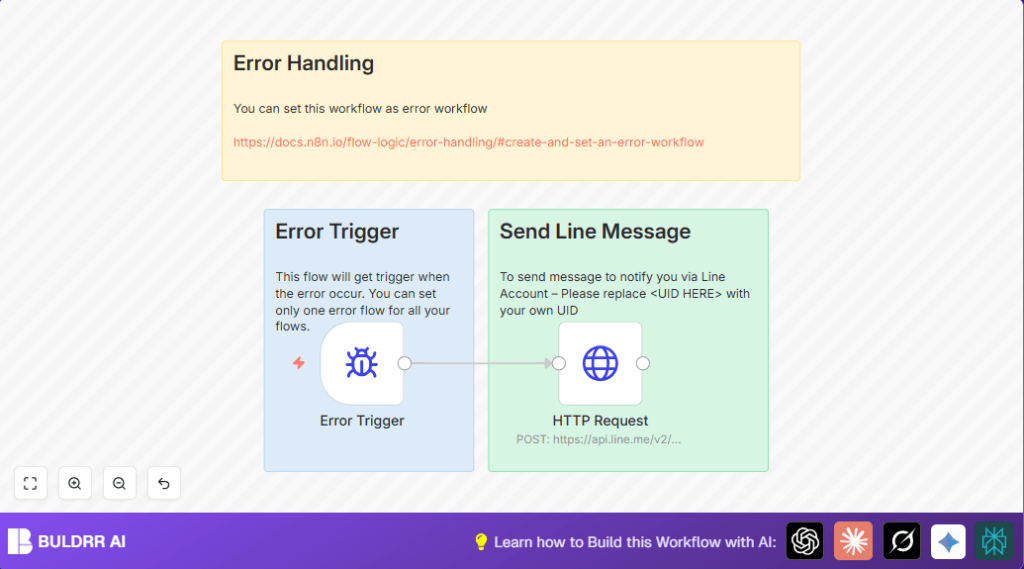

What This Automation Does
This workflow watches for errors in any n8n workflow.
When an error happens, it sends a message to your Line chat fast.
The message shows which workflow failed and a link to check the error.
This helps you fix problems quickly and avoid delays.
You get a quick alert on Line so you don’t miss issues.
Only need your Line User ID and API key from Line Developer console.
Tools and Services Used
- n8n Error Trigger node: Detects any workflow errors globally.
- n8n HTTP Request node: Sends messages to Line Chat API.
- Line Messaging API: Receives error alerts and pushes notifications.
- Line Channel Access Token: API Key for authenticating requests.
- Line User ID (UID): Target recipient of messages.
Inputs, Processing, and Outputs
Inputs
- Error event from any n8n workflow.
- Workflow name and execution URL.
- User’s Line UID and Channel Access Token.
Processing
- Error Trigger node activates on error.
- HTTP Request node builds JSON message with error details.
- Request sends message to Line API with authentication.
Outputs
- Instant push notification in Line with workflow name and error link.
Beginner Step-by-Step: How to Use This Workflow in n8n
Step 1: Import the Workflow
- Download the workflow file using the Download button on this page.
- Open n8n editor, click the menu, select “Import from File.”
- Choose the downloaded workflow file to import it.
Step 2: Configure Credentials
- Go to HTTP Request node, open credentials settings.
- Enter your Line Channel Access Token retrieved from the Line Developers Console.
- Replace <UID HERE> in the JSON body with your actual personal Line User ID.
Step 3: Test the Workflow
- Trigger an error in one of your workflows or manually run the Error Trigger node to confirm message delivery.
Step 4: Activate for Production
- Toggle the workflow’s Active switch to enable it.
- Set this workflow as the global error workflow in n8n settings under Error Workflows.
- Regularly monitor executions to get notified immediately on new errors.
If self hosting n8n or using VPS setup for n8n, refer to self-host n8n resources for connectivity and credential security.
Customizations
- Change the text field in HTTP Request node to add timestamps, error codes, or custom info.
- Create copies of the HTTP Request node to send alerts to multiple Line users by changing the “to” value.
- Add other messaging platforms by adding new HTTP Request nodes targeting Slack, Telegram, or others.
Troubleshooting
- HTTP 401 Unauthorized error:
Means Line Channel Access Token is wrong or expired.
Get a new token from Line Developers Console and update in credentials. - No message delivered without workflow errors:
Check Line User ID for typos or incorrect value.
Test with Line Notify or developer tools. - Multiple error workflows cause conflicts:
Only one workflow should have an Error Trigger node set as the error workflow.
Pre-Production Checklist
- Test your Line API credentials with the HTTP Request node alone.
- Confirm the Error Trigger activates on real errors.
- Trigger test errors to verify messages reach Line.
- Make sure the Line User ID is correct inside your message.
- Save a backup of the workflow JSON before going live.
Deployment Guide
After testing, turn the workflow Active in n8n.
Set this workflow as your global error workflow in the n8n settings.
From now on, all errors will send notifications to your Line app.
You can watch for errors right inside your messaging tool.
This saves time finding errors and keeps your automations running better.
If you self hosting n8n, keep your credentials safe and follow best practices.
Summary and Final Result
✓ Big problem of missing errors is fixed with fast Line alerts.
✓ Easy setup with only two nodes and Line API Keys needed.
✓ All your workflows’ errors come to one place, your chat.
✓ Saves hours of manual error checking and lost revenue.
