
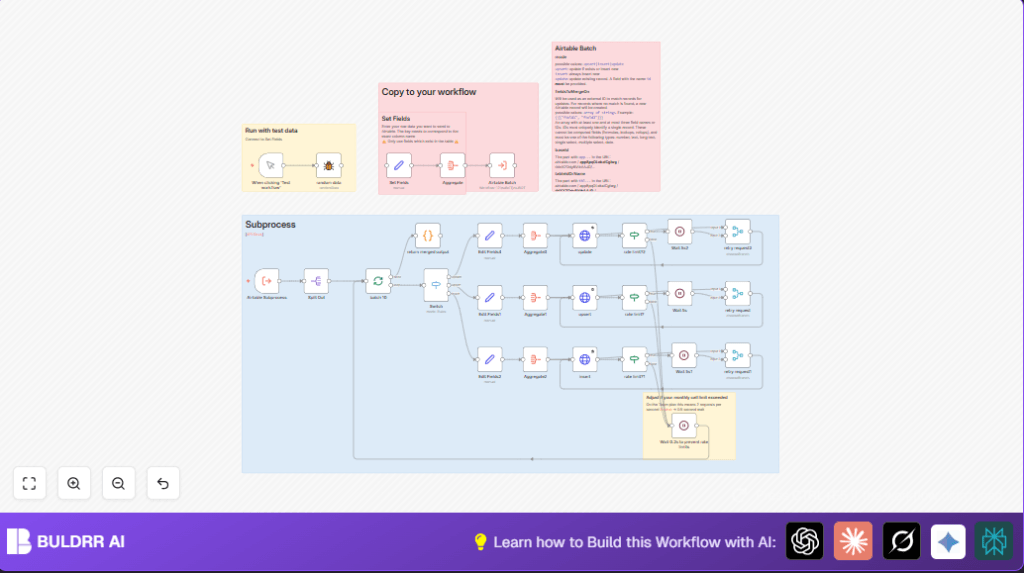

What This Workflow Does
This workflow automates handling many Airtable records without breaking. It stops API limits errors by sending data in small groups. It can add new records, update old ones, or do both based on a set mode. It waits and retries smartly if Airtable says too many requests. The workflow then gives a full report of all changes made. This saves time and cuts errors for big Airtable tasks.
Who Should Use This Workflow
This workflow is for people who keep Airtable records updated often. It works best if you handle big lists of data and get slowed by API limits. If you want less manual work and safer data updates, this helps a lot.
Tools and Services Used
- n8n automation platform: Runs the workflow steps.
- Airtable API: Connects to Airtable to change records.
- Airtable API Key: Authorizes the workflow to access your base.
Beginner step-by-step: How to Build this in n8n
Importing and Setup
- Download the workflow using the Download button on this page.
- Open the n8n editor where you want to run the workflow.
- Use the Import from File option to add the downloaded workflow.
- Add your Airtable API Key in the n8n credential section for Airtable.
- Update the workflow inputs like your Airtable base ID and table name. Change any emails, channels, folders, or fields if needed.
Testing and Activation
- Run the workflow once using the Manual Trigger to check it works with your data.
- If all looks good, activate the workflow to run automatically or on schedule.
You’re ready. This process avoids deep technical details and gets you running fast.
How the Workflow Works: Inputs, Process, Output
Inputs
- Base ID and table name to know which Airtable target to update.
- Mode setting to choose between insert, update, or upsert actions.
- Records array which holds the data to work on.
- Fields to merge on for upsert mode to find matching records.
Processing Steps
- Split record list into smaller batches of 10 to respect Airtable limits.
- For each batch, choose the way to handle records based on mode.
- Clean and prepare fields to match Airtable API needs.
- Send the batch to Airtable with HTTP POST or PATCH requests.
- If the API replies with rate limit error (429), wait and retry automatically.
- Collect responses from all batches into organized arrays.
Output
- Return a combined list of all records processed.
- Return separate lists for updated and created records.
Handling Rate Limits and Errors
The workflow watches for the 429 status code from Airtable.
When detected, it pauses for 5 seconds then tries the request again.
If no error, it waits shortly (0.2 seconds) between batches to avoid hitting limits early.
This retry system uses If and Wait nodes connected smartly around each HTTP request.
This process keeps your updates working without failures from too many calls.
Customization Ideas
- Change batch size in Split In Batches from 10 to a different number for your plan.
- Modify wait times in Wait nodes to fit your Airtable API limits.
- Switch modes dynamically by passing a different
modeinput (insert, update, upsert). - Edit the
fieldsToMergeOnarray in the upsert HTTP request for unique matching keys. - Use the same subprocess for different Airtable bases by changing base and table inputs.
Summary
✓ Save hours by automating many Airtable updates at once.
✓ Avoid API errors by batching and retrying intelligently.
✓ Control inserts, updates, or both with one workflow.
✓ Get full results lists for created and updated records.
→ A smooth way to keep Airtable data fresh and accurate, without manual work.
