

What this workflow does
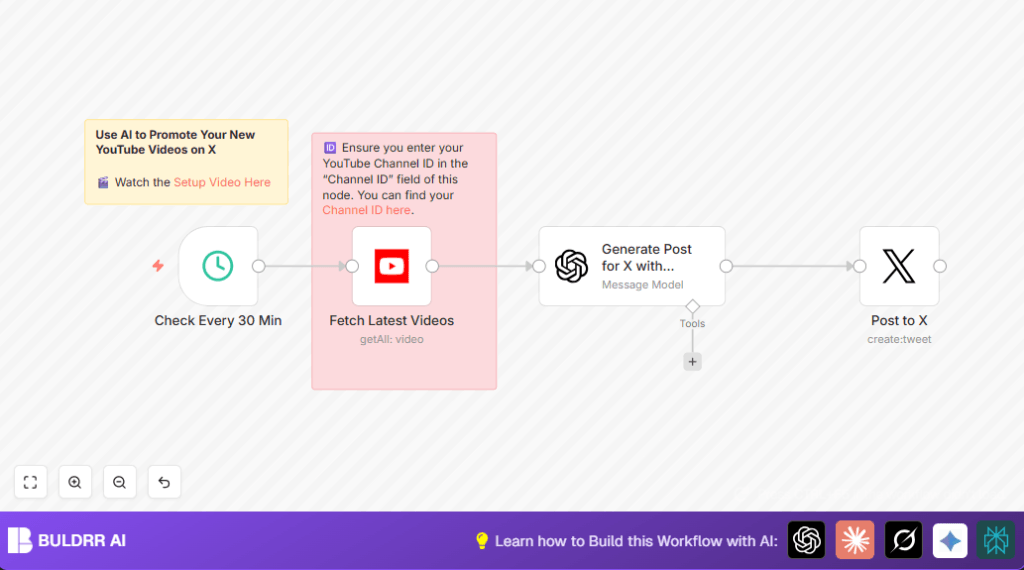
This workflow checks a YouTube channel every 30 minutes for new videos.
If a new video is found, it asks OpenAI’s ChatGPT to write a short and catchy post for X (formerly Twitter).
Then it posts the message on X automatically.
The result saves time and helps share videos quickly to get more viewers.
Who should use this workflow
This is for people who upload YouTube videos often and want help sharing them on X.
It is useful if writing posts feels slow or gets missed.
No coding skills are needed but you need accounts on YouTube, OpenAI, and X with API access.
Tools and services used
- n8n: Runs the automation workflow.
- YouTube API: Checks for new videos on a specific channel.
- OpenAI ChatGPT (GPT-3.5-turbo): Creates short posts from video details.
- X (Twitter) API: Publishes the generated posts to X automatically.
Optional: Use self-host n8n for full control.
Inputs, processing steps, and output
Inputs
- YouTube Channel ID to check for new videos.
- YouTube OAuth2 credentials for API access.
- OpenAI API Key for ChatGPT.
- X OAuth2 credentials to post tweets.
Processing steps
- A schedule triggers workflow every 30 minutes.
- The workflow asks YouTube API for the newest video published in last 30 minutes.
- If video found, metadata like title, ID, and description is sent to ChatGPT node.
- ChatGPT creates a Twitter post text with link to video (max 140 characters).
- The generated post is sent to X node and published immediately.
Output
The user gets a real-time post on their X account promoting the latest YouTube video without doing anything manually.
This increases visibility and saves time.
Beginner step-by-step: How to use this workflow in n8n
Step 1: Import the workflow
- Download the workflow file using the Download button on this page.
- Open your n8n editor.
- Click on Import > Import from File and select the downloaded workflow.
Step 2: Set up credentials and IDs
- Add YouTube OAuth2 credentials in the Fetch Latest Videos node.
- Add your YouTube Channel ID in the same node.
- Enter your OpenAI API Key in the Generate Post for X with ChatGPT node.
- Add your X (Twitter) OAuth2 credentials in the Post to X node.
Step 3: Test the workflow
- Manually run the workflow once inside n8n to check connections and data flow.
- Check the ChatGPT node output for a short post about the latest YouTube video.
- Verify if the post appears on your X account (use a test account if preferred).
Step 4: Activate for production
- Switch on the workflow to run automatically every 30 minutes.
- Monitor initial runs using n8n’s execution logs.
- Adjust schedule interval or prompt as needed for your needs.
Use sticky notes in the workflow for reminders to update channel ID and a link to a setup video.
Common issues and solutions
No new posts on X timeline
Cause: No videos were published in last 30 minutes.
Fix: Lower the schedule trigger interval or publish videos more frequently.
ChatGPT returns errors
Cause: Prompt has wrong or missing video info variables.
Fix: Check prompt in ChatGPT node and correct all expressions.
X node cannot post
Cause: OAuth credentials expired or app lacks permissions.
Fix: Reconnect X credentials and verify permissions.
Customization ideas
- Change the frequency in the schedule trigger node from 30 minutes to any time you want.
- Switch YouTube Channel ID to another channel you manage.
- Edit the ChatGPT prompt text to use different post styles such as funny or formal.
- Add nodes to share posts on other social platforms like Facebook or LinkedIn.
Summary of benefits and outcomes
✓ Saves over an hour weekly by automating YouTube video posts to X.
✓ Ensures posts publish quickly within 30 minutes of video release.
✓ Creates eye-catching posts automatically using AI.
✓ Reduces manual work and missed promotion opportunities.
✓ Easy to set up by importing and configuring in n8n.
