
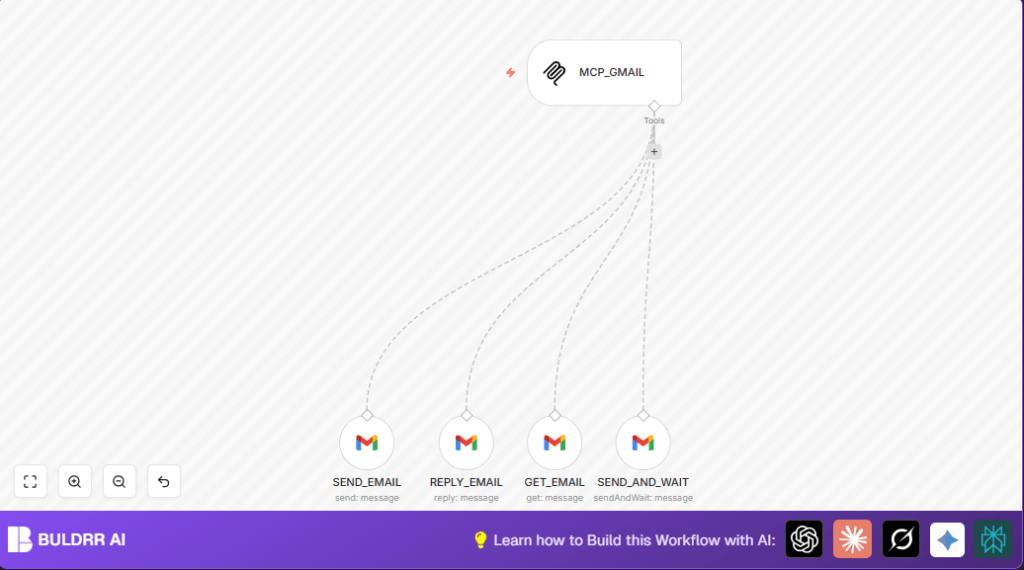

What This Workflow Does
This workflow automates sending, replying, and reading emails in Gmail using n8n.
It helps stop wasting hours on email tasks by handling emails automatically.
You can send new emails, reply in threads, read email content, and wait for replies without manual work.
The result is faster email handling and no missed messages.
Who Should Use This Workflow
This workflow suits people who manage many emails daily and need faster replies.
It is helpful for small business managers, teams, or anyone wanting to cut email handling time without deep coding.
Tools and Services Used
- Gmail API: For sending, replying, and reading emails securely.
- n8n MCP Trigger node: Starts the workflow when triggered by an HTTP request.
- n8n Gmail Tool nodes: Perform different Gmail actions like send, reply, get, and send and wait.
- OAuth2 Credentials: Keep Gmail access secure and authorized without manual login.
Inputs, Processing, and Outputs
Inputs
- Email recipient address for sending or replying.
- Email subject and message body content.
- Email message IDs to read or reply in correct threads.
- HTTP request parameters triggering the workflow.
Processing Steps
- Receive trigger from MCP Trigger node.
- Send emails with the SEND_EMAIL node.
- Reply to existing emails with the REPLY_EMAIL node.
- Retrieve email content with the GET_EMAIL node.
- Send emails and pause to wait for replies using SEND_AND_WAIT node.
- Use OAuth2 for secure API access.
- Use AI-driven data for dynamic message content.
Outputs
- Sent emails appear in Gmail with correct recipients and content.
- Email replies are injected into correct threads.
- Email content is fetched for further use or decisions.
- Workflow waits asynchronously for replies before continuing.
Beginner Step-by-Step: How to Build This Workflow in n8n
Step 1: Import the Workflow
- Download the MCP_GMAIL workflow file using the Download button on this page.
- Open the n8n editor already signed in.
- Click Import from File and select the downloaded workflow.
Step 2: Add Credentials and Update Details
- Attach your Gmail OAuth2 credentials to each Gmail node.
- Update fields like recipient email addresses, message IDs, and subjects if needed.
- If needed, change parameters like wait time in the SEND_AND_WAIT node.
Step 3: Test the Workflow
- Manually trigger the MCP Trigger node or send a test HTTP request to its URL.
- Check if emails send, reply, or get retrieved as expected.
Step 4: Activate for Production
- Switch workflow status to Active.
- Use the webhook URL with the correct path and parameters to start email operations.
For users running self-host n8n, make sure the environment allows webhooks and Gmail credentials work.
Use self-host n8n resources if needed.
Customization Ideas
- Add attachment support in the SEND_EMAIL node to send files.
- Use n8n IF or Switch nodes before REPLY_EMAIL to reply based on sender or subject.
- Adjust SEND_AND_WAIT node timeout to control how long to wait for replies.
- Insert logging nodes after Gmail actions to save details for review.
Edge Cases and Failures
- “Invalid Credentials” means OAuth2 tokens expired; reauthorize in n8n credentials.
- Reply emails fail threading if Message ID is wrong or missing; verify ID formats.
- Webhook triggers fail if path isn’t saved or workflow is inactive; recheck path and activate.
- Using expired message IDs in GET_EMAIL causes errors; always use current valid IDs.
Summary and Results
✓ Automates sending, replying, reading Gmail messages.
✓ Removes hours of manual email handling each day.
✓ Works using simple HTTP triggers and Gmail API nodes.
✓ Uses OAuth2 for secure access.
✓ Waits for replies to allow interactive workflows.
→ Faster email responses with no missed messages.
→ Frees time for more important work.
