

What This Automation Does
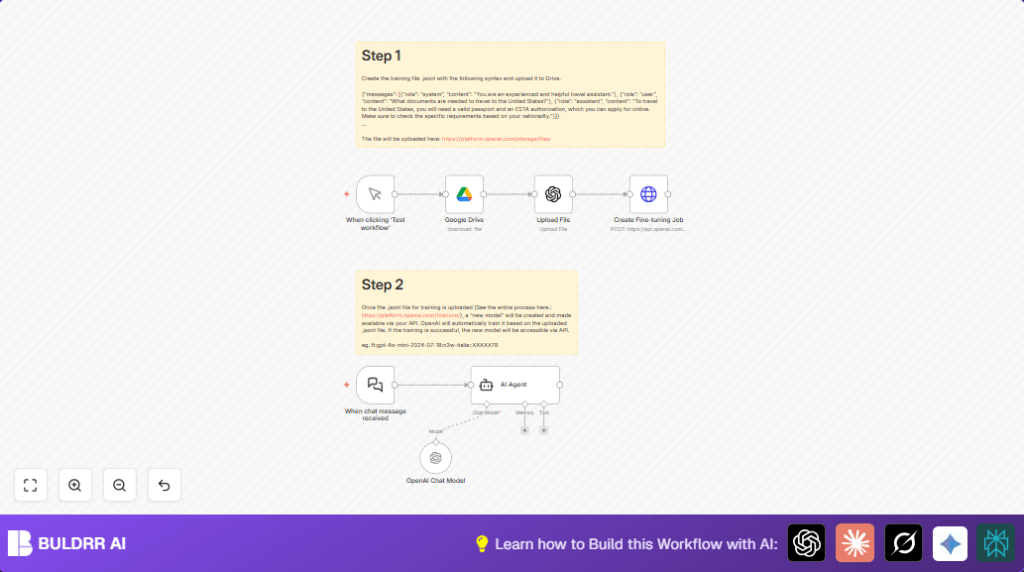
This workflow downloads a training file from Google Drive and uploads it to OpenAI automatically for fine-tuning a custom AI model.
It then starts the fine-tuning job and sets up a chat interface that uses the new model.
This saves many hours of manual file handling and API calls for AI developers.
The workflow handles the file download, file upload to OpenAI, creates the fine-tuning job with correct parameters, and enables live chatbot use of the tuned model.
It also listens for chat messages via webhook and returns AI responses based on the customized model.
Using this workflow reduces errors and speeds up fine-tuning, making travel assistant chatbots better faster.
Tools and Services Used
- n8n Automation Platform: Runs the workflow automation.
- Google Drive API: Provides access to the training data JSONL file.
- OpenAI API: Uploads training files, creates fine-tuning jobs, and serves AI chat responses.
How the Workflow Works (Inputs → Process → Output)
Inputs
- Training dataset JSONL file stored on Google Drive, identified by file ID.
- OpenAI API credentials to authorize file upload and fine-tuning calls.
- Webhook chat message inputs for real-time AI interaction.
Processing Steps
- Download training file: The Google Drive node retrieves the JSONL training file.
- Upload training file: The OpenAI File Upload node sends the file for fine-tuning.
- Create fine-tuning job: The HTTP Request node triggers the fine-tune task using the uploaded file ID and model name.
- Receive chat messages: The Chat Trigger node listens on a webhook for user messages.
- Generate AI responses: The OpenAI Chat Model node uses the fine-tuned model to reply.
- Integrate AI Agent: The AI Agent node connects chat inputs and AI output smoothly.
Output
- A fine-tuned AI model ready to answer travel document questions.
- Real-time chatbot responses powered by the custom fine-tuned model.
Beginner Step-by-Step: How to Use This Workflow in n8n for Production
Step 1: Import Workflow
- Download the workflow file using the Download button on this page.
- Open your n8n editor. Click Import from File and select the downloaded workflow file.
Step 2: Configure Credentials
- Add your Google Drive OAuth2 credentials in n8n.
- Add your OpenAI API key in the proper credentials section.
Step 3: Update Identifiers
- Open the Google Drive node and replace the
fileIdwith your training file’s Drive file ID. - Open the HTTP Request node and update the model parameter if you want a different base model.
- If the workflow uses emails, channels, or folders, update them as needed.
Step 4: Test the Workflow
- Run the Manual Trigger node to start the process.
- Confirm the training file downloads and uploads successfully.
- Check if a fine-tuning job is created without error.
Step 5: Activate for Production
- Turn on the activation toggle at the top right of the workflow editor.
- Use the webhook URL from the Chat Trigger node to connect your chatbot interface.
If using a hosted or self-hosted platform, consider self-host n8n for reliability.
Common Issues and Fixes
- Google Drive file not found: Check the file ID matches exactly from Drive URL.
- Make sure the Google Drive credentials are authorized for access.
- OpenAI Unauthorized error: Verify OpenAI API key is valid and has permissions.
- Ensure Authorization header is present as
Bearer YOUR_API_KEY. - Fine-tuning job fails: Confirm JSONL file format matches OpenAI fine-tuning specs.
- Check the base model supports fine-tuning.
Customization Ideas
- Change the Google Drive
fileIdto fine-tune on different datasets. - Update the base model in the HTTP request node to use different OpenAI models.
- Replace the Manual Trigger with a Schedule Trigger node to automate training regularly.
- Tweak parameters in the OpenAI Chat Model node, like temperature or max tokens, to adjust AI response style.
Summary of Benefits and Results
→ Automates downloading and uploading training files for OpenAI fine-tuning.
→ Starts fine-tuning jobs without manual command line steps.
→ Creates a chatbot interface using the custom fine-tuned model.
✓ Saves many hours of repetitive manual work.
✓ Reduces human errors in file handling and API calling.
✓ Enables faster, easier updates of custom AI chat assistants.
