

What This Automation Does
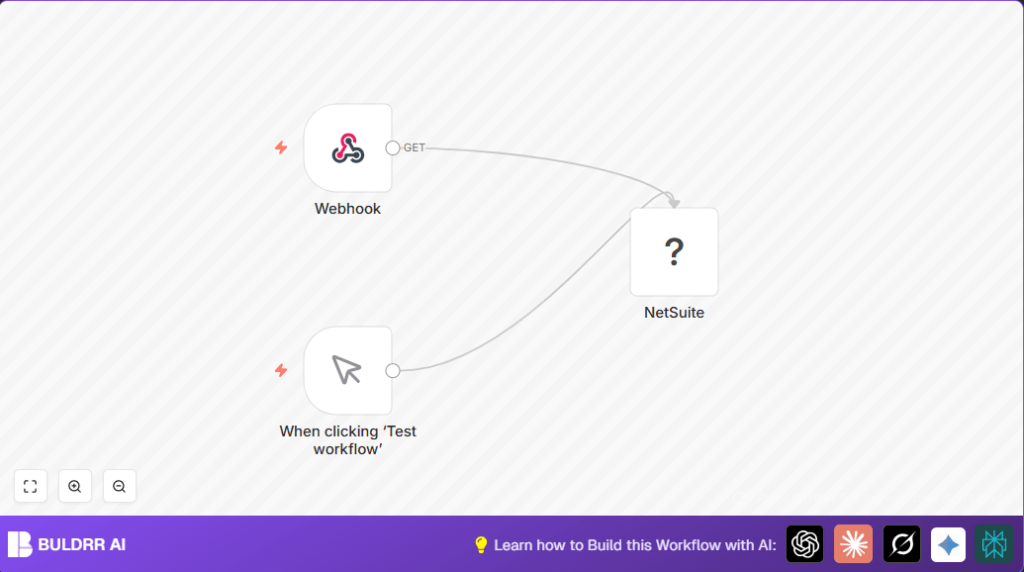
This workflow runs a SuiteQL query to get data from NetSuite automatically. It stops users from doing the same manual searches all the time. When started, it fetches data with one command and sends back all the results as easy-to-use data. This saves time and avoids mistakes.
The workflow can start by either the user clicking a button or by receiving a web request from another system. It uses NetSuite’s API to run the query. After getting the data, it makes it ready for reports or other apps to use fast. No need for extra downloads or manual work.
By automating this, workers avoid slow and error-prone data pulls. Businesses get fresh info faster for better choices.
Tools and Services Used
- n8n: Workflow automation platform.
- NetSuite’s REST API: To run SuiteQL queries.
- SuiteQL: SQL-like language to query NetSuite data.
- Webhook: To allow other systems to trigger data requests.
Inputs, Processing, and Output
Inputs
- Manual trigger: The user starts data fetching by clicking an editor button.
- Webhook request: An HTTP POST call from outside systems to ask for data.
Processing Steps
- The NetSuite node runs the SuiteQL query using stored credentials.
- Data received is processed and prepared for easy consumption.
Output
- The workflow returns the full list of queried entries as JSON data.
- Data can then be used by reporting tools, dashboards, or other software.
Who Should Use This Workflow
This workflow fits users who need quick, repeatable reports from NetSuite without writing code. People who want to reduce mistakes and save time when getting ERP data find it useful. It suits teamwork where data needs to integrate easily across apps or dashboards.
You should have basic knowledge of NetSuite and SuiteQL queries. Also, some experience using n8n workflows helps, but no coding needed.
Beginner Step-by-Step: How to Use This Workflow in n8n
Importing the Workflow
- Download the workflow file using the Download button on this page.
- Open your n8n editor already running.
- Go to “Import from File” in the n8n editor.
- Select the downloaded workflow file to load it.
Configuring After Import
- Open the NetSuite node and enter your NetSuite API credentials.
- If needed, update the SuiteQL query with your specific request, or adapt IDs, emails, or tables.
- In the Webhook node, make sure the webhook URL and path are as desired.
Testing and Activating
- Click “Test Workflow” in the n8n editor to run the workflow manually. Check outputs for expected data.
- Send a HTTP POST to the webhook URL from an external tool to confirm automated running.
- After tests pass, toggle the workflow “On” to make it live.
If self hosting n8n, verify secure hosting like HTTPS. Refer to self-host n8n for hosting tips.
Common Issues and How to Fix Them
Problem: Invalid SuiteQL Query Syntax
The SuiteQL syntax used is wrong or incomplete. Fix by testing queries inside NetSuite’s own query tool. Start simple with SELECT * statements.
Problem: Authentication Failed for NetSuite Node
API credentials might be wrong or lack permissions. Double check API user roles and keys in your n8n credential manager.
Problem: Webhook Not Returning Data
Make sure the webhook’s response is set to output the last node’s data. Verify the path is unique and properly used.
Customization Ideas
- Make the SuiteQL query dynamic by passing it through webhook JSON input.
- Add data processing nodes like Set or Function nodes to clean or shape the data before returning.
- Change webhook URL path to make it more secure or descriptive.
- Connect outputs to Google Sheets or BI tools for automated reporting.
Pre-Production Checklist
- Test webhook with a simple POST request to confirm it triggers the workflow.
- Verify SuiteQL queries return expected rows in NetSuite UI first.
- Check NetSuite API credentials have correct permissions.
- Confirm all node connections are complete and webhook response sends data.
Deployment Guide
Once tested, activate the workflow. Make sure webhook URLs use HTTPS for security. Monitor the workflow to catch errors early on. For bigger data sets, use query pagination or batch processing.
Keep API limits in mind as NetSuite imposes usage caps. Monitor call volume and consider batching requests if needed.
Summary
→ Automates running SuiteQL queries against NetSuite.
→ Starts by manual click or webhook call.
→ Returns full data results in JSON for easy use.
✓ Saves time by stopping manual, repetitive work.
✓ Reduces errors by automating data fetching.
✓ Integrates NetSuite data smoothly with other tools.
