
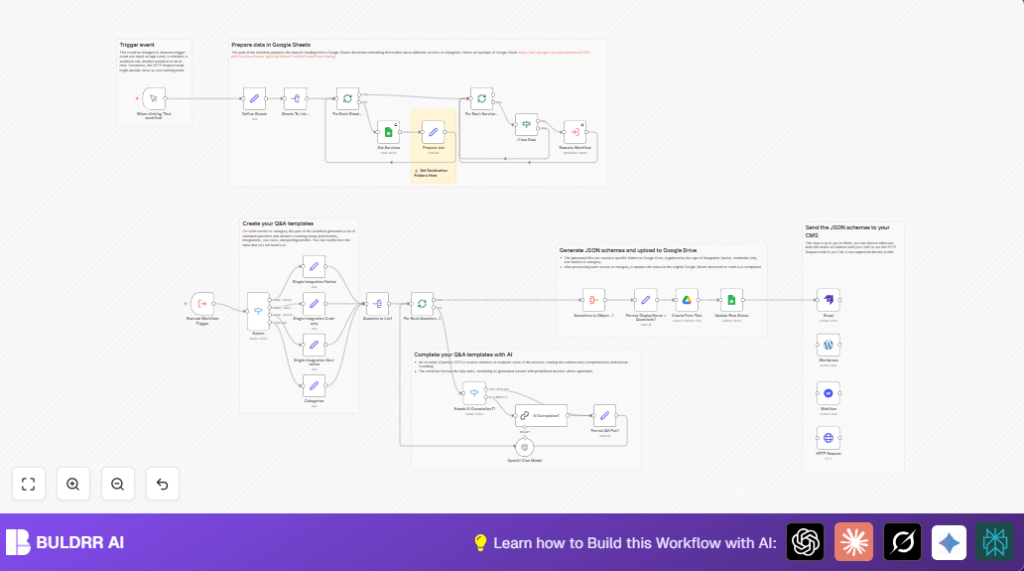

What This Automation Does
This n8n workflow reads integration or category data from Google Sheets, generates FAQ question and answer pairs for each item, and uses OpenAI’s GPT-4o-mini model to improve or complete answers as needed.
It saves the final Q&A data as JSON files in Google Drive folders and updates Google Sheets to track processed rows.
This automation cuts down manual work and creates consistent, clear FAQ content fast.
Who Should Use This Workflow
This workflow suits product managers, content teams, or support staff who manage FAQ content for multiple product integrations or categories.
It helps anyone who wants to automate repetitive FAQ writing, maintain clean support documentation, and publish content without manual errors.
Tools and Services Used
- n8n automation platform: Runs the workflow logic and node orchestration.
- Google Sheets: Stores raw integration or category data and tracks status.
- Google Drive: Saves generated JSON FAQ files in organized folders.
- OpenAI GPT-4o-mini model via LangChain node: Improves or writes FAQ answers.
- Optional CMS nodes (Strapi, WordPress, Webflow): For direct content publishing.
Workflow Inputs, Processing, and Outputs
Inputs
The workflow reads from four specific Google Sheets tabs:
- Single Integration Native
- Single Integration Cred-only
- Single Integration Non-native
- Categories
Each sheet contains rows describing services or categories with a “status” column.
Processing Steps
- Sheets array is fed to split and batch nodes to process each sheet one by one.
- For each sheet, rows with relevant status are read from Google Sheets.
- A job metadata object is prepared with sheet name and Google Drive folder ID.
- Depending on the sheet type, the workflow selects a set of question-answer templates.
- Questions are split into individual items.
- Each question is checked if it needs AI completion.
- If needed, the AI Completion node calls OpenAI GPT-4o-mini with structured prompts to generate or enhance answers.
- Results are combined into a JSON object under the integration or category name.
Outputs
- JSON files with finalized FAQ Q&A pairs are saved into specified Google Drive folders.
- Google Sheets rows are updated to “done” in status to avoid reprocessing.
- Optionally, content can be sent to CMS platforms for publishing.
Beginner Step-by-Step: How to Use This Workflow in n8n
Step 1: Import Workflow
- Download the workflow file using the Download button on this page.
- Open the n8n editor where you want to use this automation.
- Use the “Import from File” option in n8n and upload the downloaded workflow.
Step 2: Configure Credentials and IDs
- Add or update Google Sheets and Google Drive credentials inside n8n.
- Add the OpenAI API Key in the credentials section and confirm GPT-4o-mini model is selected.
- Replace placeholder Google Drive folder IDs in the Prepare Job node with your actual folder IDs.
- Check sheet names in Google Sheets match exactly the names set in the Define Sheets node.
Step 3: Test and Activate
- Run the workflow once using the Manual Trigger node to confirm data flows correctly.
- Check Google Drive for the JSON files and Google Sheets for updated statuses.
- Once confirmed, activate the workflow by toggling it live in n8n.
- Optionally, replace the manual trigger with a schedule or webhook trigger for automatic runs.
Customization Ideas
- Edit the Define Sheets node to add or remove sheet names matching specific integration categories.
- Modify question-answer templates in each Set node for your desired FAQ questions.
- Adjust the OpenAI model or prompt templates in the AI Completion1 node for tone and style changes.
- Change Google Drive folder IDs in the Prepare Job node to reroute output files.
- Add additional CMS nodes or HTTP calls to push data instantly after file creation.
Troubleshooting
- Google Sheets node returns no data: Check Google Sheets tab names and “status” column has rows with appropriate values.
- OpenAI API errors or empty results: Verify API key correct and prompt JSON structure matches expected format.
- JSON files not appearing in Google Drive: Confirm folder IDs exist and n8n credentials have write permissions.
Deployment Guide
After testing, switch the workflow toggle from draft to active in n8n.
Replace the Manual Trigger node with a schedule or webhook node to automate future runs.
Monitor workflow runs via n8n logs to catch any problems early.
For better control and scaling, consider self-host n8n on a server or VPS.
Summary
✓ Automates FAQ Q&A generation from Google Sheets data.
✓ Uses AI only when needed to improve answers.
✓ Saves results in organized Google Drive folders.
✓ Marks processed rows to avoid repeats.
✓ Supports easy content publishing to CMS.
✓ Saves users hours of manual FAQ writing and updates.
