

What This Workflow Does
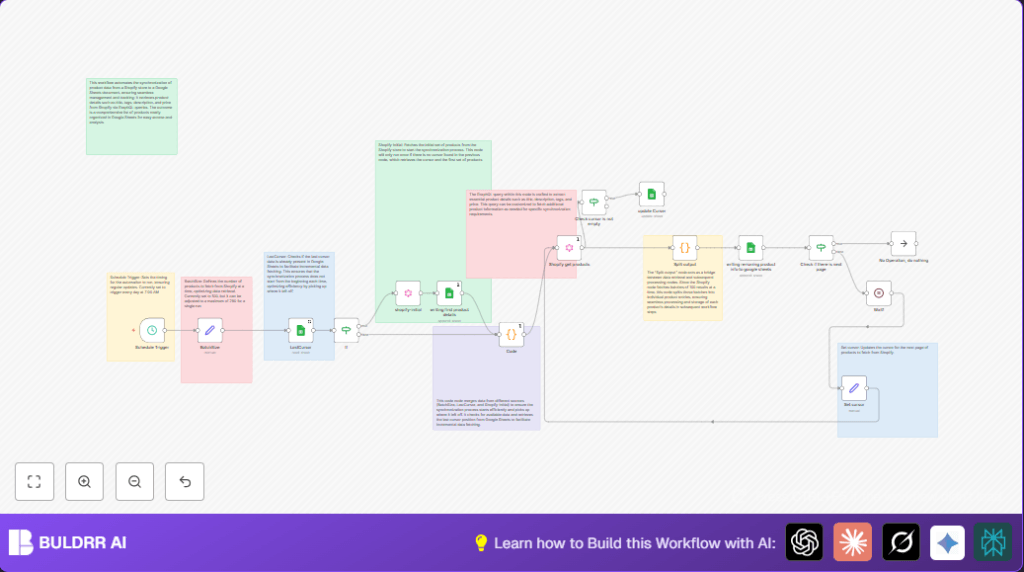
This workflow connects Shopify to Google Sheets to copy product details every day at 7 AM.
It stops the user from having to export products by hand and keeps prices, tags, and descriptions fresh.
The workflow fetches products in groups and remembers where it left off to only get updates next time.
It writes the product info like title, tags, description, and price directly into a Google Sheet.
The syncing works bit by bit so it can handle stores with many products.
Because it runs automatically, the sheet stays updated without the user doing anything.
Who Should Use This Workflow
This workflow is good for Shopify store owners or managers who track product data in Google Sheets.
It’s for those who want to save time and avoid mistakes from manual exports and data typing.
If you update product details often, this helps keep your teams working with correct info.
Users without technical skills can still use it with simple setup instructions.
Tools / Services Used
- Shopify GraphQL API: To get product data in batches.
- Google Sheets API: To write and read product data and cursors.
- n8n: The workflow automation tool running the process.
Inputs, Processing, and Outputs
Inputs
- Shopify store API token with read access.
- Google Sheets document and sheet to store the data.
- Batch size number to control the number of products per API call.
- Stored cursor in Google Sheets that marks the last fetched product position.
Processing
- Schedule Trigger node runs workflow daily at 7:00 AM.
- Reads last stored cursor from Google Sheets to know where to continue.
- If no cursor found, fetches initial product batch.
- Uses Code node to merge batch size and cursor data into GraphQL query variables.
- Fetches product batches from Shopify using cursor pagination.
- Splits product batch into individual product items.
- Writes or appends product data rows into Google Sheets.
- Checks for more pages and waits before next fetch to avoid API limits.
- Updates cursor value in Google Sheets for next run.
Outputs
- Google Sheets spreadsheet with up-to-date product titles, tags, descriptions, prices.
- Cursor marker saved for incremental syncing.
- Logs of workflow execution within n8n.
Beginner Step-By-Step: How to Use This Workflow in n8n
Import the Workflow
- Download the workflow file using the Download button on this page.
- Go to the n8n editor where you work on workflows.
- Click on the main menu and select “Import from File”.
- Select and import the downloaded workflow JSON.
Configure Credentials and Settings
- Add Shopify API credentials: insert your store’s Admin API Key and password.
- Add Google Sheets OAuth2 credentials with edit permission.
- Update Google Sheets documentId and sheetName in Google Sheets nodes.
- Check and optionally adjust batch size in the BatchSize node.
Test and Activate
- Run the workflow once manually in n8n to test it.
- Check Google Sheets to see if product data and cursor were added.
- Fix any errors shown in n8n logs.
- Activate the workflow toggle switch to enable daily automatic syncing.
If self hosting n8n, consider reading this resource for setup help.
Edge Cases and Failure Handling
If the Shopify API token is invalid, the Shopify get products node will return auth errors.
Users should refresh or recreate the token in n8n credentials.
If Google Sheets fail to write data, check that the spreadsheet ID and sheet name are correct.
Verify n8n’s OAuth2 permission allows editing the sheet.
If the workflow stops without fetching all pages, the cursor may not update properly.
Verify that the Set cursor and update Curser nodes run without errors.
Customization Ideas
- Change batch size number in the BatchSize node to smaller or larger values.
- Edit Shopify GraphQL queries to get more product details like SKU, inventory, or images.
- Alter the schedule in Schedule Trigger node for different sync times.
- Switch Google Sheets targets by updating document and sheet IDs.
- Add notification nodes for alerts on sync failures.
Summary
✓ Saves time by automating Shopify product data sync to Google Sheets.
✓ Updates product info daily with batch fetching and cursor tracking.
→ Reduces manual errors and keeps sales data accurate.
→ Suitable for stores of any size due to incremental syncing.
