

What This Automation Does
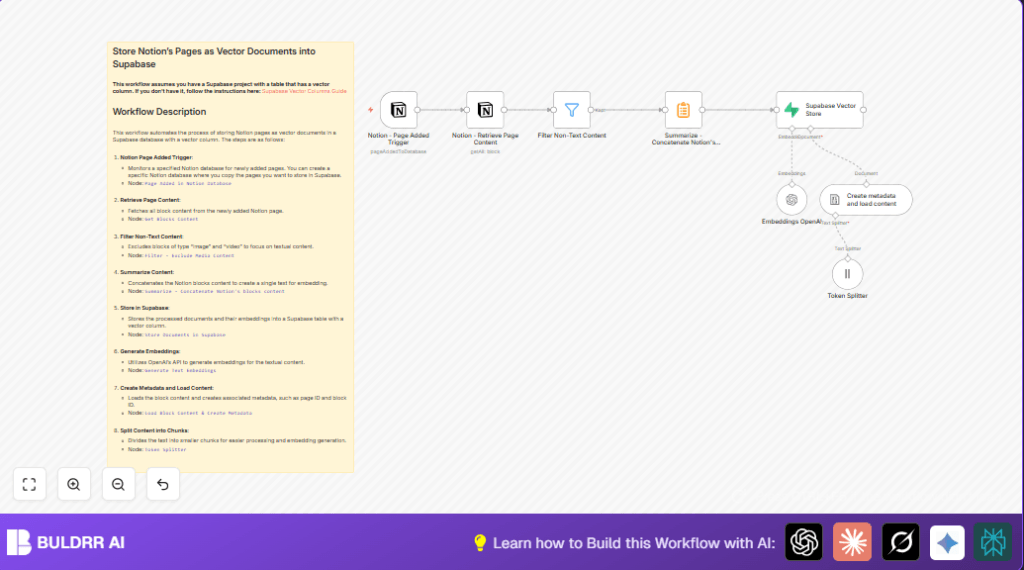
This workflow watches for new pages in a Notion database and turns the page text into searchable vectors using OpenAI embeddings.
It works automatically so the user does not have to copy-paste or clean content manually.
The final vectors get stored in a Supabase table for easy AI use like smart search or recommendations.
This saves many hours and reduces mistakes from manual work.
Inputs come from new Notion pages.
The workflow fetches all text blocks, skips images and videos.
Then it joins the text together and splits it into small chunks.
Each chunk is converted into an embedding using OpenAI.
Finally, the embeddings and metadata are saved in Supabase.
Tools and Services Used
- Notion API: Monitors the database and fetches page content.
- n8n: Runs the workflow and connects all parts.
- OpenAI API: Creates text vector embeddings.
- Supabase Database: Stores vectors with metadata for later AI queries.
Beginner step-by-step: How to Use This Workflow in n8n
Import and Setup
- Download the workflow file using the Download button on this page.
- Open the n8n editor and click “Import from File” to add the workflow.
Add Credentials and IDs
- Go to each node and add required credentials like Notion API Key, OpenAI API Key, and Supabase connection details.
- Update the Notion database ID to your own database’s ID.
- Check the Supabase table name to match your vector table.
Test and Activate
- Run the workflow manually once using a test page added in Notion.
- Confirm the output vectors appear in Supabase.
- Turn on the workflow toggle to activate for production.
- Make sure n8n keeps running to listen for new pages.
This gets the workflow working without building from scratch.
For production, consider using self-host n8n for better control and reliability.
Inputs, Processing Steps, and Output
Inputs
- New page added to the Notion database triggers the workflow.
- The page ID and URL start the content fetching process.
Processing Steps
- Fetch content blocks: Get all text blocks of the page, exclude images/videos.
- Filter text blocks: Remove non-text items with conditions on type.
- Concatenate blocks: Join text into a single string for embedding.
- Split text: Divide long text into chunks of about 256 tokens with overlap.
- Metadata creation: Prepare metadata like page ID, creation time, and title.
- Embedding generation: Send chunks to OpenAI to make vectors.
- Save to Supabase: Insert embeddings and metadata into a vector column table.
Output
- Rows in Supabase holding semantic vectors ready for AI-driven search or analysis.
- Metadata associated so vector documents can be identified.
Customizations ✏️
- Change how often the Notion Trigger polls for new pages, for example from 1 to 5 minutes.
- Allow more block types like code or quotes by adjusting the Filter node.
- Modify the Token Splitter chunk size from 256 to 512 tokens if OpenAI limits allow.
- Add extra metadata fields such as author or tags from Notion properties in the Document Loader node.
Troubleshooting ????
Problem: No new pages detected by Notion Trigger
Cause: The database ID might be wrong or API permissions are missing.
Solution: Double check the database ID and integration permissions in Notion. Reconnect the API if needed.
Problem: Failed to fetch content blocks
Cause: The block ID is not set correctly or ‘Return All’ is off.
Solution: Map blockId dynamically using {{$json.url}} from the trigger node. Enable ‘Return All’.
Problem: OpenAI Embedding API errors or rate limits
Cause: API keys invalid or usage limits exceeded.
Solution: Confirm API key is correct, monitor usage stats, consider upgrading quota. Add retry logic.
Pre-Production Checklist ✅
- Verify Notion API integration and database ID accuracy.
- Ensure the Supabase table with a vector column is ready.
- Test OpenAI key with a simple embedding before starting.
- Run the complete workflow test with a Notion test page.
- Confirm the Filter node excludes only images and videos.
- Make sure metadata fields like page ID and title exist.
Deployment Guide
After testing, activate the workflow inside n8n by switching it on.
Watch n8n execution logs for errors after activation.
Check the Supabase table regularly to see new vectors.
Match OpenAI API quotas with your workflow volume.
For stable production, use self-host n8n.
Summary
✓ The workflow automates converting Notion pages into vector embeddings.
✓ It saves manual time and reduces errors.
✓ Vectors and metadata get stored in Supabase ready for AI use.
✓ Easy to import, configure, and run inside n8n with minimal setup.
