
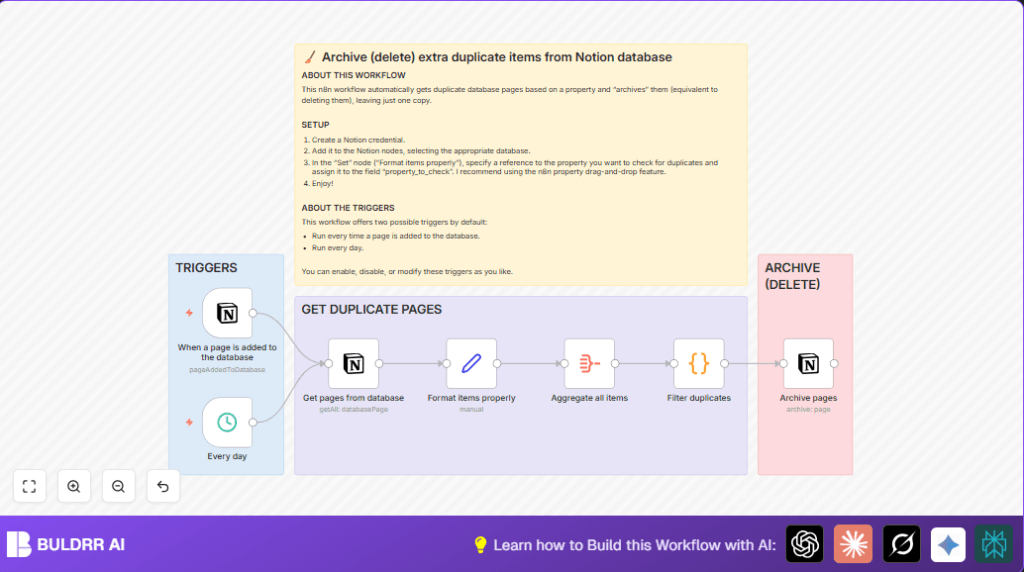

What This Automation Does
This workflow finds duplicate pages in a Notion database using a property you choose.
It then archives the extra copies, so your database stays clean.
The workflow runs automatically daily or when a new page is added.
This saves time and avoids mistakes of deleting wrong pages.
Tools and Services Used
- Notion API: Allows access to database pages and archive actions.
- n8n Automation Tool: Runs workflow with nodes like Get pages from database and Code node.
- JavaScript: Used in Code node to find duplicates by property.
Workflow Inputs, Processing, and Outputs
Inputs
- Notion database ID of the target database.
- User-selected property for duplicate detection (like Task Name or Email).
- API Key for Notion to allow read and write actions.
Processing Steps
- Get pages from database node collects all pages from Notion.
- Set node formats the pages to include the chosen property to check.
- Aggregate node bundles all pages into an array for easier processing.
- Code node runs JavaScript to spot duplicates by checking repeated property values.
- Archive pages node archives all extra duplicate pages to clean the database safely.
Outputs
- Duplicated pages are archived (hidden but recoverable) in Notion.
- One copy of each unique page remains in the database.
- The database becomes clearer and easier to manage.
Beginner Step-by-Step: How to Use This Workflow in n8n
Step 1: Download and Import
- Download the workflow file using the Download button on this page.
- Open the n8n editor and choose Import from File to load the workflow.
Step 2: Configure Credentials
- Add or update the Notion API Key in the Credentials section.
Step 3: Update IDs and Properties
- In the Get pages from database node, enter your Notion database ID from the URL.
- In the Set node, assign the property to check for duplicates using drag-and-drop from incoming data.
Step 4: Test the Workflow
- Run the workflow manually once to check it finds and archives duplicates correctly.
Step 5: Activate for Production
- Turn on the desired trigger: daily schedule or when a new page is added.
- Save and activate the workflow to run automatically.
Note: For self hosting n8n, this workflow works fine on any server. See self-host n8n for help.
Understanding the Duplicate Detection Code
The Code node uses this JavaScript to find duplicates:
const inputData = $input.first().json.pages;

const seen = new Set();
const duplicates = new Map();

inputData.forEach(item => {
  const propertyValue = item.property_to_check;
  if (seen.has(propertyValue)) {
    duplicates.set(propertyValue, item);
  } else {
    seen.add(propertyValue);
  }
});

const output = Array.from(duplicates.values()).map(item => ({ json: item }));

return output;
This script looks through all pages and remembers property values seen.
If a property value shows again, it marks the page as duplicate.
It returns only pages duplicated after the first.
Customization Ideas
- Change the property to check in the Set node.
- Adjust the schedule trigger to run more or less often.
- Switch the Archive pages node to delete pages permanently if desired.
- Add notification nodes like Slack or email for alerts on archived pages.
- Clone the workflow to manage multiple Notion databases.
Troubleshooting
No pages returned from Notion
Check the database ID is correct and your Notion API Key has the right permissions.
Duplicate detection not working
Confirm the property used to find duplicates is correct and properly selected in the Set node.
Workflow fails to archive pages
Verify API permissions and token validity.
Try splitting large batches or add timing delays if hitting rate limits.
Pre-Production Checklist
- Verify the Notion API Key is active and authorized.
- Run the workflow manually before turning on triggers.
- Check the property_to_check field matches the duplicate criteria.
- Test on non-important data to avoid accidental data loss.
- Backup Notion data before running at scale.
Deployment Guide
Activate the workflow by switching on the triggers in n8n.
Use either daily schedule or new page created to run automatically.
Monitor logs to catch any errors or confirmations of archived pages.
Review archives regularly and adjust settings as your database changes.
Summary
✓ Automatically finds duplicate pages using a chosen property.
✓ Archives duplicates safely to keep Notion database clean.
✓ Saves time by removing manual checking and deleting tasks.
→ Keeps project management data organized and easier to use.
