

What This Workflow Does ⚙️
This workflow helps you take bookstore URLs from a Google Sheet and get a clean list of books sorted by price.
You avoid copying data by hand and stop mistakes from typing errors.
The result is a neat CSV file emailed to your team automatically.
It saves time while giving accurate, easy to use book data.
How the Workflow Works: Input → Process → Output
Inputs
- Google Sheets: New bookstore URLs added in a sheet trigger the workflow.
- Dumpling AI API: Retrieves cleaned HTML content of the bookstore webpage.
Processing Steps
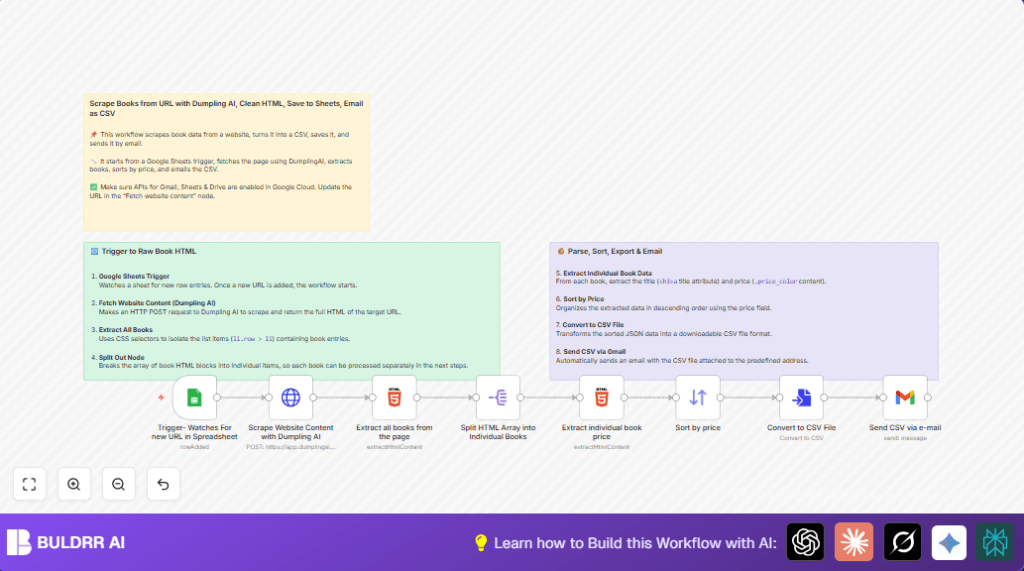
- The workflow watches Google Sheets for new URL rows.
- It sends each URL to Dumpling AI to get full HTML without extra junk.
- Extracts each book’s HTML based on CSS selectors targeting book items.
- Splits the list into individual book entries for clean processing.
- Extracts title and price from the HTML snippets for each book.
- Sorts all books by price from highest to lowest.
- Converts sorted book data into a CSV file format.
- Sends the CSV file via Gmail to a set email address.
Output
You get an email with a CSV file showing all books sorted by price.
This file is easy to share, analyze, and store.
Tools and Services Used
- Google Sheets: Tracks and triggers new URLs entered by users.
- Dumpling AI API: Scrapes clean HTML data from bookstore websites.
- n8n Automation Platform: Orchestrates node workflows and data processing.
- Gmail: Sends the final CSV files via email automatically.
Beginner Step-by-Step: How to Use This Workflow in n8n
Step 1: Import Workflow
- Download the provided workflow JSON file from this page.
- Open the n8n editor you already use.
- Click “Import from File” and select the downloaded JSON.
- This loads the entire workflow without building from scratch.
Step 2: Configure Credentials and Settings
- Add your Google Sheets API credentials to the Google Sheets Trigger node.
- Insert your Dumpling AI API Key in the HTTP Request node headers.
- Set up Gmail OAuth2 credentials in the Gmail node.
- Update the
Document IDandSheet Nameif your Google Sheet differs. - Change the recipient email address to who should get the CSV file.
Step 3: Test and Activate
- Add a sample URL row in Google Sheets to trigger the workflow.
- Check the execution logs inside n8n editor to see each step’s output.
- Confirm the email with CSV arrives correctly.
- After testing, turn on the workflow with the active toggle switch for production use.
Now the workflow works automatically and keeps sending up-to-date book lists.
Consider using self-host n8n for more control if needed.
Common Edge Cases and Failures
- If Dumpling AI returns no HTML, check API Key, URL correctness, and headers.
- Empty book extracts often mean CSS selector changed; update selector in HTML Extract node.
- Price sorting may break if prices remain strings; convert prices to numbers before sorting.
- Gmail errors usually caused by OAuth2 token expired; reauthorize Gmail credentials.
Customize the Workflow
- Change CSS selectors to scrape different products or updated website layouts.
- Switch Sort node to ascending or sort by title for different data views.
- Add new fields like author, rating by extending HTML extractor keys.
- Make email recipient dynamic with expressions based on sheet users.
- Insert a Google Sheets Append node before CSV conversion to archive scraped data.
Summary
✓ Automates data scraping from bookstore URLs in Google Sheets.
✓ Extracts and cleans book titles and prices from webpage HTML.
✓ Sorts books by price properly.
✓ Sends a ready-to-use CSV file by email without manual work.
✓ Saves hours weekly and prevents manual copy-paste errors.
