
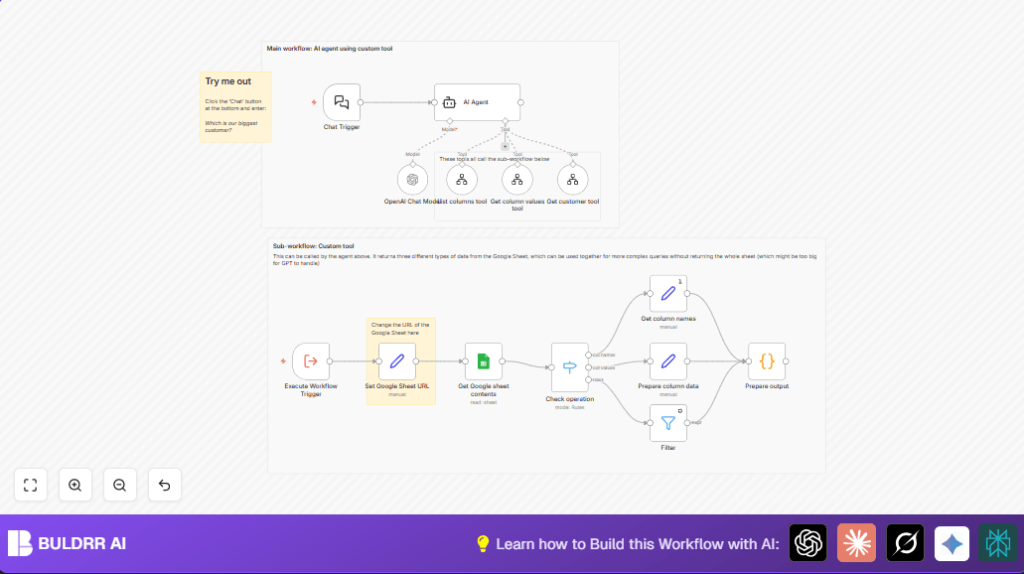

What this workflow does
This workflow lets users ask questions in normal language about customer data stored in a Google Sheet.
It solves the problem of searching large sheets manually by fetching only the data needed for each question.
The result is quick, clear answers based on live Google Sheet information.
Who should use this workflow
Users who want easy access to customer insights without opening big spreadsheets.
It helps teams that use Google Sheets for customer data but want faster, less error-prone queries.
Non-technical users gain natural language chat interaction without handling raw data.
Tools and services used
- n8n platform: Automates workflow steps.
- Google Sheets API: Accesses customer data from the spreadsheet.
- OpenAI GPT-3.5 Turbo model: Processes user questions and manages data querying logic.
- n8n LangChain nodes: Setup AI agent and custom data-retrieval tools.
Inputs, processing steps, and outputs
Inputs
- User question sent via chat using the Webhook node.
- Google Sheet URL is set in the workflow configuration.
Processing Steps
- User question reaches the AI Agent node, which decides the query type.
- The agent calls one of three tools: list columns, get data for a customer row, or get all values from a column.
- Each tool runs a sub-workflow to fetch requested data from Google Sheets.
- Data is cleaned and formatted using filter, switch, and code nodes.
- Prepared data is sent back to the AI agent for a final answer.
Outputs
- Clear, formatted answers to user questions about Google Sheet customer data.
- Results only include necessary details, avoiding full sheet loading.
Beginner step-by-step: How to build this in n8n
Importing the workflow
- Download the workflow file using the Download button on the page.
- In the n8n editor, select “Import from File” and choose the downloaded workflow.
Configuring credentials and settings
- Add Google Sheets OAuth2 credentials under the Credentials section.
- Insert OpenAI API Key in the AI Agent node settings.
- Update the Google Sheet URL in the Set Google Sheet URL node if the default is not your sheet.
- Check and update workflow IDs in tool nodes calling sub-workflows if you renamed or moved files.
Testing and activation
- Send a test question using the webhook URL linked to Webhook node.
- Verify the AI agent returns the correct data summary.
- Once tests pass, turn on the workflow by toggling activation at the top right.
Use the chatbot webhook in production as the chat interface backend.
How the workflow works: Input to output flow
The workflow starts with a chat message via the Webhook node.
This message goes into the AI Agent node, which reads the question and decides what data tool to use.
Custom tools run sub-workflows that access Google Sheets to get exactly the needed data—column names, customer rows, or column values.
After getting data, the workflow filters and structures it in appropriate JSON format.
The final cleaned response is sent back through the AI agent to the user.
Customization ideas
- Change the Google Sheet URL anytime to use different data tables.
- Modify the AI agent prompt in the AI Agent node to guide how questions are answered.
- Add more tool nodes to create new ways to query data, like filtering customers by status.
- Expand the filter node to allow complex searches, such as multiple conditions or text patterns.
- Switch the model to GPT-4 by updating the OpenAI Chat Model node for improved answers.
- You can explore self-host n8n for secure and stable workflow running.
Possible issues and fixes
Google Sheets node fails to load data
Cause can be bad OAuth2 credentials or wrong sheet URL.
Fix: Double-check credentials and sheet URL, refresh tokens if needed.
AI agent returns no or incorrect data
Cause usually wrong tool workflow IDs or parameters.
Fix: Verify that LangChain tool nodes reference correct sub-workflows and parameters.
Filter node returns no matching rows
Cause could be mismatched data types or wrong filter conditions.
Fix: Ensure filter logic matches queried values exactly with loose type checking.
Summary of results
✓ The workflow answers questions about large Google Sheets quickly and precisely.
✓ Users get only needed data, reducing delays and errors.
✓ Chat interface accepts natural language, no manual sheet searching.
→ This saves time and gives clearer customer insights without handling huge raw data.
{
  "sheetUrl": "https://docs.google.com/spreadsheets/d/YOUR_SHEET_ID/edit#gid=0"
}
Replace YOUR_SHEET_ID with your actual Google Sheet ID in the Set Google Sheet URL node after import.
